
On this page
Sign Made Easy is a powerful Salesforce electronic signature, designed to help teams create, send, and sign documents faster and more securely. Powered by the Adobe Approved Trust List (AATL), it ensures globally trusted, compliant, and smooth signing experiences.
Whether you’re sending contracts, collecting approvals, or managing agreements, Sign Made Easy keeps everything simple, secure, and fully digital – right inside Salesforce.
In this guide, we will go through the steps of setting up eSignature for Salesforce and how to use the Write Back functionality. This process helps you update Salesforce records automatically from signed documents.
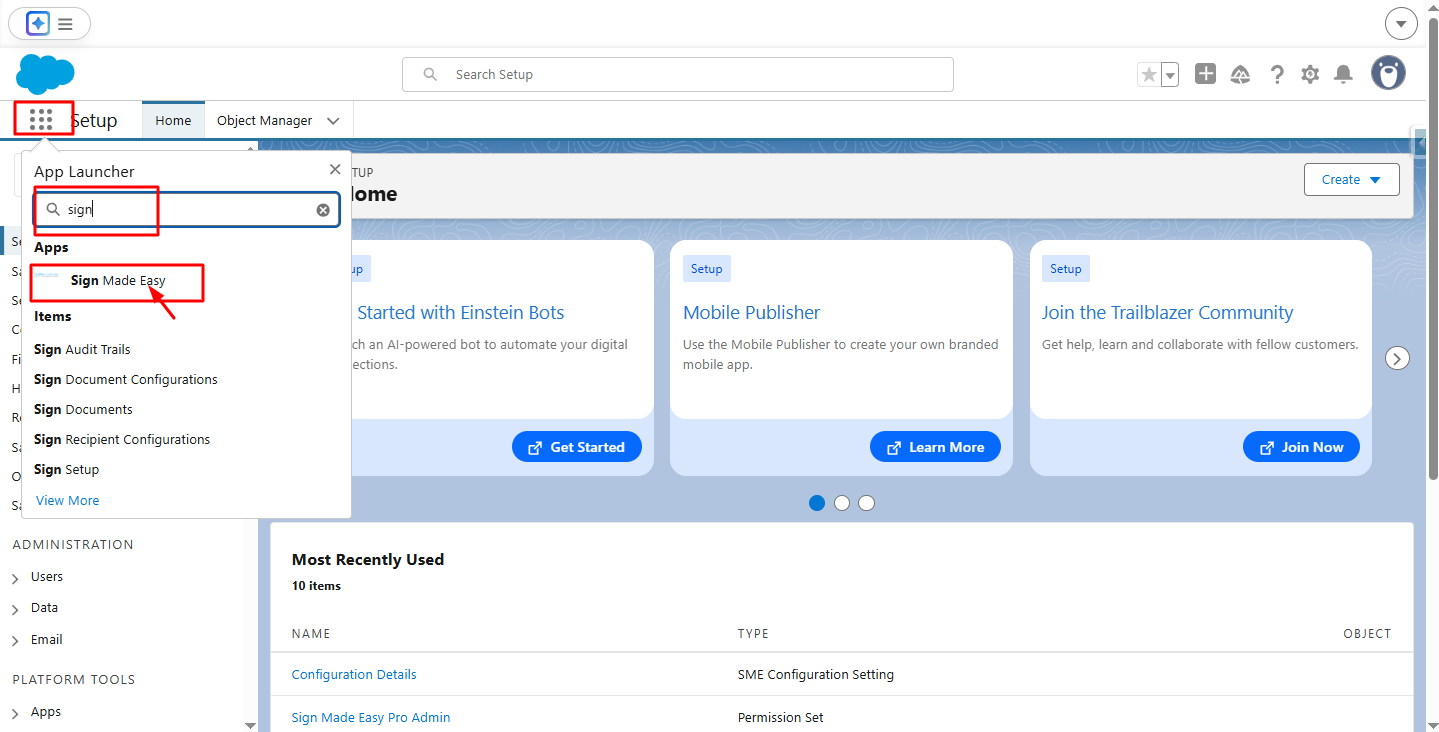
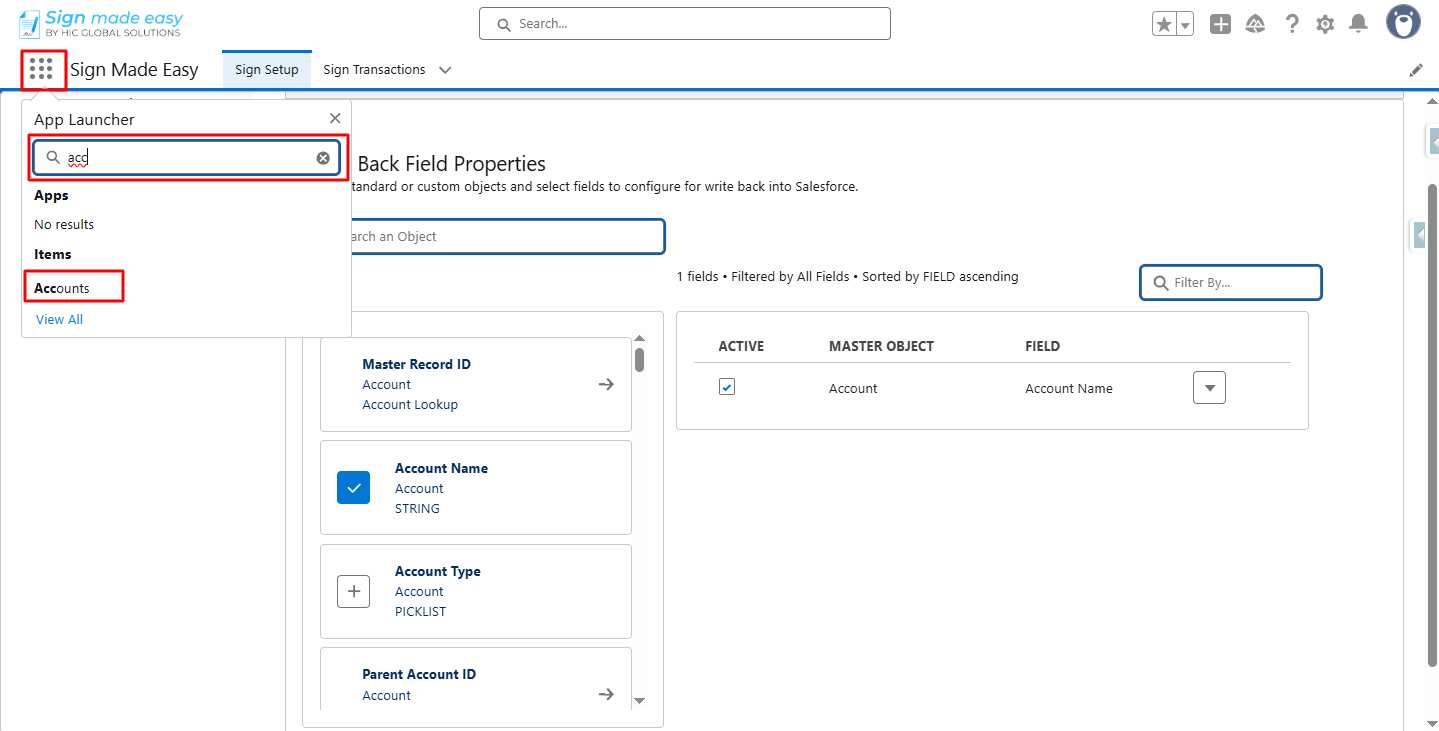
Step 1:- Navigate to App Launcher and in the quick find box search and then select the Sign Made Easy App.
Step 2:- In the Sign Setup tab, select the Write Back Configuration.

Step 3:- Select Object.

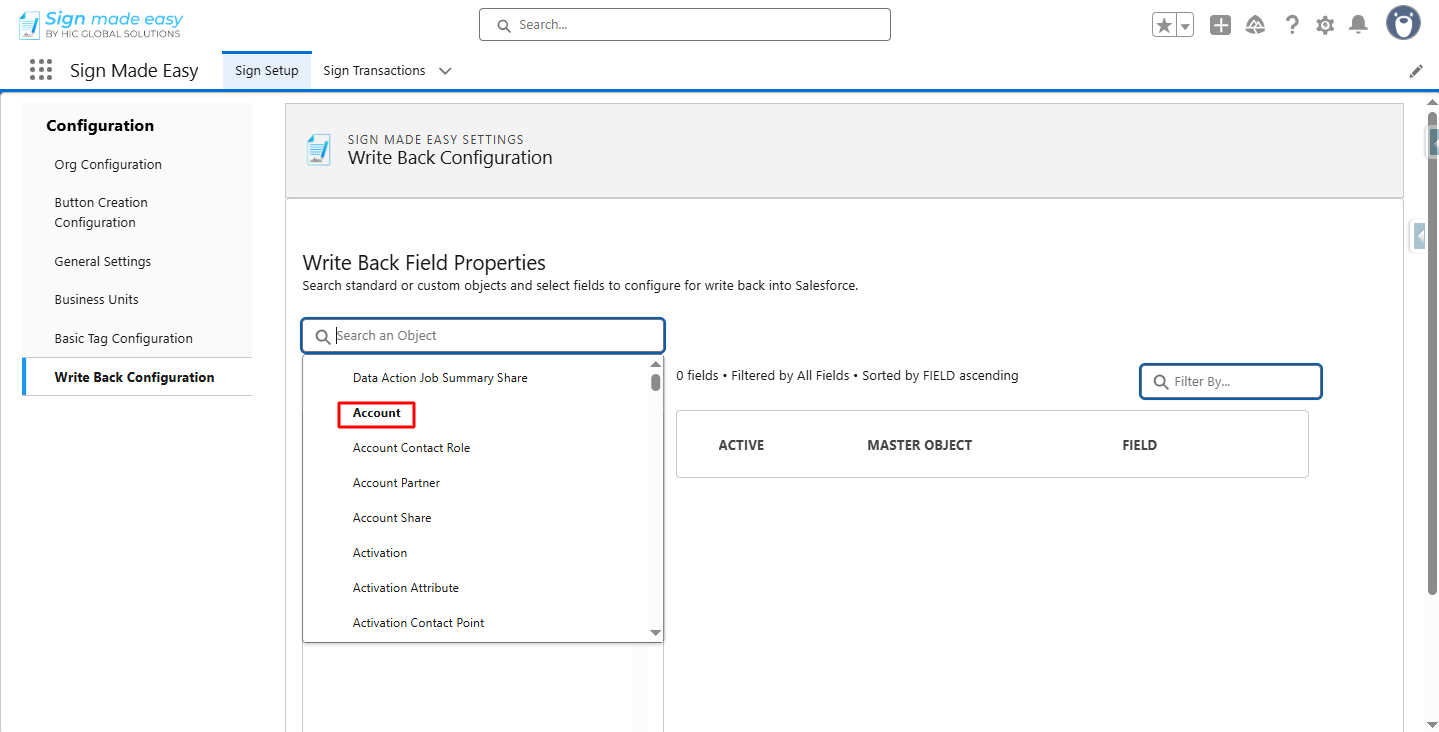
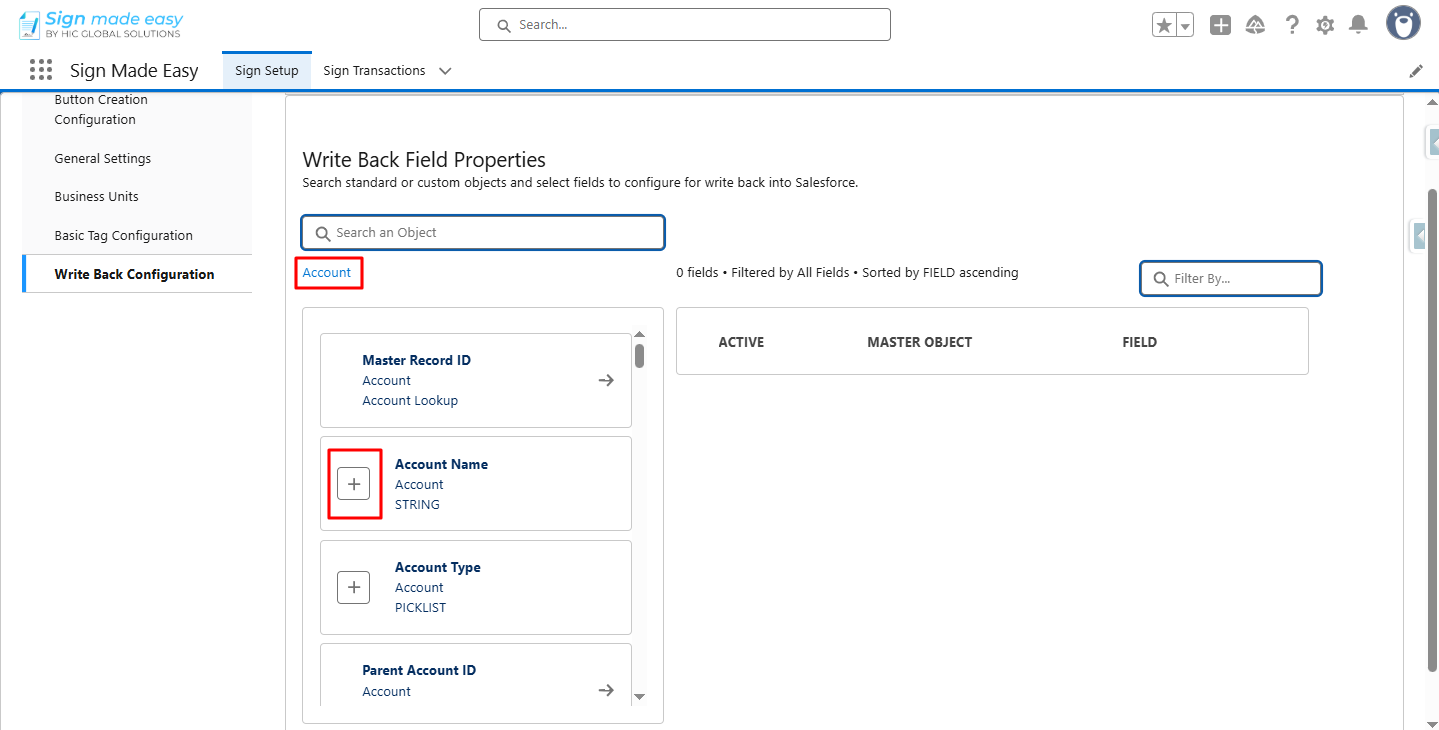
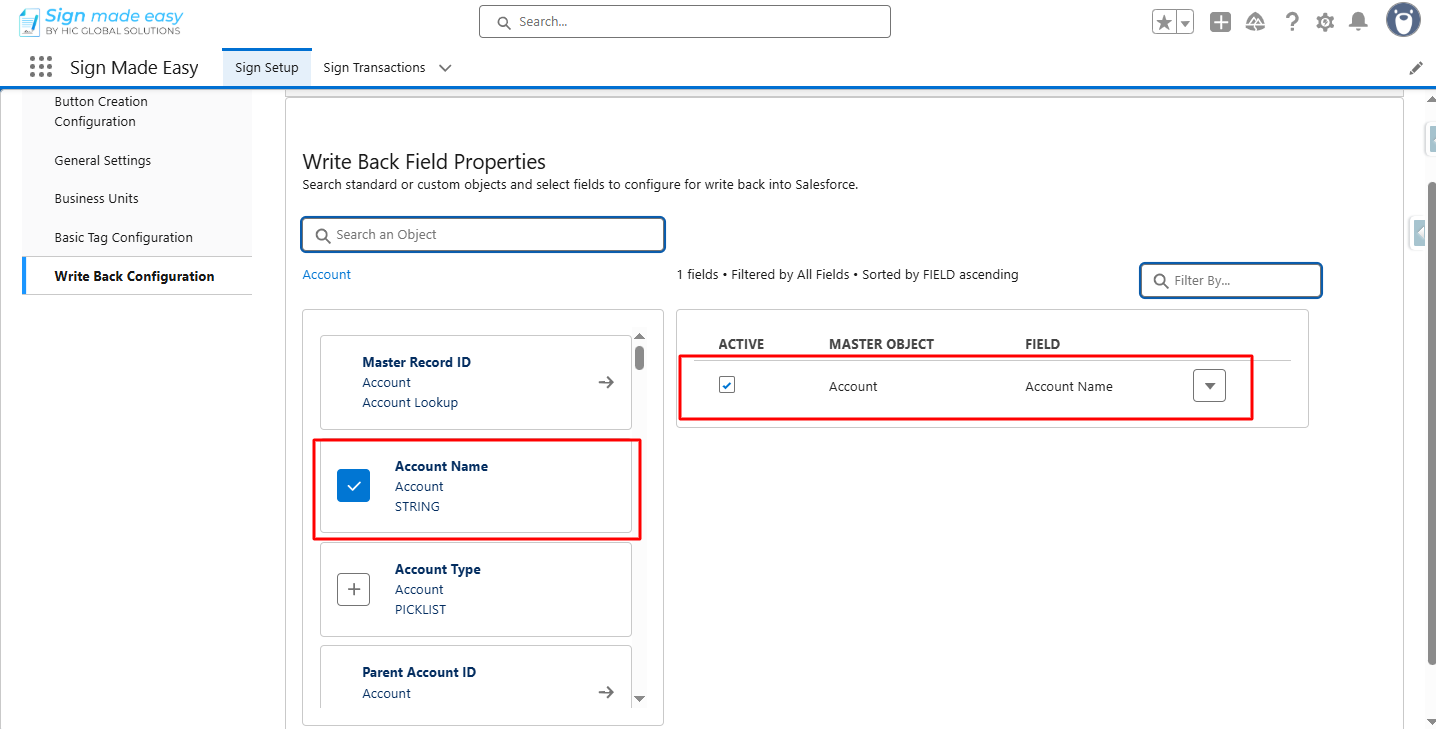
Step 4:- select the field to be made available for writeback by clicking the Add (+) button.
Step 5:- Define the basic properties of those fields.
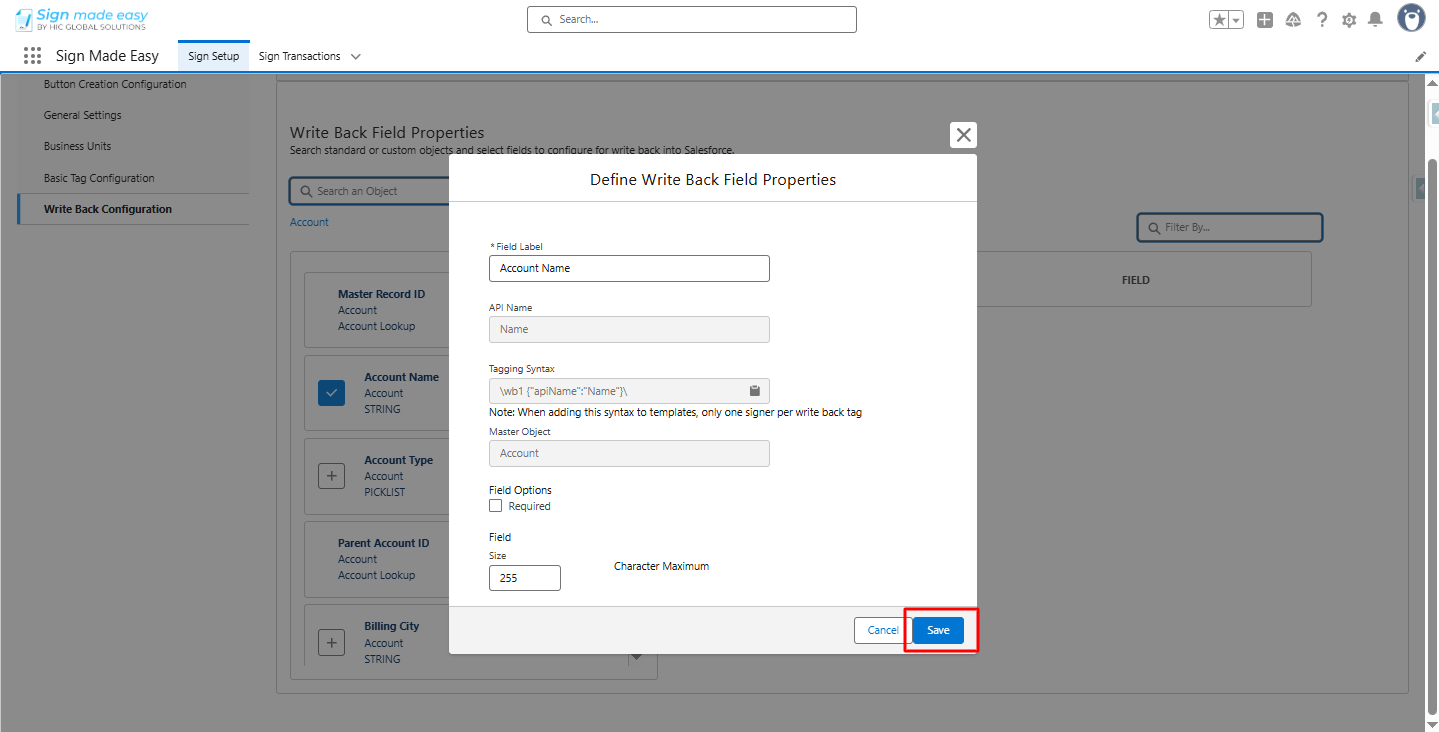
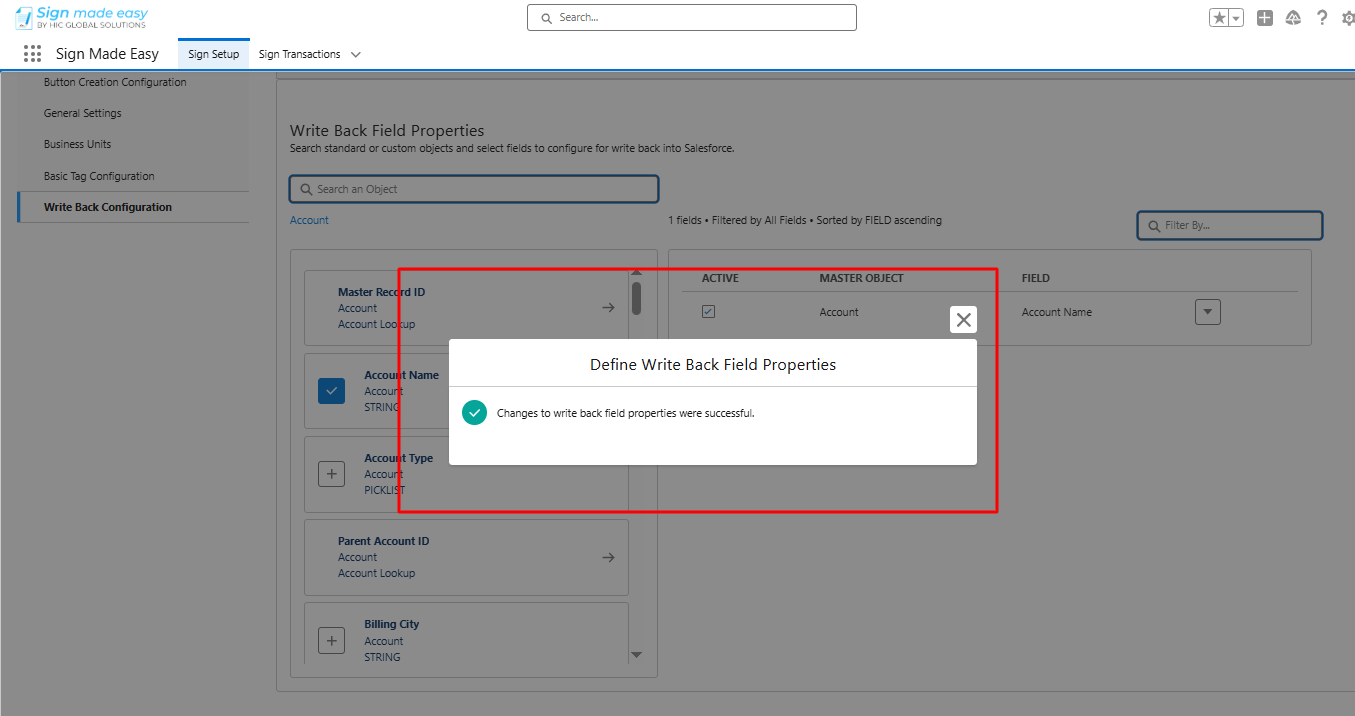
Once configured, these fields can be used as tags within the documents.
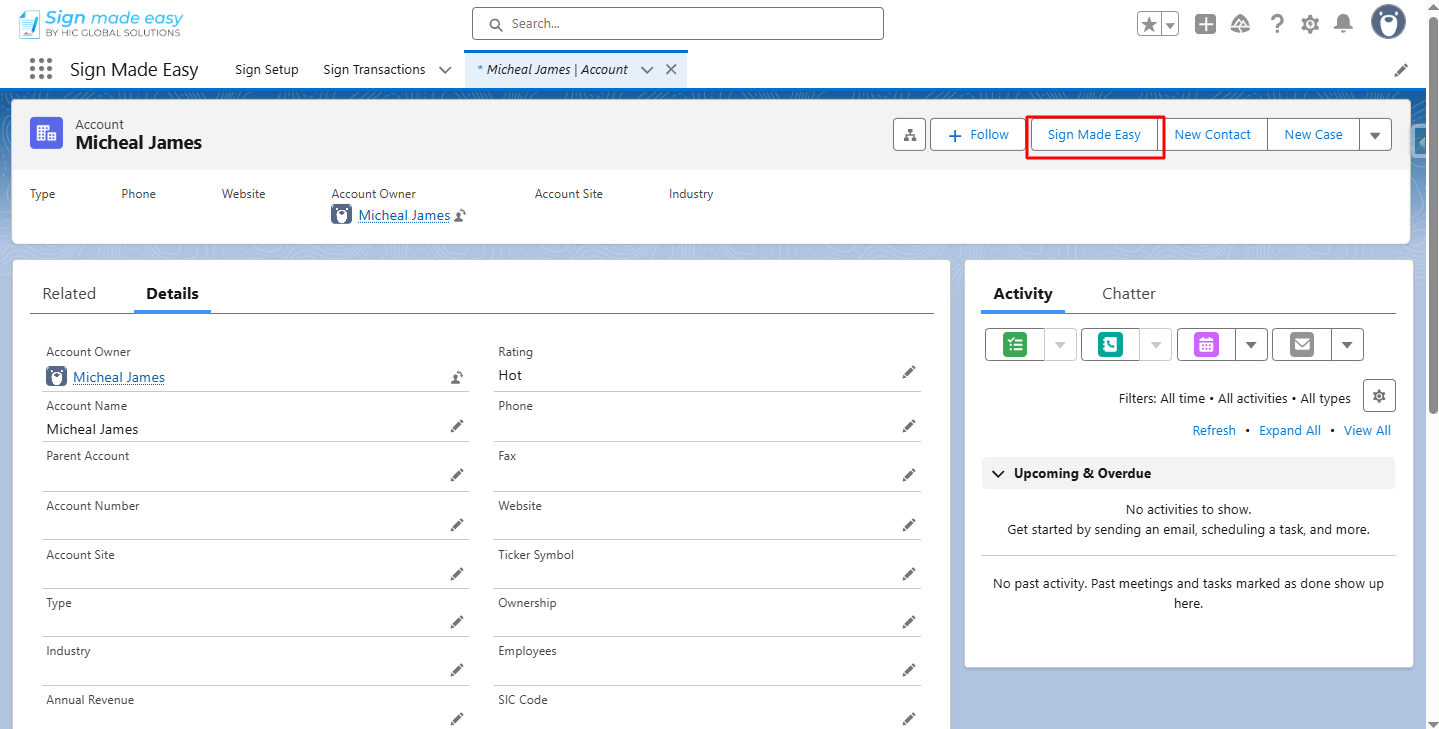
Step 6:- Open the App Launcher, search for the object, and go to its record page.
Step 7:- Click the button you created. The Create Transaction interface will appear, allowing you to add documents and recipient details.
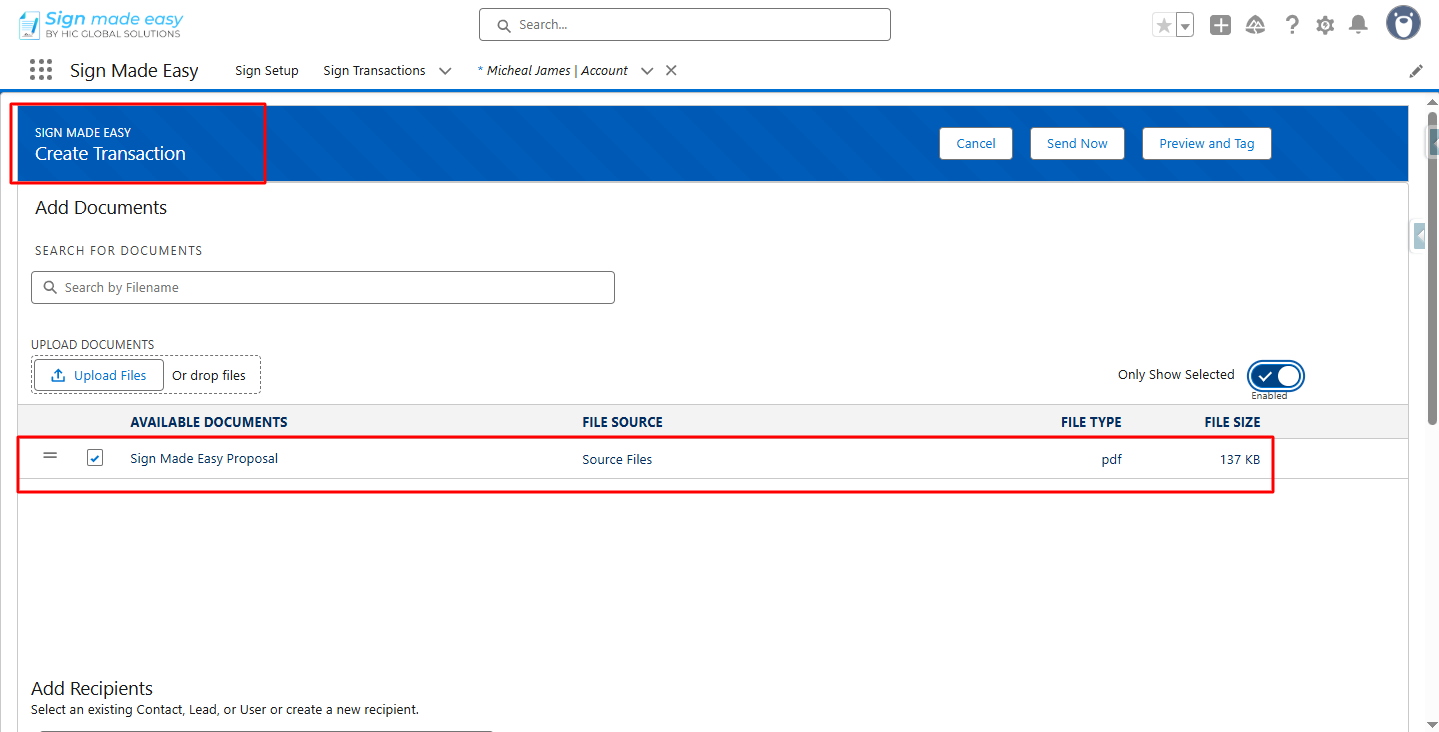
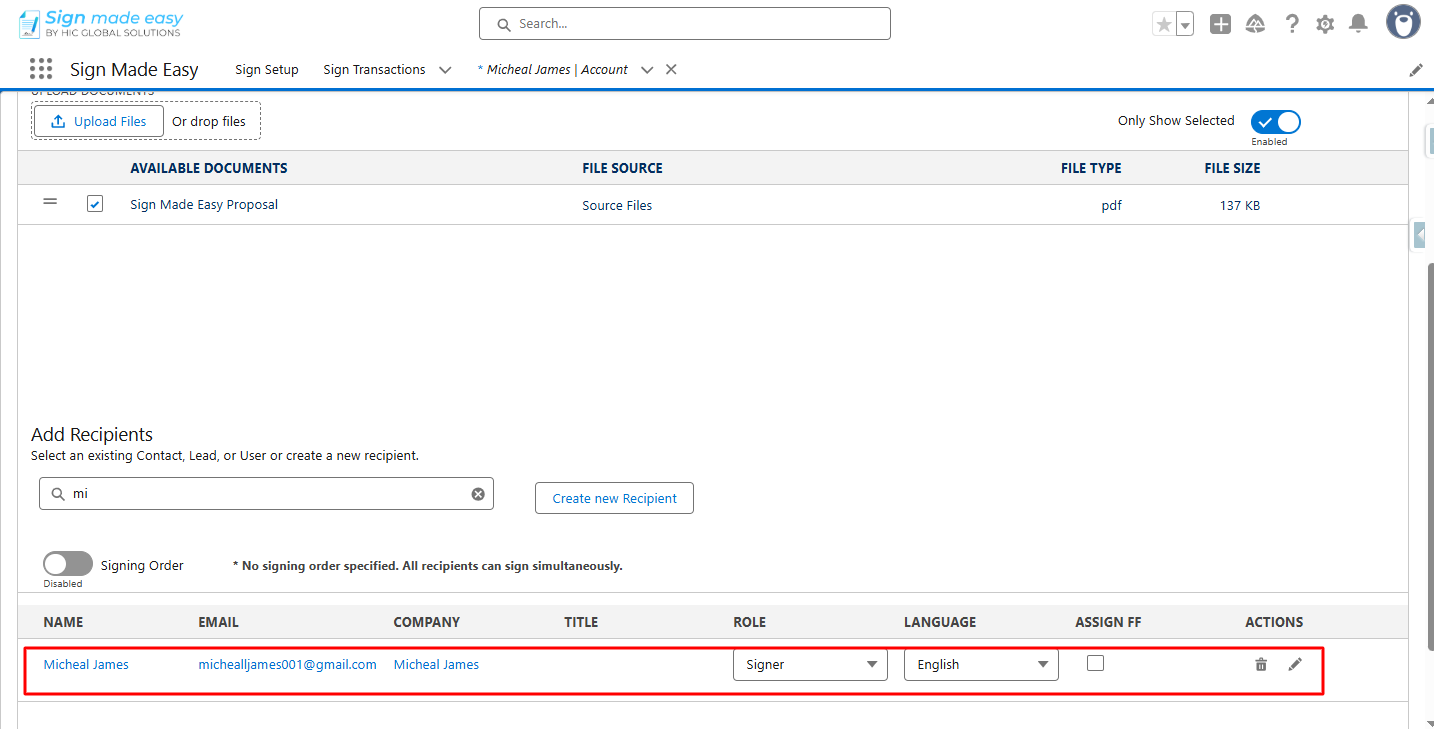
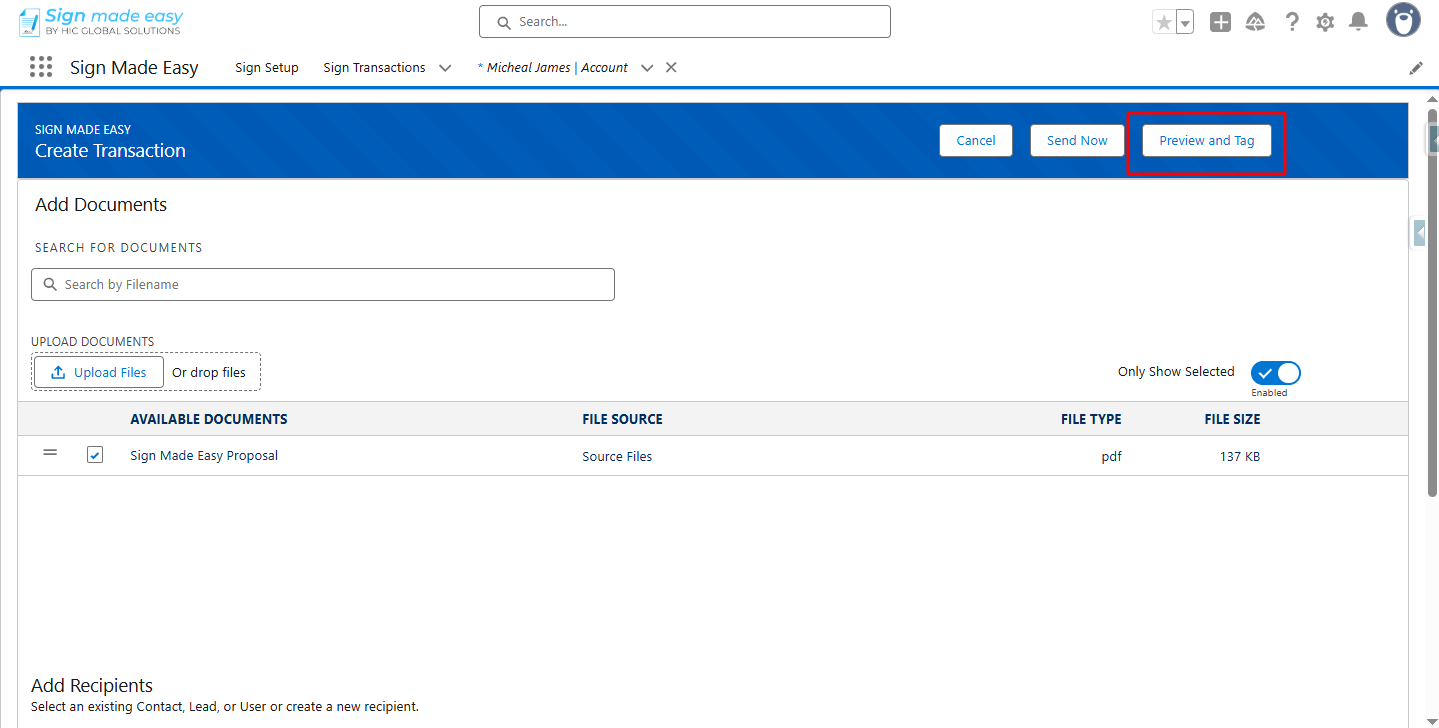
Step 8:- Click the Preview and Tag button to add the necessary tags to the document.
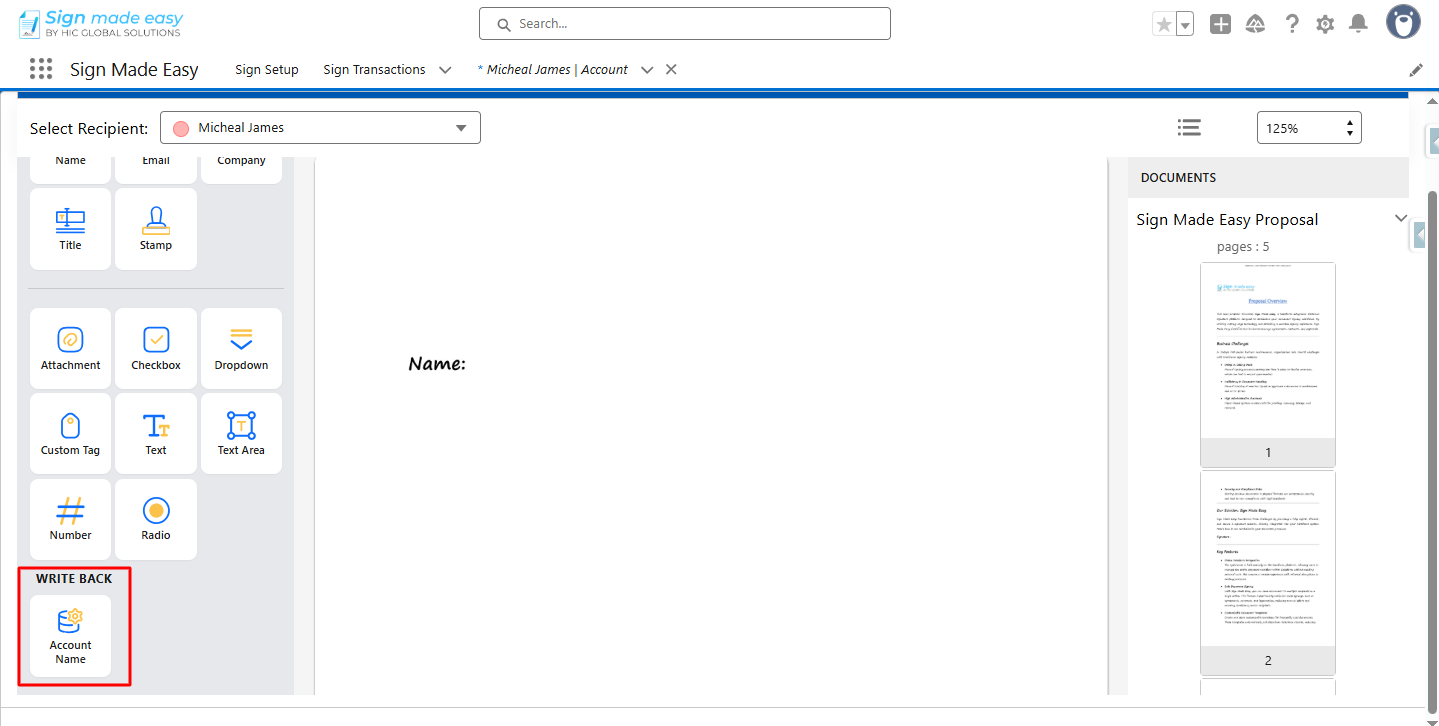
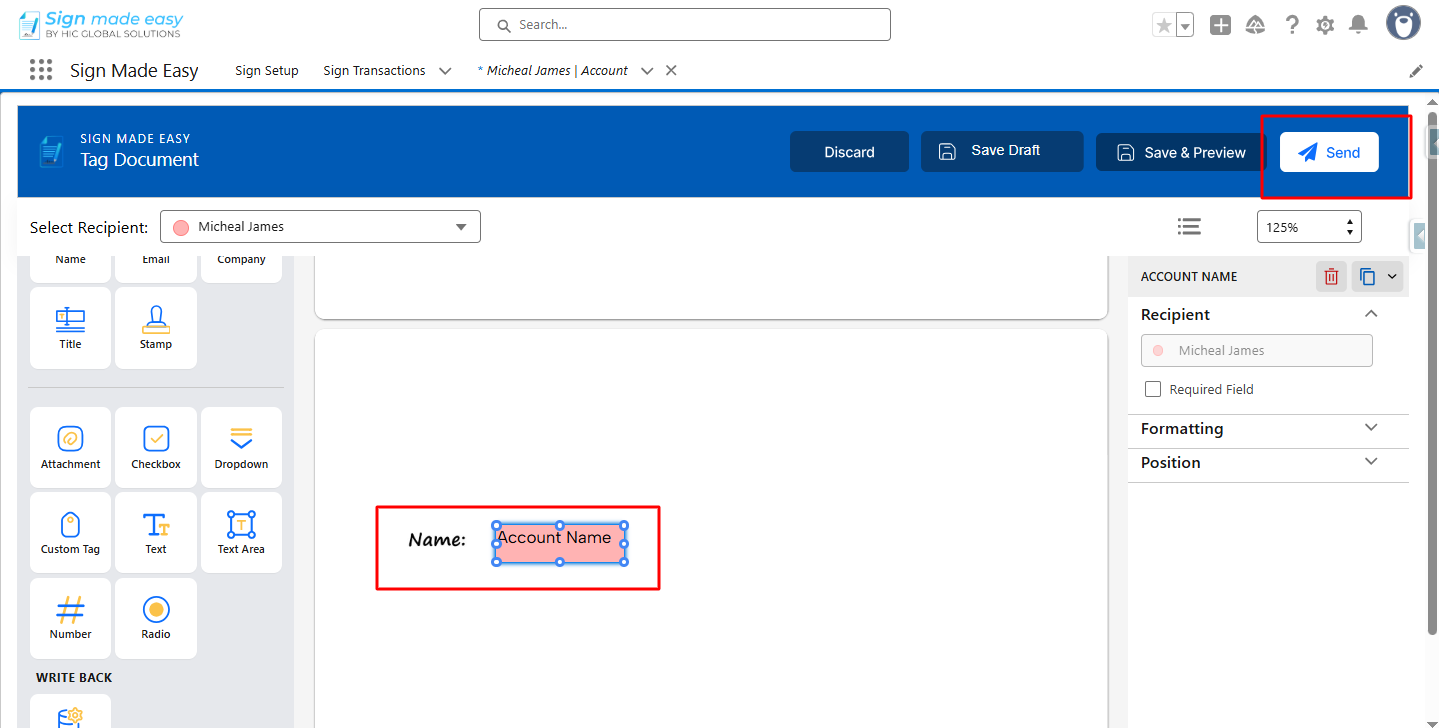
Step 9:- Now, drag and drop the writeback tag onto the documents at the desired locations.
Step 10: Now, click the Send button to send the email to the recipients.
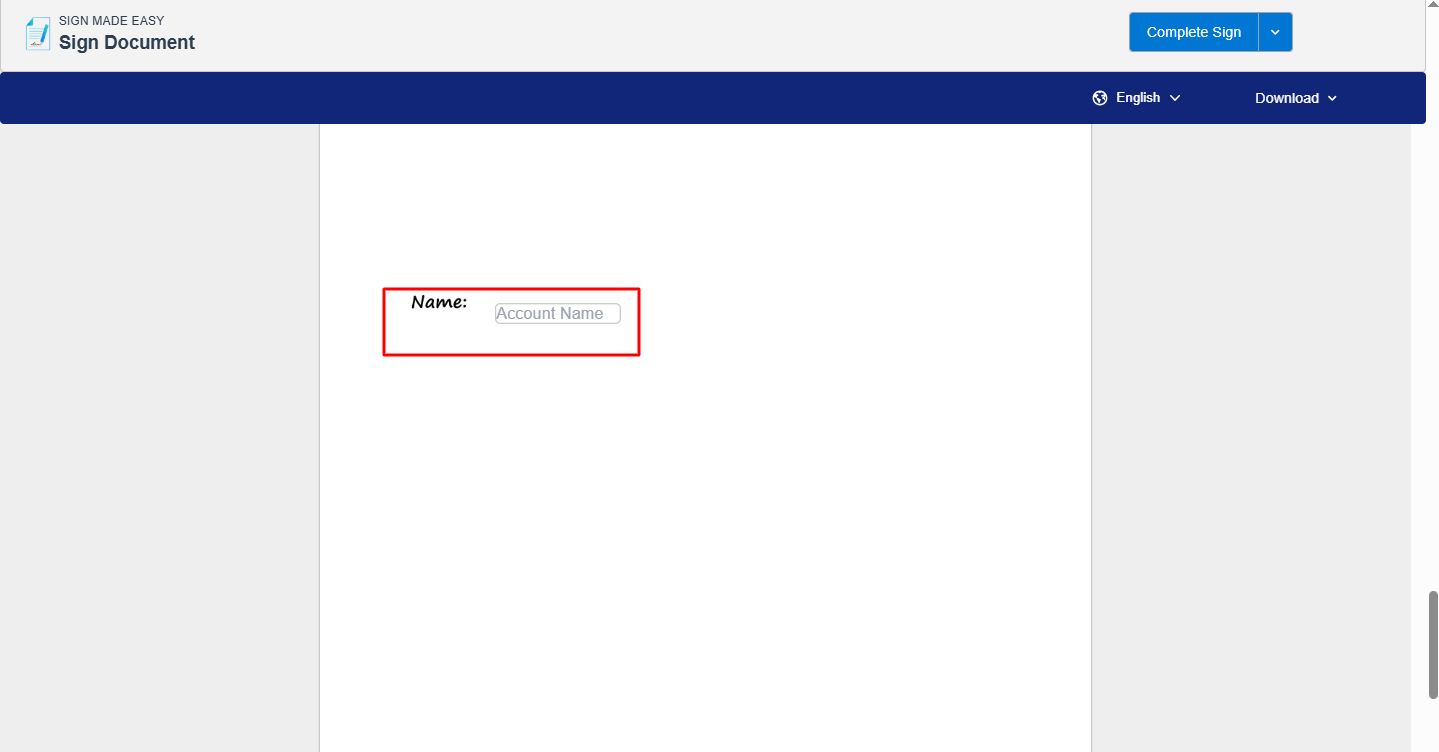
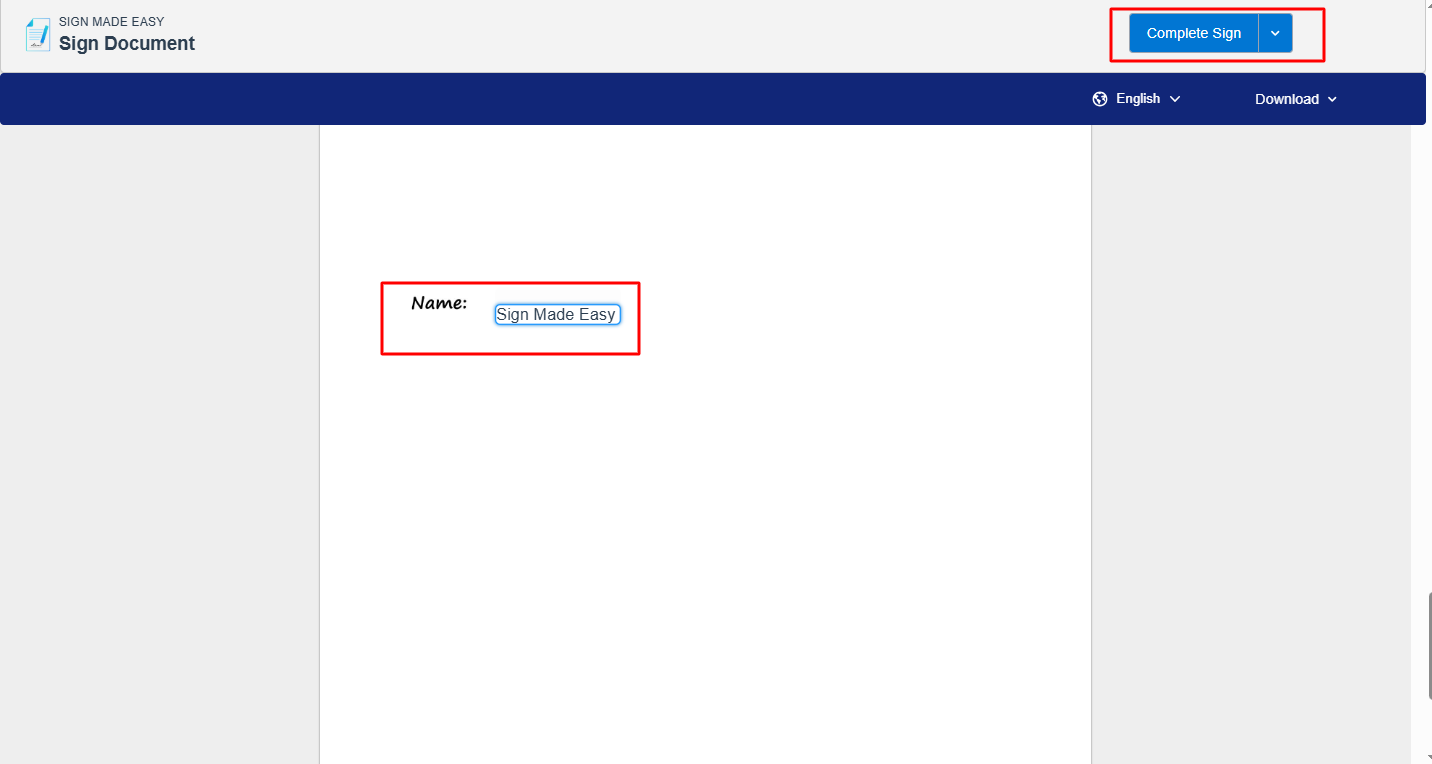
Step 11:- To complete the transaction, click on each tag and enter the required information to complete the transaction.
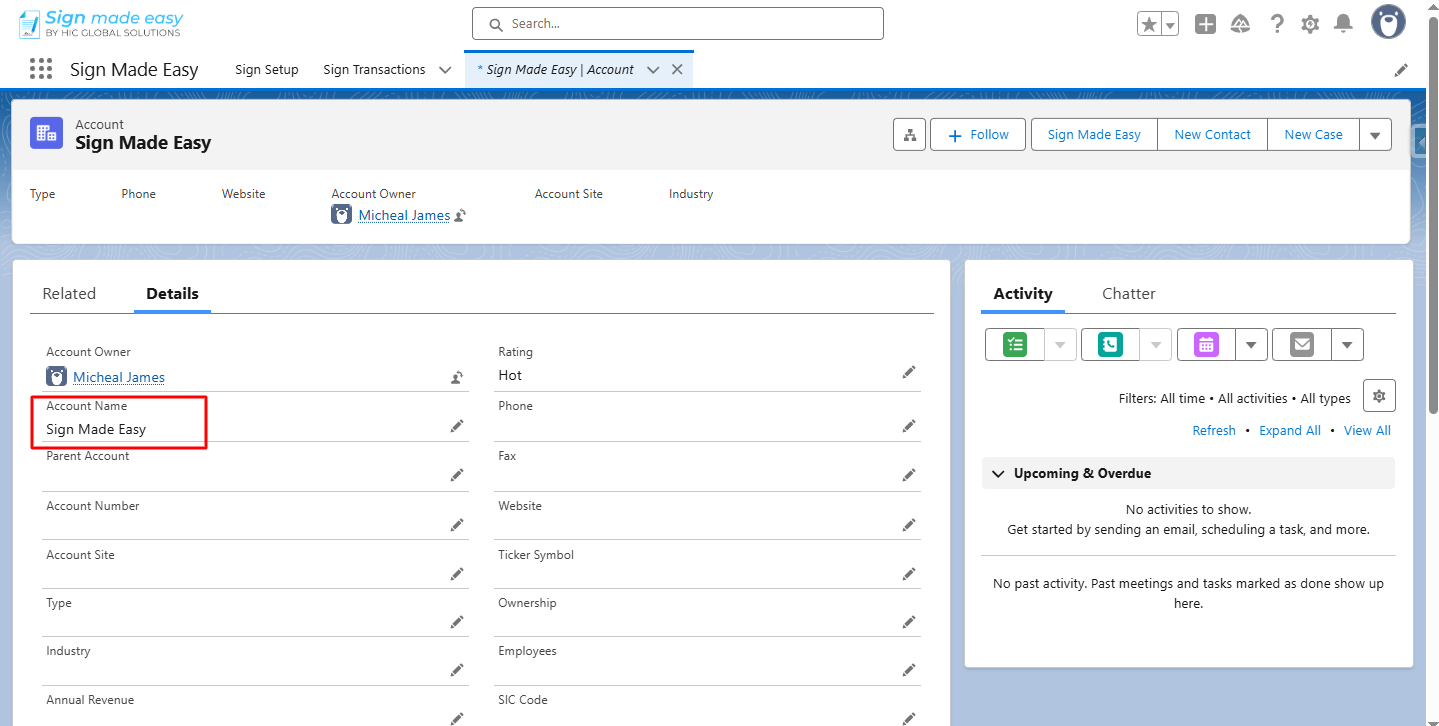
Step 12:- After signing, open the originating object record and confirm that the tagged data has updated the correct fields.
Conclusion
By following the steps discussed in this guide, you can easily configure Write Back functionality that enables you to store the user-filled data back to the Salesforce record. Apart from this, the Salesforce eSignature tool – Sign Made Easy offers multiple advanced functions such as document summarization, BGM Transaction, Digital Signature, Custom Lookup, Business Unit, Form Fields, etc. To access all these features, connect with the Sign Made Easy support team now!