








Managing deadlines is critical in any eSignature workflow, and automating expiration dates ensures timely document completion. With the right Salesforce eSignature solution, you can auto-populate transaction expiration details and eliminate manual errors. This guide explains how to configure expiration parameters in Sign Made Easy for a more efficient and controlled signing process.
Note: To auto-populate transaction expiration details, please include the required expiration parameters in the Sign Made Easy button configuration. If the button already exists, simply update it by adding these parameters. If not, create a new Sign Made Easy button and configure it accordingly by following the steps below.
Let’s check out the step-by-step guide:
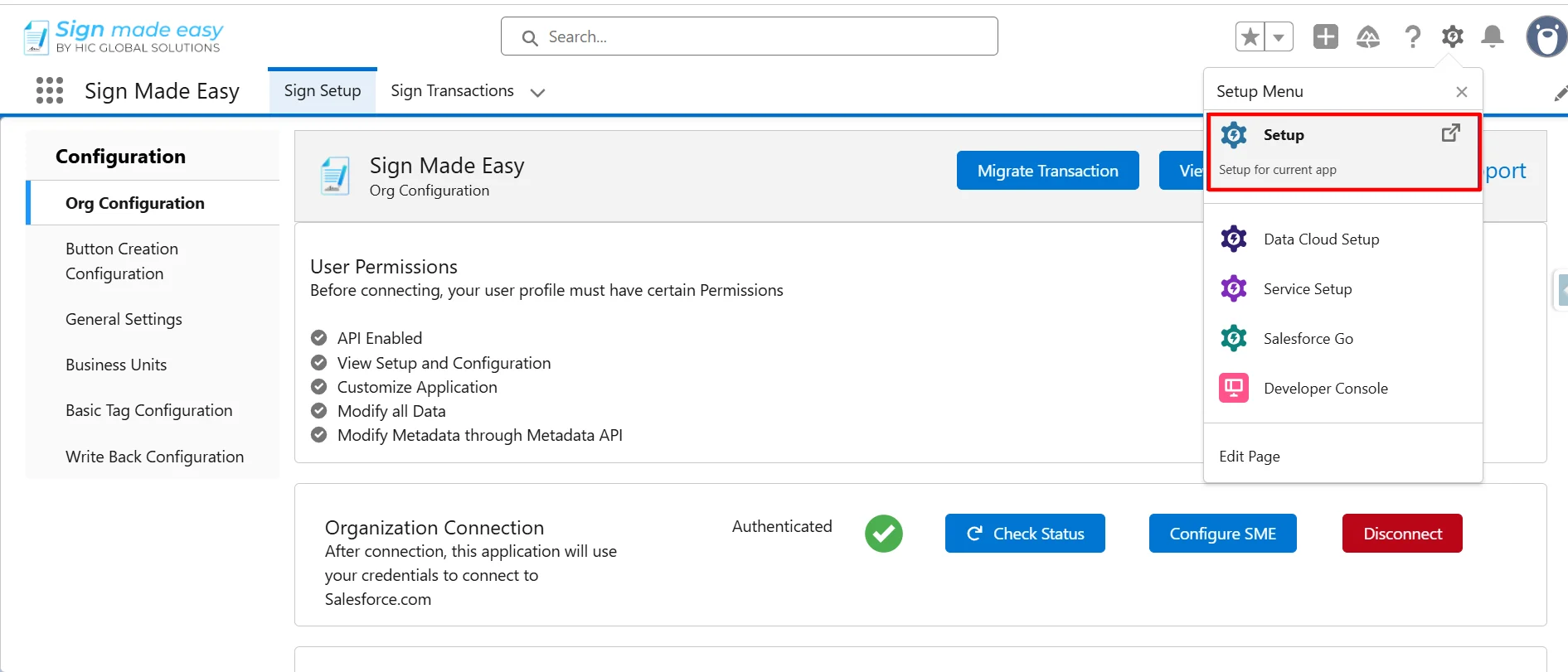
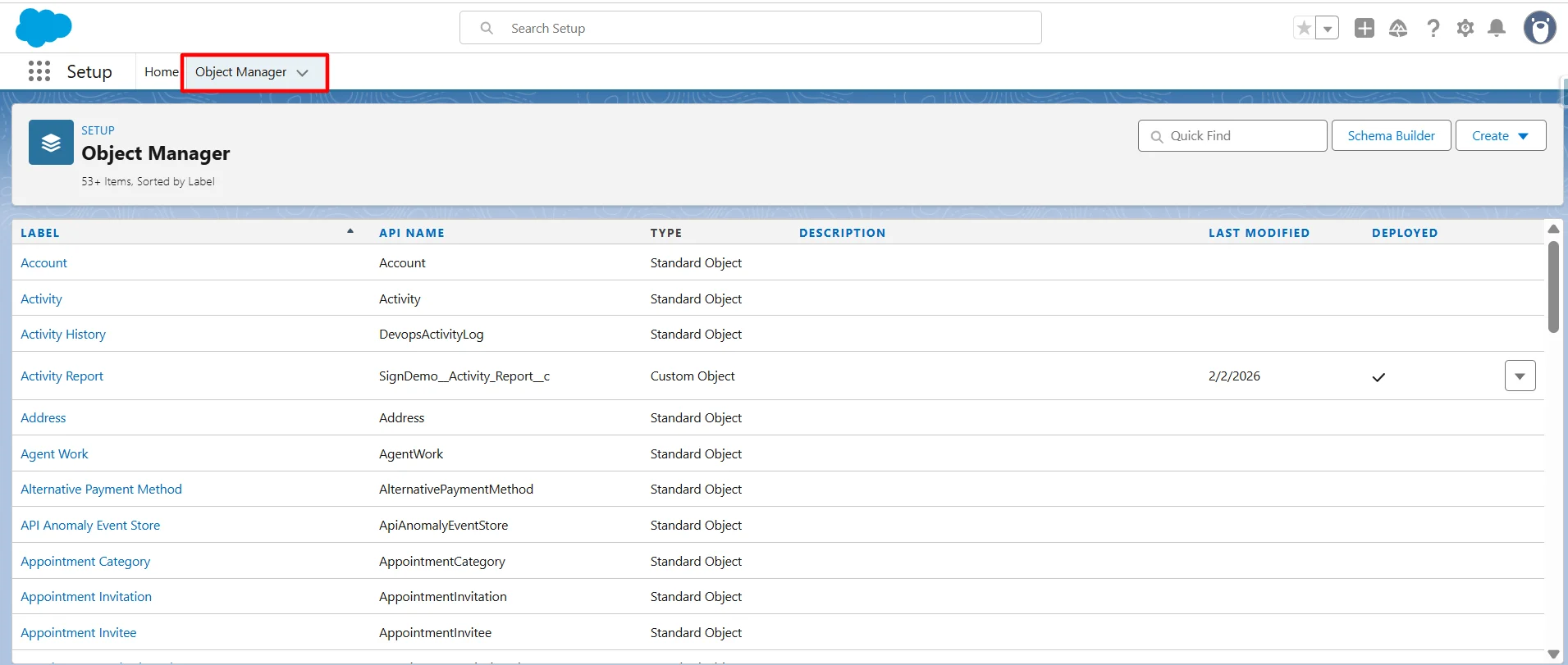
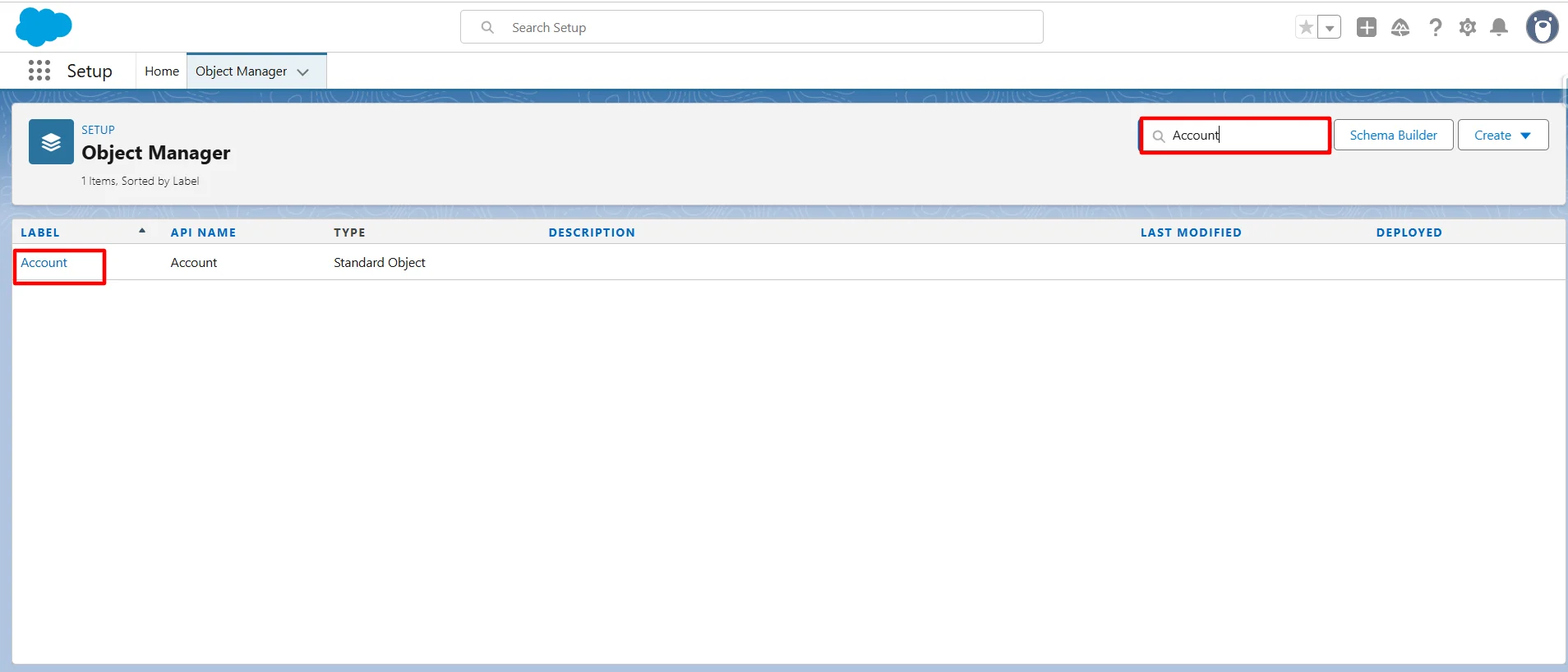
Step 1: Navigate to Setup, then access Object Manager. Then, search for the relevant object where the Sign Made Easy button is configured and select it to open its settings.
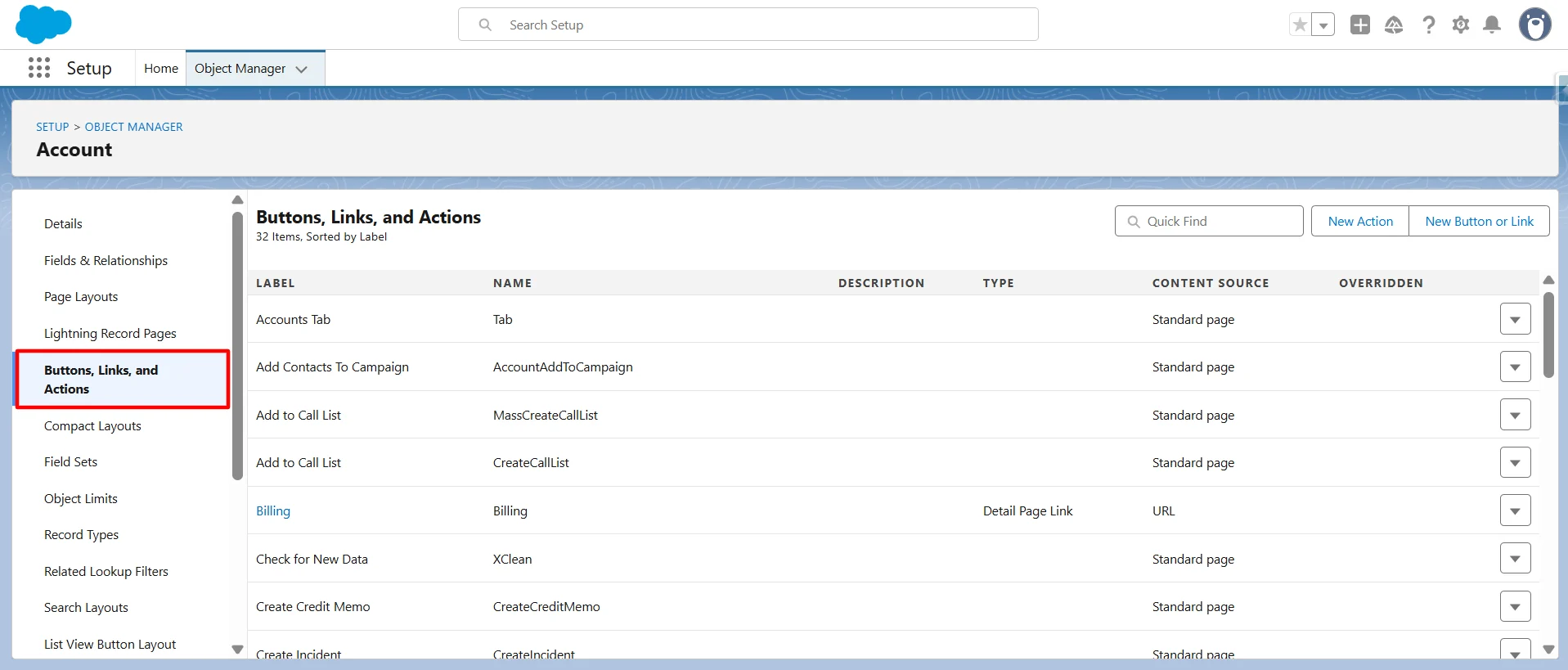
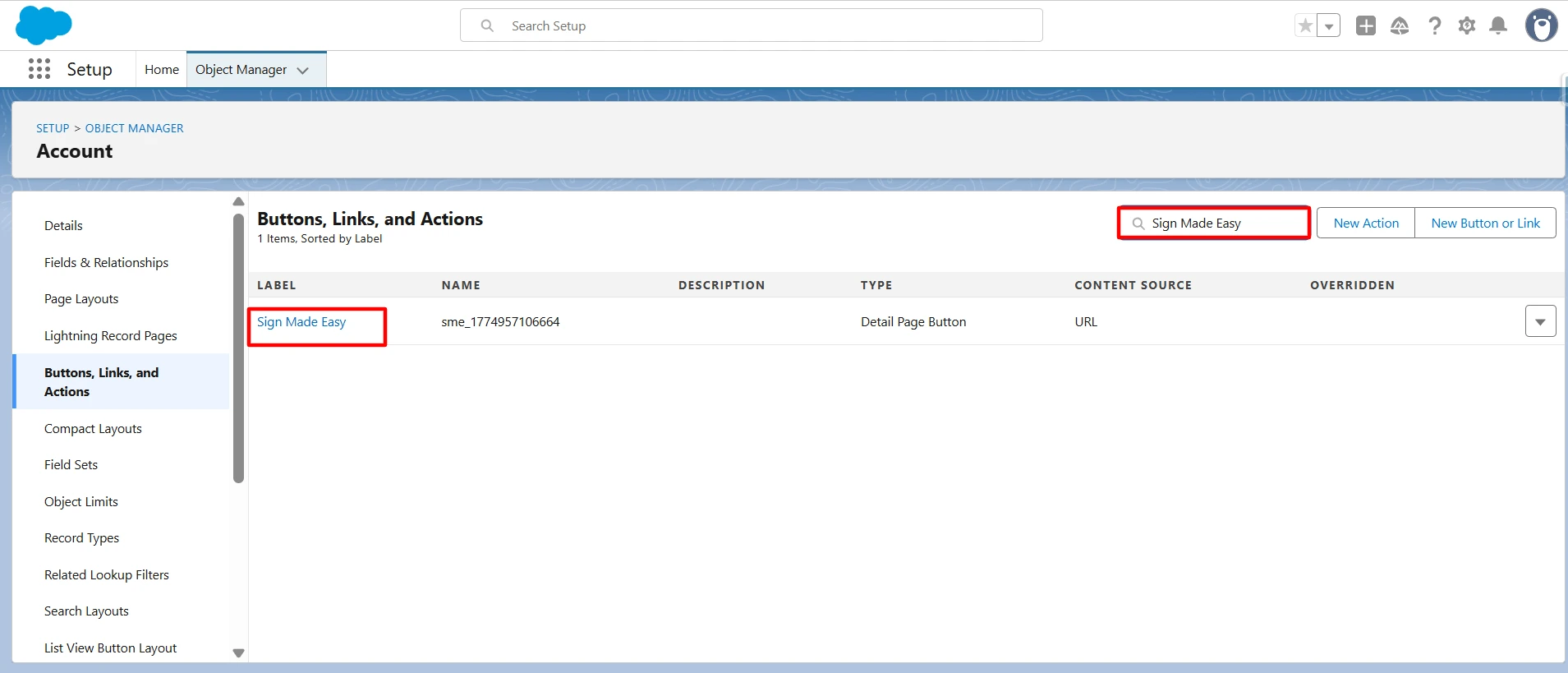
Step 2: Within the selected object, navigate to Buttons, Links, and Actions, then locate and select the previously created Sign Made Easy button.
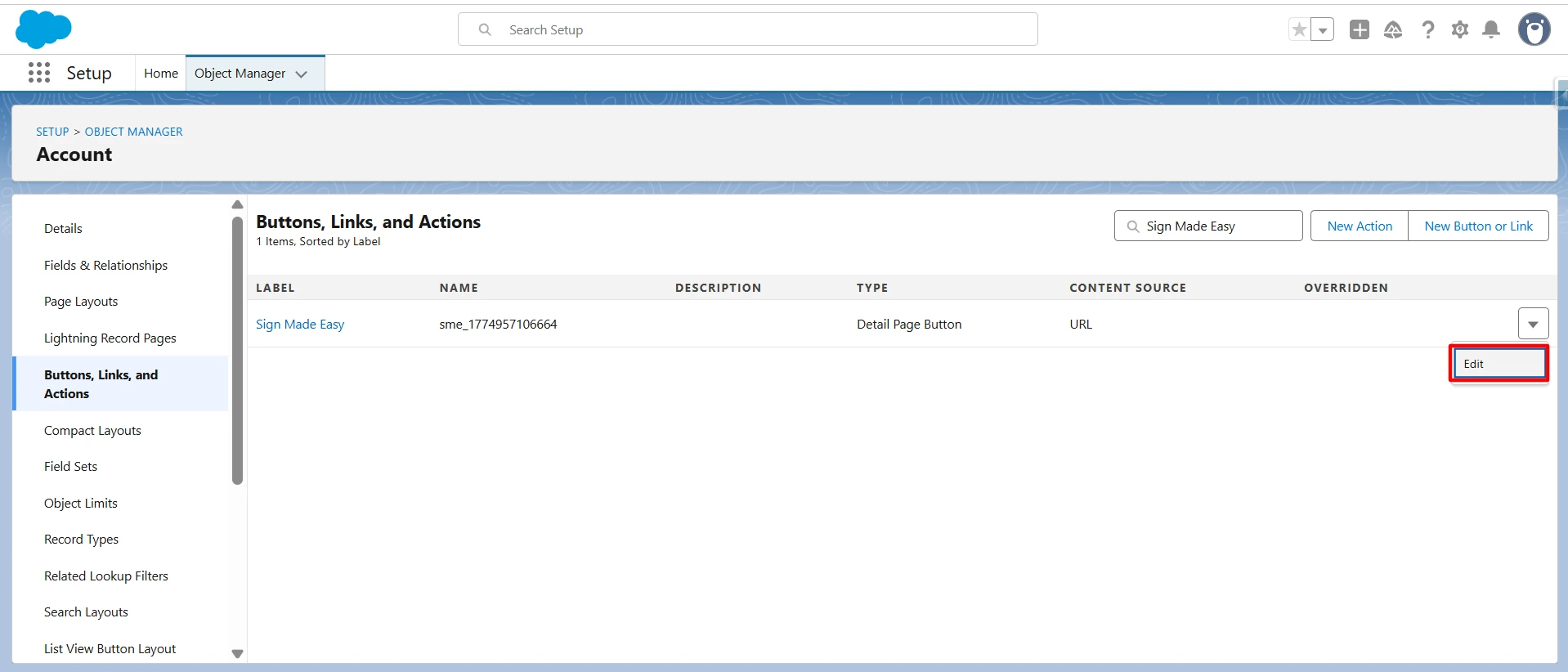
Step 3: Click Edit to modify the Sign Made Easy button parameters.
Step 4: Add the following parameters to the Sign Made Easy button configuration to enable automatic population of transaction expiration details.
Parameter Name: &transExpDays
Parameter Description: transExpDays parameter is used to automatically populate the transaction expiration date based on the specified number of days.
Note: If you want to auto-populate the Transaction Expiration Date exactly based on the date field of the parent record (from which the e-signature process is initiated), then you need to calculate the difference by subtracting the current date (today) from that parent record’s date field value. Alternatively, you may provide a predefined number of days to calculate the expiration date.
Here are examples for both approaches:
- Using a predefined number of days:
You can directly pass the number of days to calculate the expiration date from today.
Example:
/flow/hic_signeasy/Sme_AddAndUploadDocument?recordId={!Account.Id}&transExpDays=10
This sets the transaction expiration date to 10 days from the current date.
- Using a dynamic date field from the record:
You can reference a date field from the selected record and calculate the expiration accordingly.
Example:
/flow/hic_signeasy/Sme_AddAndUploadDocument?recordId={!Account.Id}&transExpDays={!Account.SignDemo__SLAExpirationDate__c – TODAY()}
Here, SignDemo__SLAExpirationDate__c is a custom date field created on the parent object. If its value is 30/04/2026, the transaction expiration is calculated based on the difference between this date and the current date, i.e., today.
To calculate this manually:
- Today’s date: 01/04/2026
- Expiration date: 30/04/2026
Now calculate the difference in days:
- Total days remaining in April after 1st = 29 days
So, transExpDays = 29 days and final Transaction Expiration Date = 30/04/2026

Final Transaction Expiration Date Button URL:
/flow/hic_signeasy/Sme_AddAndUploadDocument?recordId={!Account.Id}&transExpDays={!Account.SignDemo__SLAExpirationDate__c – TODAY()}

Step 5: Open the App Launcher, search for the object where the SME button was created, and select it to proceed.
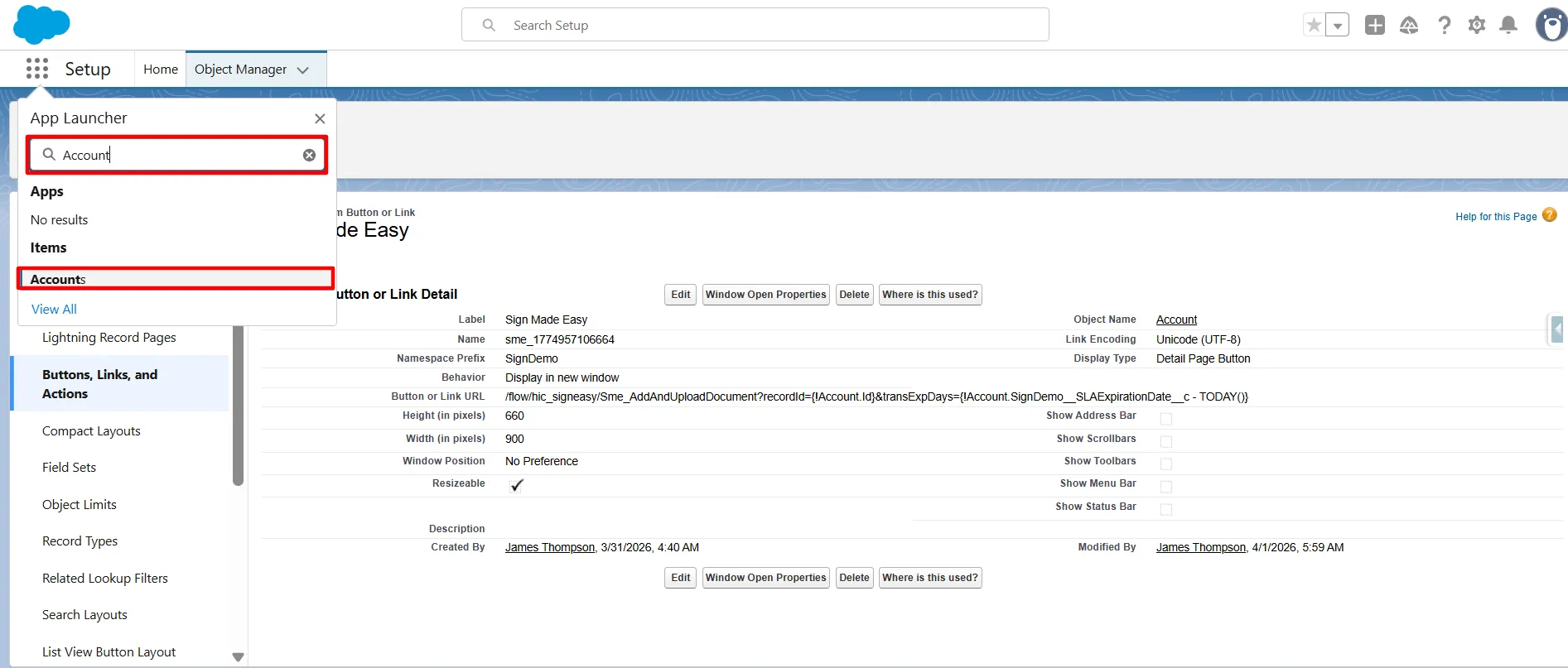
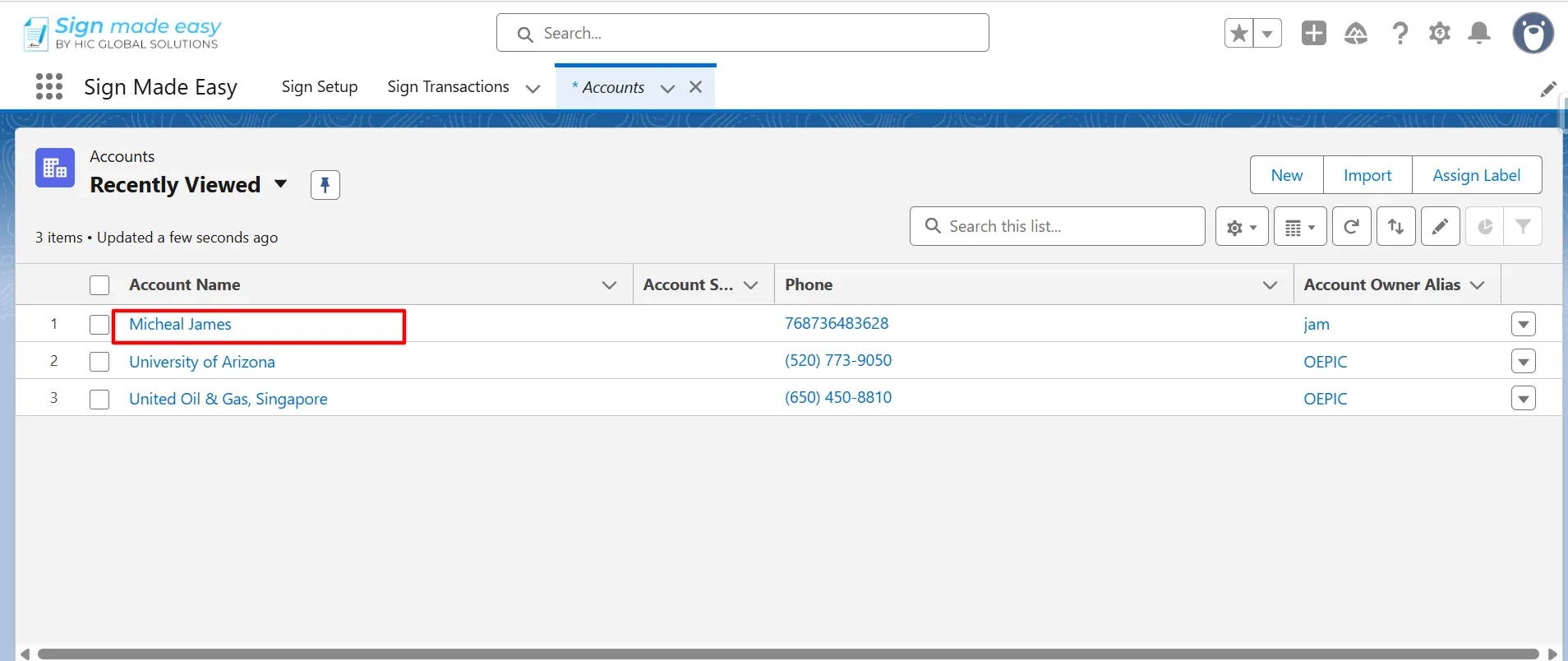
Step 6: Navigate to the record page of the selected object from which you intend to initiate the SME process. If no record exists, create a new one by clicking the New button before proceeding.
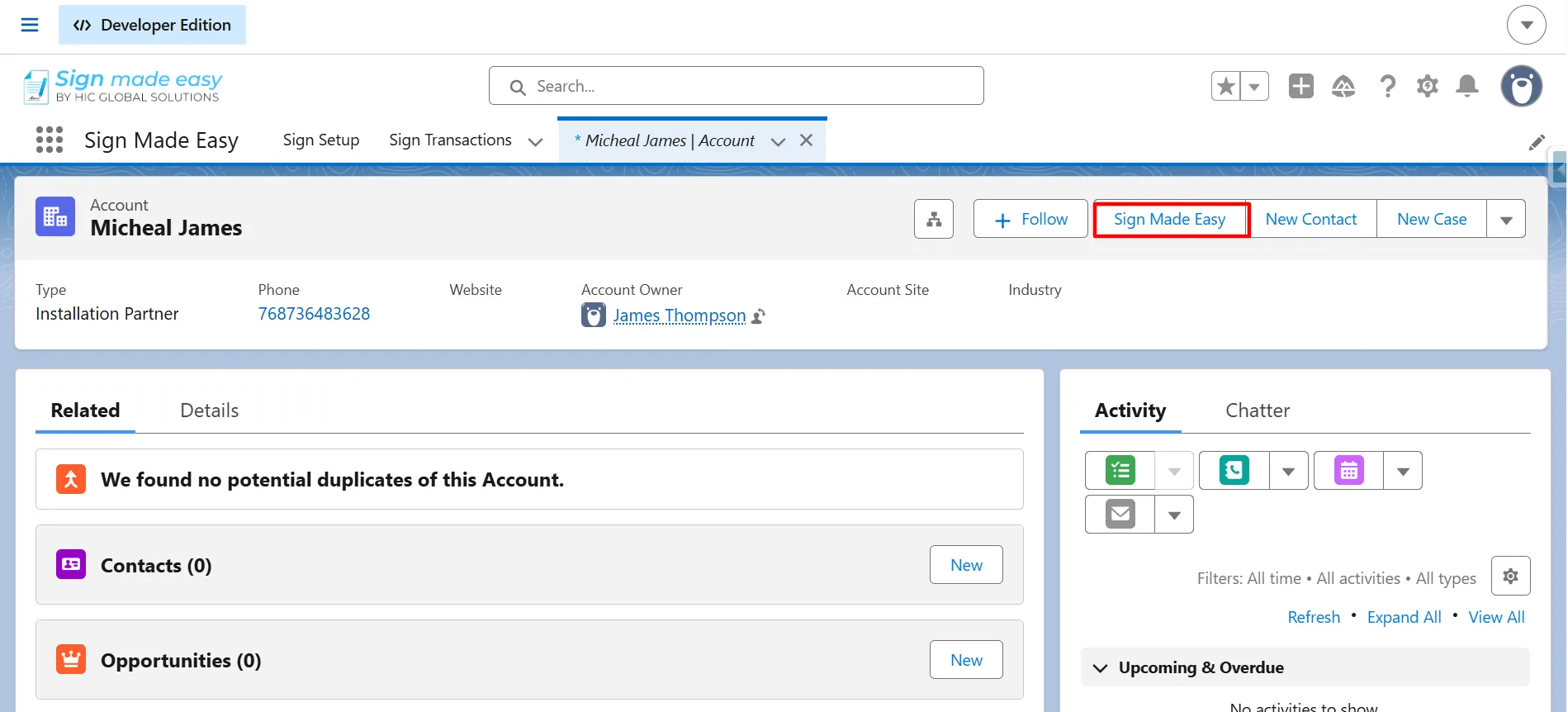
Step 7: Next, click the button you created. The Create Transaction interface will appear, allowing you to add documents and recipient details.
Note: Recipient and document details can be included in the button URL, or alternatively, they can be added and uploaded manually during the process. For more details, refer to Button URL parameters.
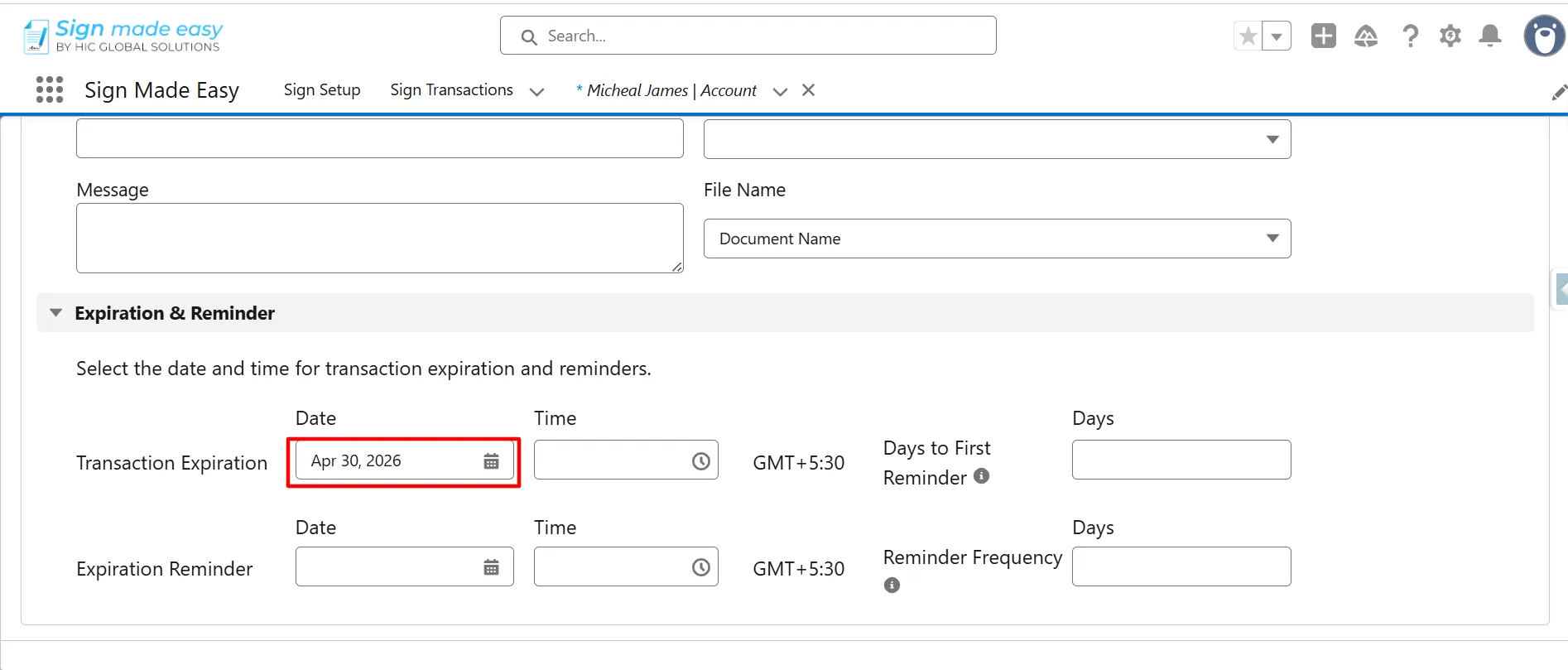
You have successfully auto-populated the transaction expiration details.
Conclusion
Auto-populating transaction expiration dates helps streamline your eSignature process while improving accuracy and compliance. By using dynamic parameters, businesses can automate deadlines and enhance workflow efficiency. Implementing this in your Salesforce eSignature solution ensures faster execution and better control over document lifecycles.
Learn How Trusted Timestamps Secure Your Documents