




Managing document workflows efficiently is important for every business, especially when agreements need to be updated, corrected, or stopped before completion. With Sign Made Easy, users can easily cancel transactions whenever required, ensuring better control over the signing process. As a trusted eSignature for Salesforce solution, Sign Made Easy helps businesses streamline document management directly within Salesforce.
In this guide, we’ll walk through the step-by-step process to cancel a sign transaction using eSign for Salesforce, while ensuring all recipients are properly notified about the cancellation.
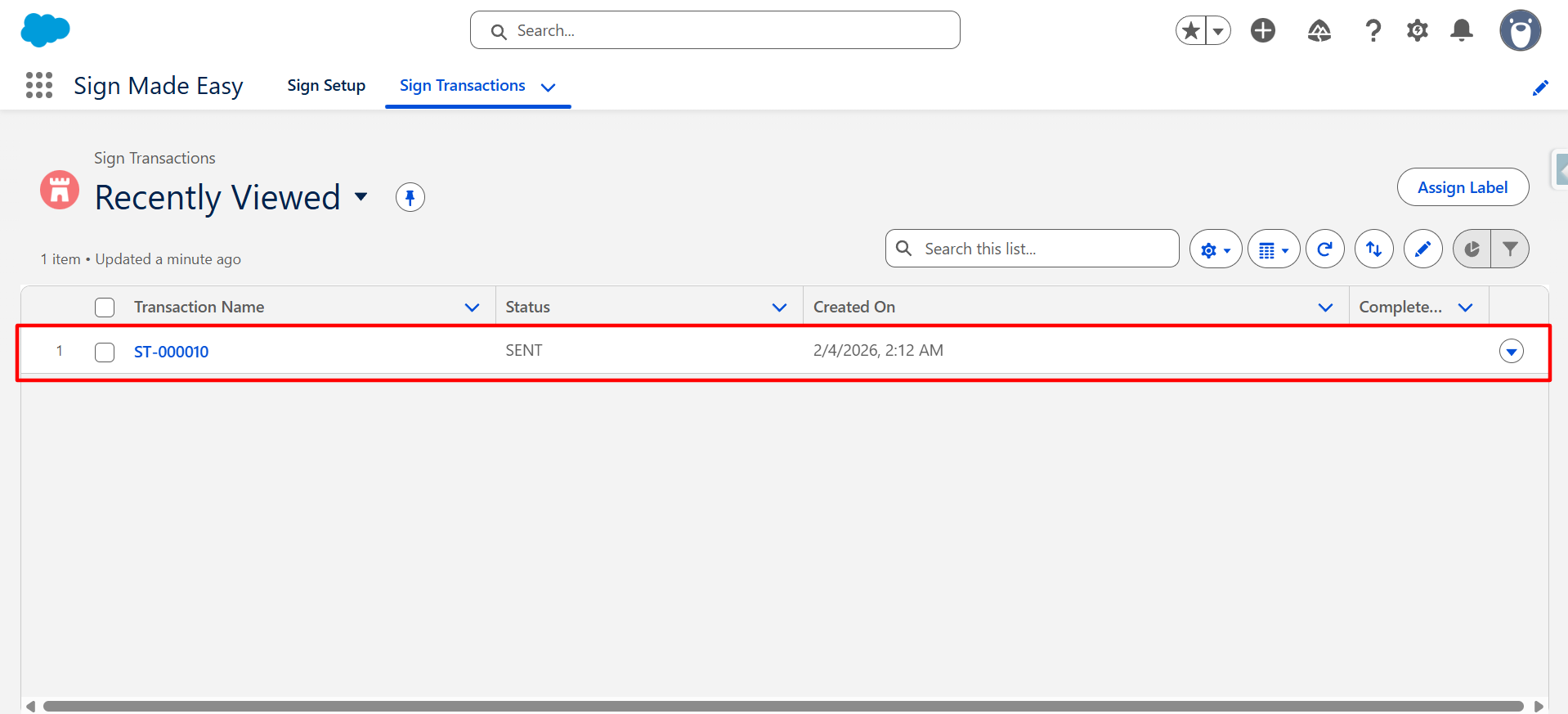
Step 1: Navigate to the Sign Transactions option and open the sign transaction record that the sender wants to cancel.
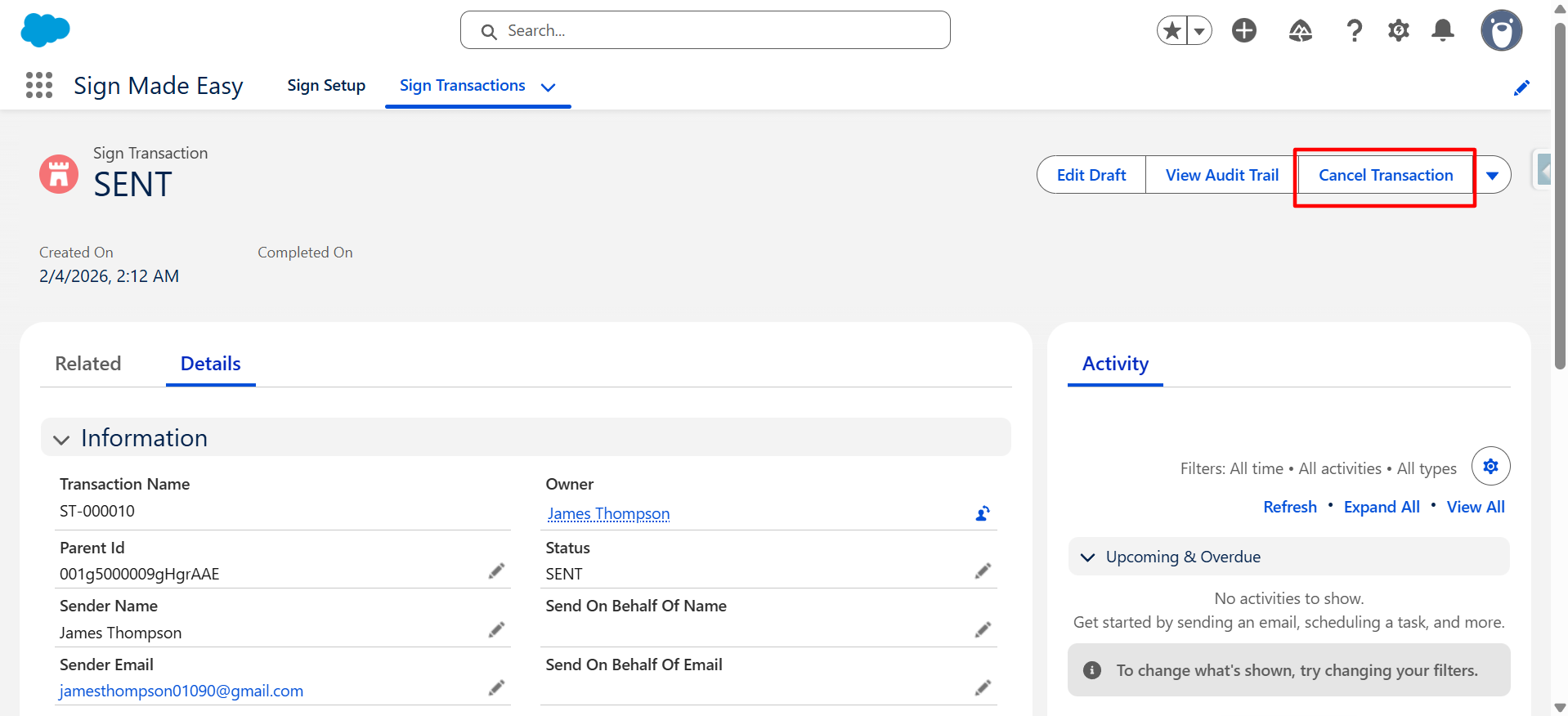
Step 2: Click on the Cancel Transaction button.
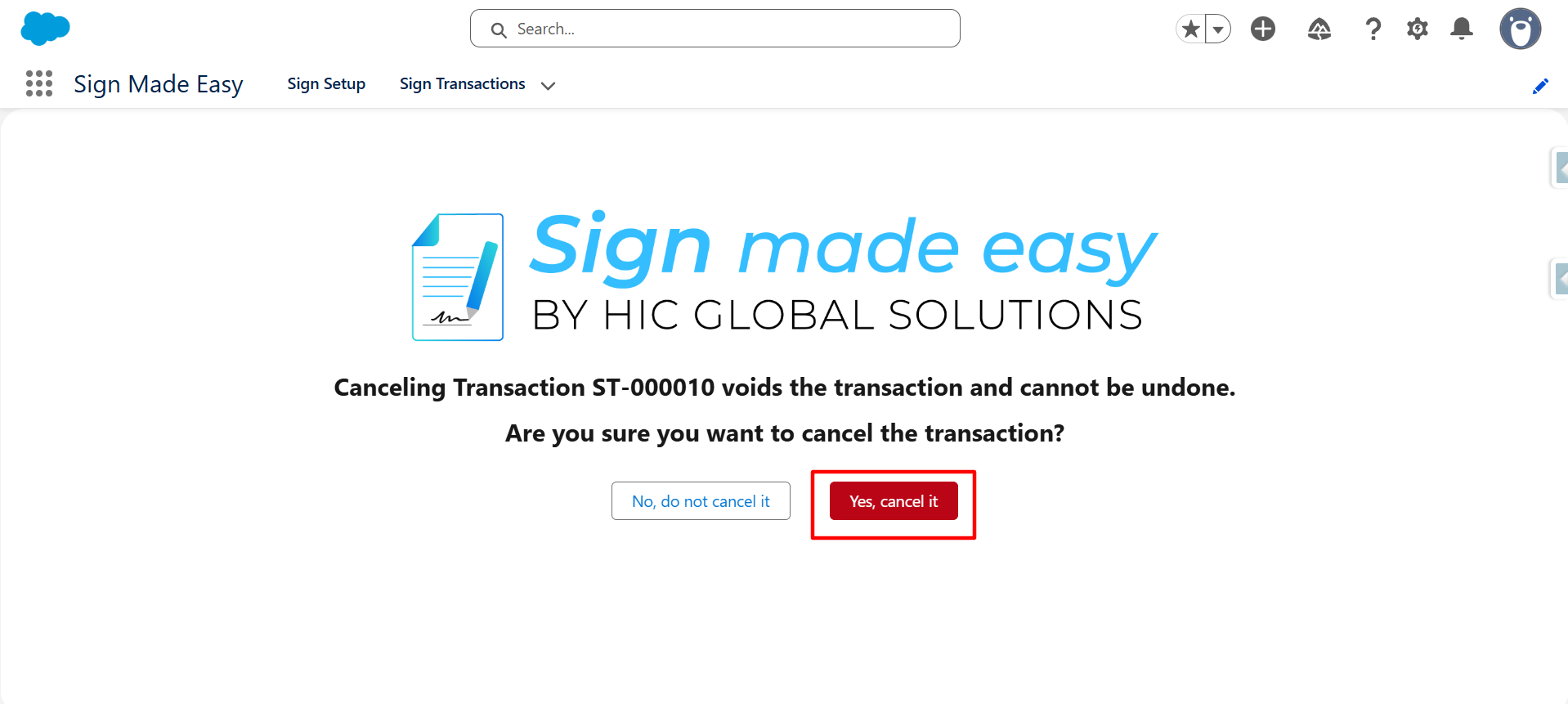
Step 3: Then, you will see the below dashboard. Here, click on the Yes, cancel it button.
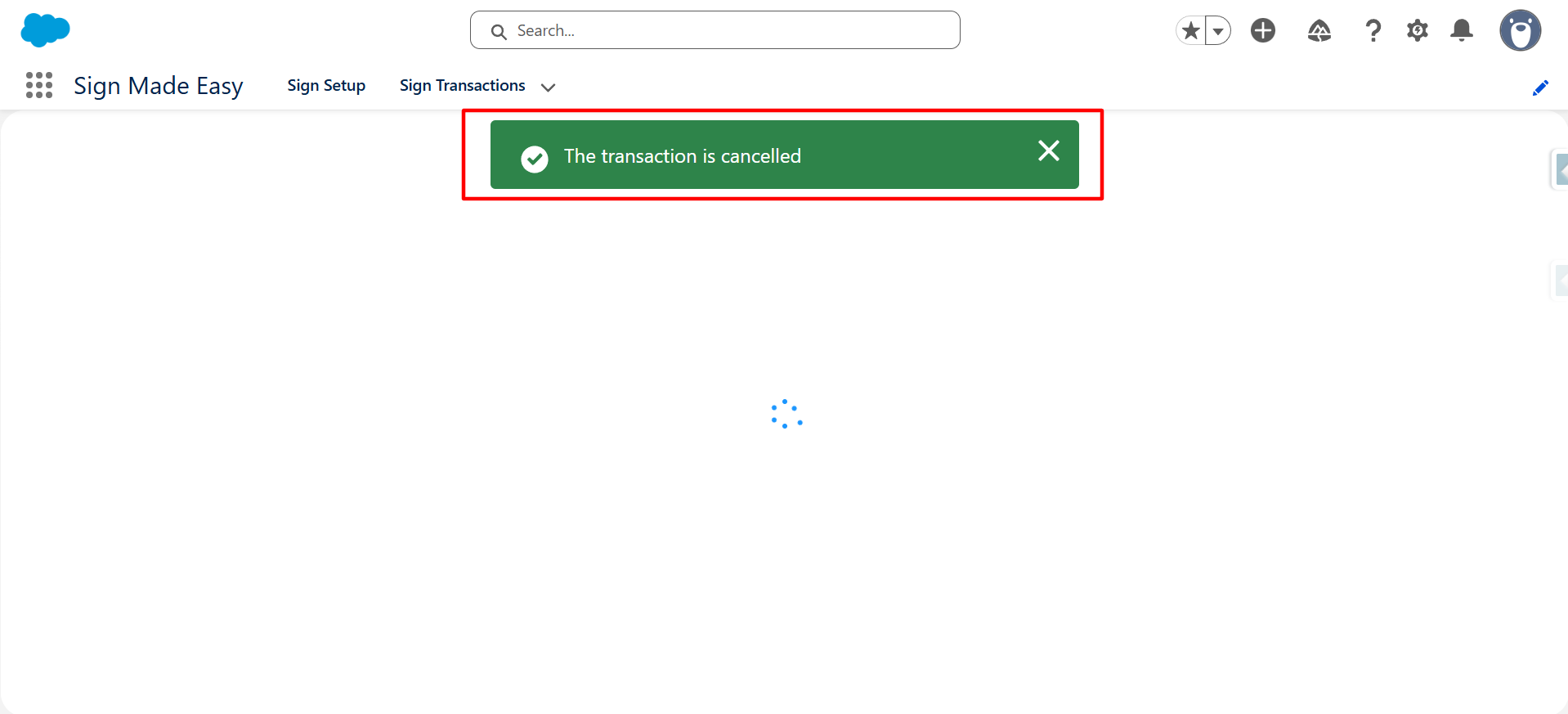
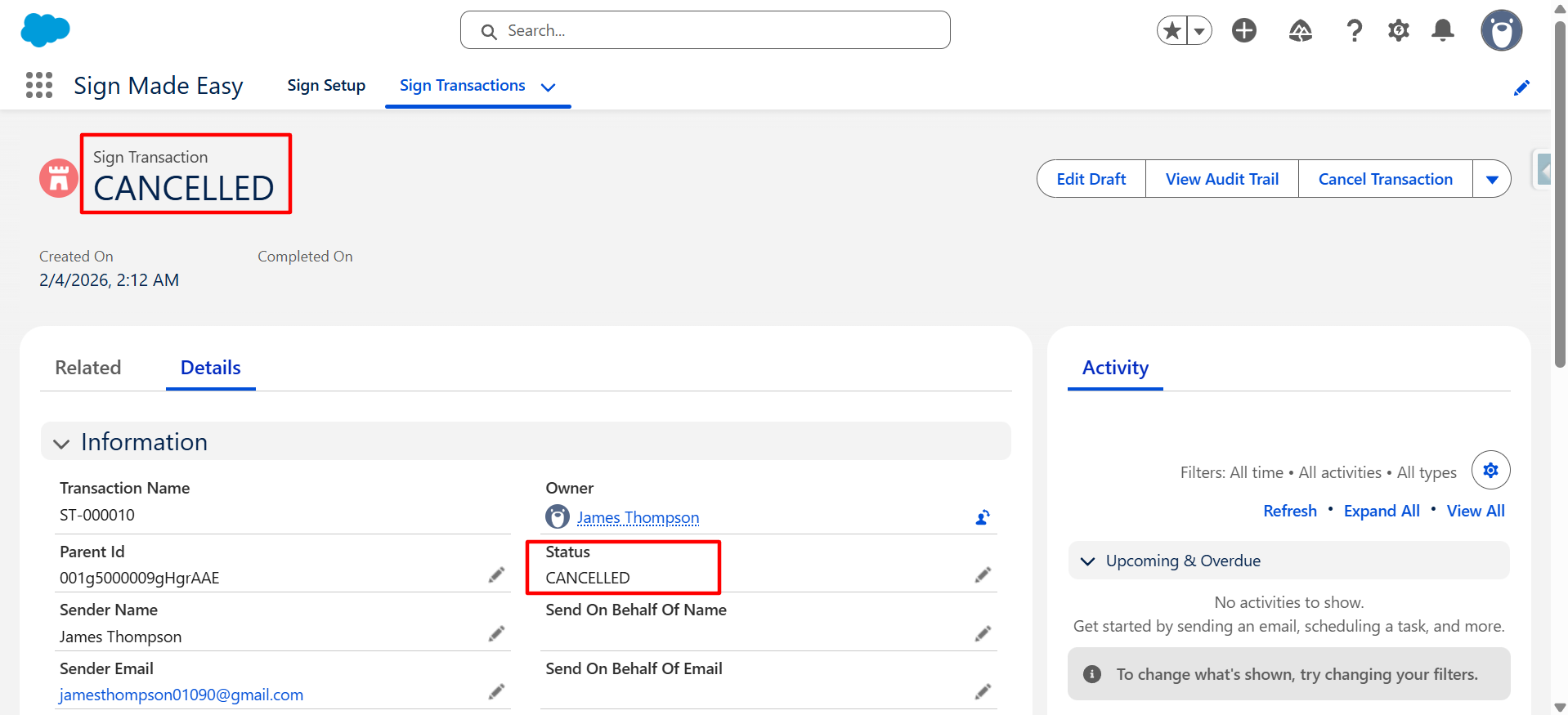
Now, the transaction is successfully cancelled by the Sender.
| Note: Recipients with the status Sent or Viewed will receive a transaction cancellation email. |
Conclusion
Cancelling a transaction is quick and simple with Sign Made Easy. Whether a document was sent by mistake or requires changes before signing, this eSignature for Salesforce solution gives senders complete control over their workflows.
By using eSign for Salesforce, businesses can manage document transactions efficiently, maintain transparency with recipients, and ensure a smooth signing experience directly within Salesforce.