









Conditional fields make PDF documents more interactive by allowing fields to appear or disappear based on a signer’s input. This helps create a more relevant signing experience without displaying unnecessary fields.
With the eSignature App, you can configure conditional rules for text fields and radio buttons using JavaScript in a supported PDF editor. These rules determine how fields behave when specific conditions are met.
In this guide, we will walk through the conditional rule syntax, explain how to configure trigger and target fields, and cover the steps to set up conditional fields in PDFs for eSignature.
Conditional Rule Syntax and Configuration
Conditional rules define how text fields and radio buttons respond to specific inputs in a PDF form. The following configurations explain the rule syntax, field properties, and actions required to control field visibility.
Text Field Conditional Rule Configuration (Using Form Field )
To apply a condition to a Text Field, you need to define a rule within the field properties using any supported PDF editor.
Rule Syntax
var smeRule = [
    {
        "action": "hide",
        "target": [],
        "condition": {
            "value": "SignME",
            "type": "equals"
        },
        "trigger": "Single-1"
    }
];
Description:
- Trigger: Refers to the field that initiates the condition, such as a text field or another field. For example, if a rule is based on a text field, specify the text field’s name as the trigger.
- Condition: Defines the logical expression that determines whether the rule should be executed based on the field value.
- Type: Specifies the comparison method, such as equals or not. For example, equals checks whether the field value exactly matches the specified value.
- Value: Represents the value against which the field input is compared.
- Target: Specifies the field or list of fields to which the defined action will be applied. For example, enter the name of the field that should be shown, hidden, enabled, or disabled when the condition is satisfied.
- Action: Defines the behavior applied to the target field(s) when the specified condition is met. Common actions include show and hide. For example, if the condition evaluates to true, the target field will be displayed or hidden according to the configured action.
Note: Configuring Radio Button as Target Field
If you want to apply a condition to a Radio Button field as a target, you must define the radioTarget syntax as shown below:
"radioTarget": [
{
"groupName": "group-1",
"optionIds": ["option-1", "option-2"]
}
]
Description:
- groupName: Refers to the name of the radio button group. All related radio options belong to this group.
- optionIds: Specifies the individual radio button options within the defined group on which the action will be applied.
Updated Rule Syntax With Radio Button as Target:
var smeRule = [
{
"action": "hide",
"target": ["XYZ"],
"radioTarget": [
{
"groupName": "group-1",
"optionIds": ["option-1", "option-2"]
}
],
"condition": {
"value": "SignME",
"type": "equals"
},
"trigger": "Single-1"
}
];
Radio Button Conditional Rule Configuration (Using Form Field)
To apply a condition to a Radio Button, you need to define a rule within the field properties using any supported PDF editor.
Rule Syntax:
var smeRule = [
{
"action": "hide",
"target": [],
"condition": {
"value": "selected",
"type": "equals"
},
"trigger": "option-1",
"groupName": "group-1"
}
];
How to Set Up Conditional Rules in PDF Form Fields
Conditional field configuration involves defining the rule, identifying the trigger and target fields, and setting the required action. Once configured, the PDF can display or hide fields according to the signer’s input.
Rule: If the Country field value is “United States,” the State/City field will be displayed.
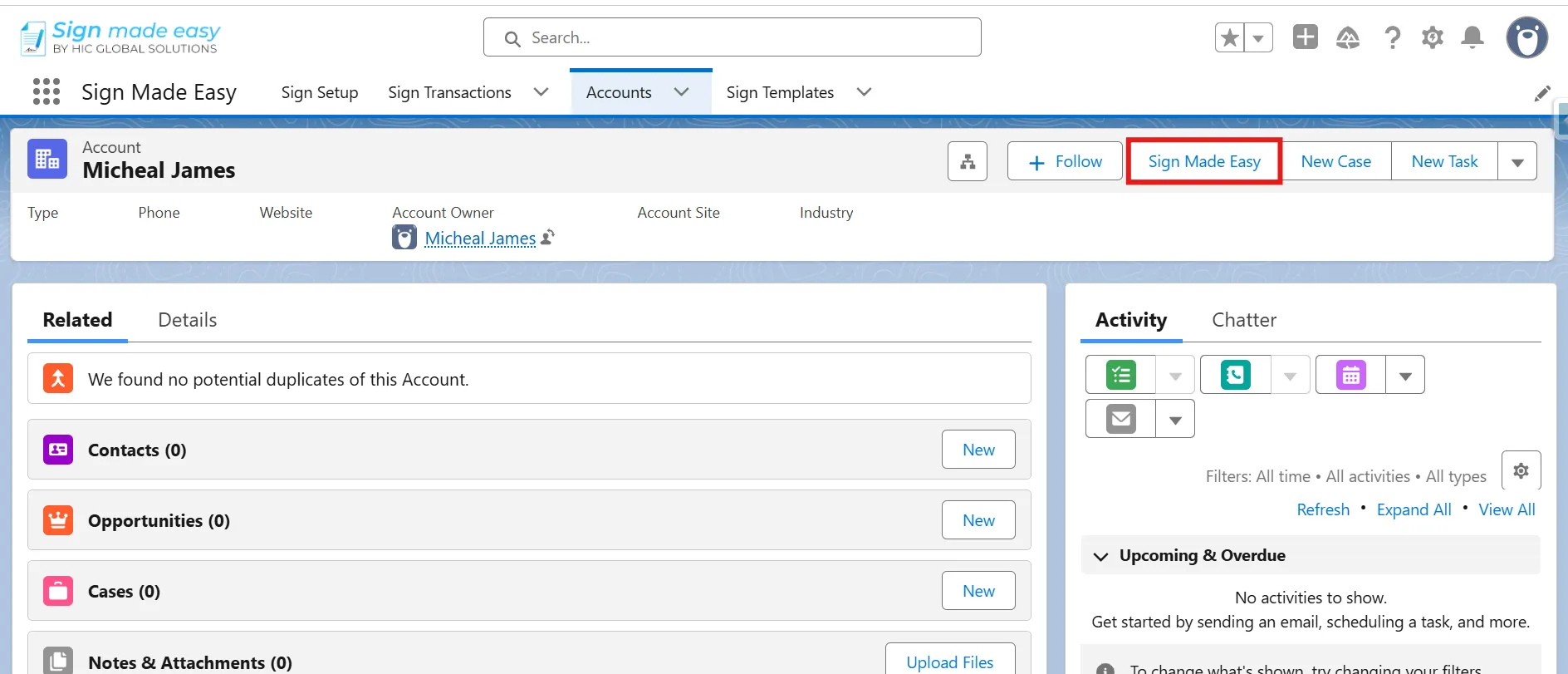
Step 1: Open the PDF Document
Open the document in a supported PDF editor where form fields can be created and modified.
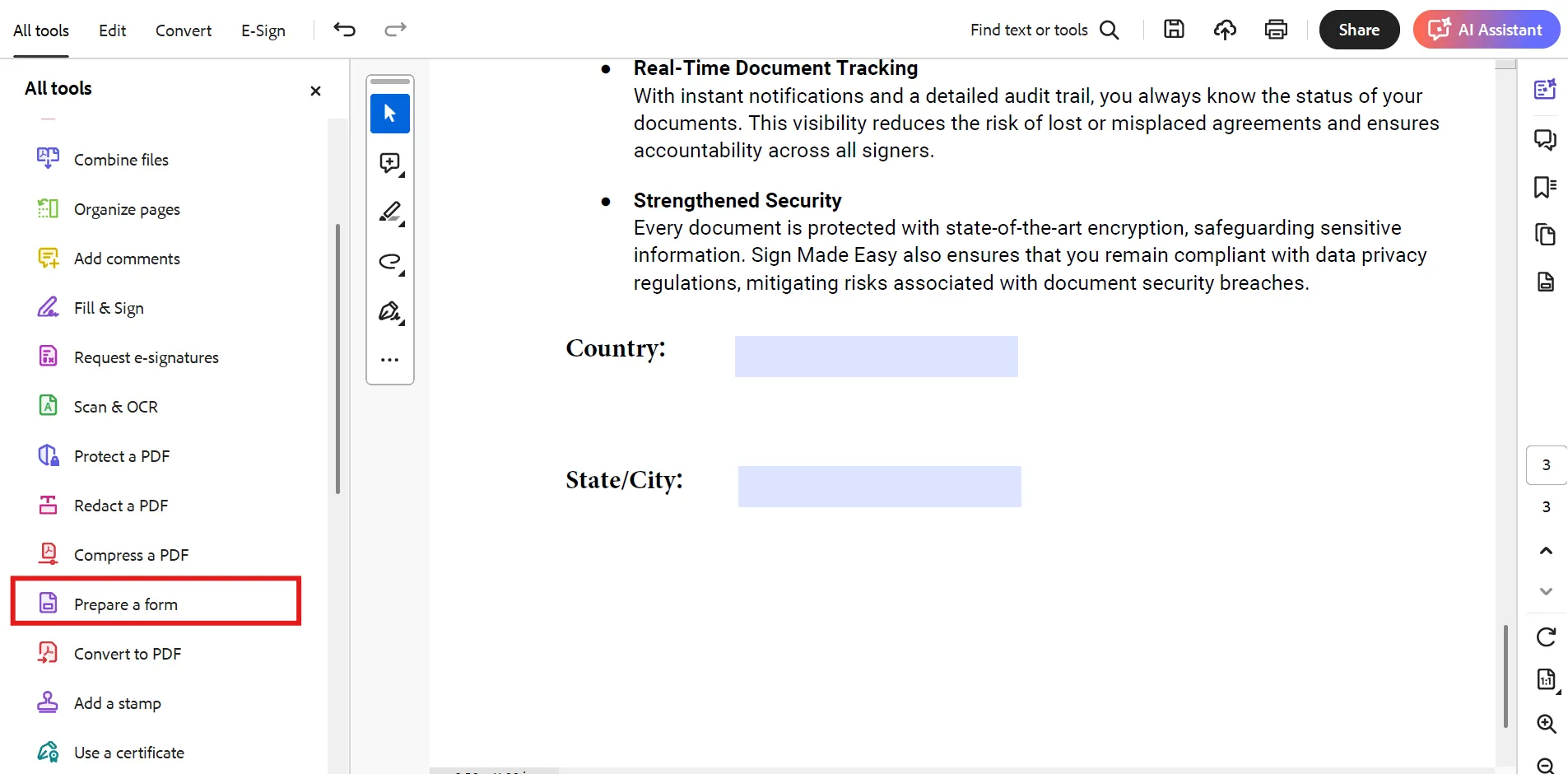
Step 2: Select Prepare a Form
- Select the Prepare a Form option.
Step 3: Select the Trigger Field
- Select the field on which you want to configure the conditional rule, such as the highlighted text field.
- Open its Properties.
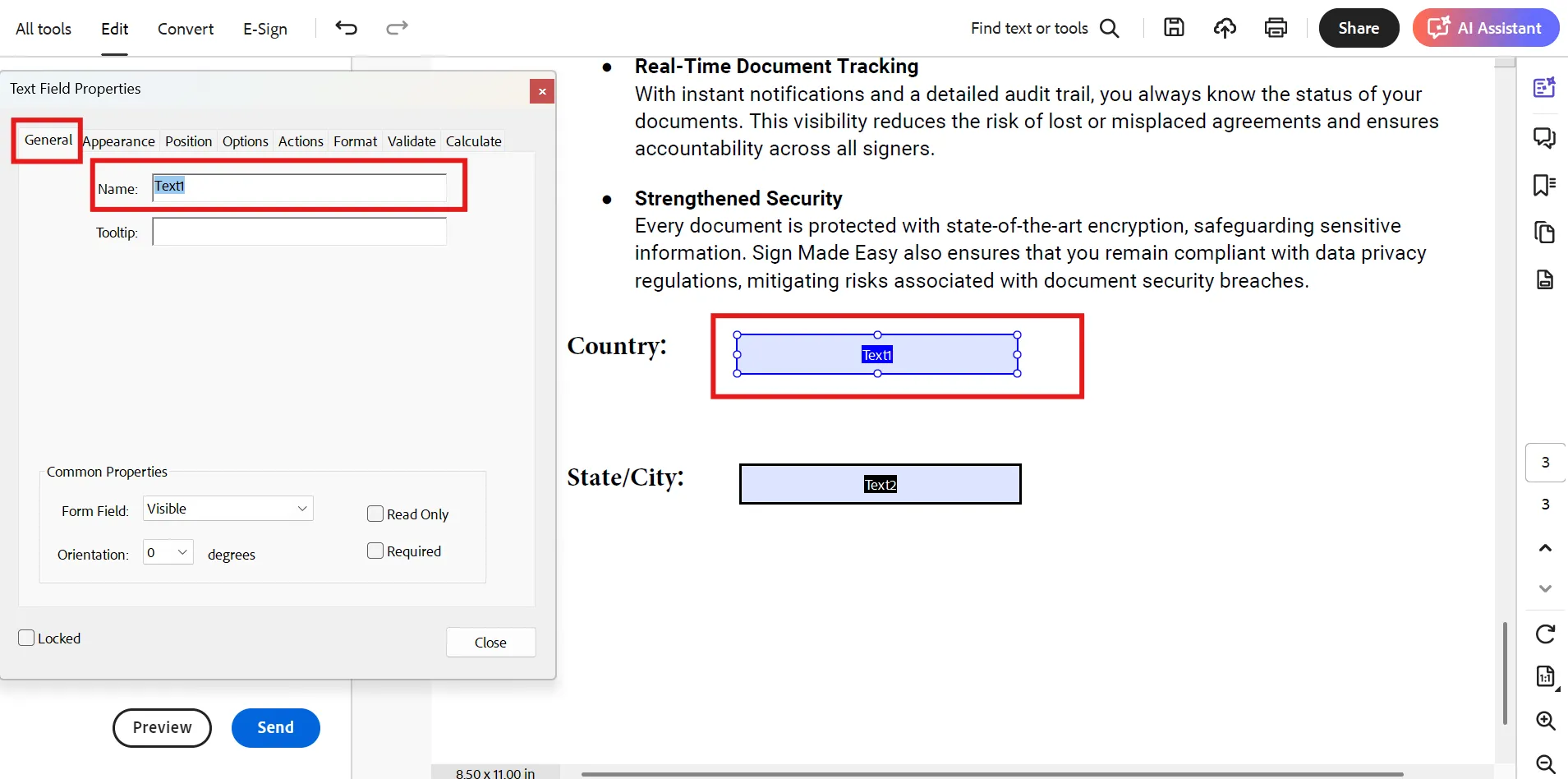
Step 4: Identify the Trigger and Target Fields
- Navigate to the General tab and copy the value from the Name field to identify the text field used as the trigger.
- In the same way, navigate to the General tab and copy the value from the Name field to identify the target text field.
Step 5: Configure the Rule Execution
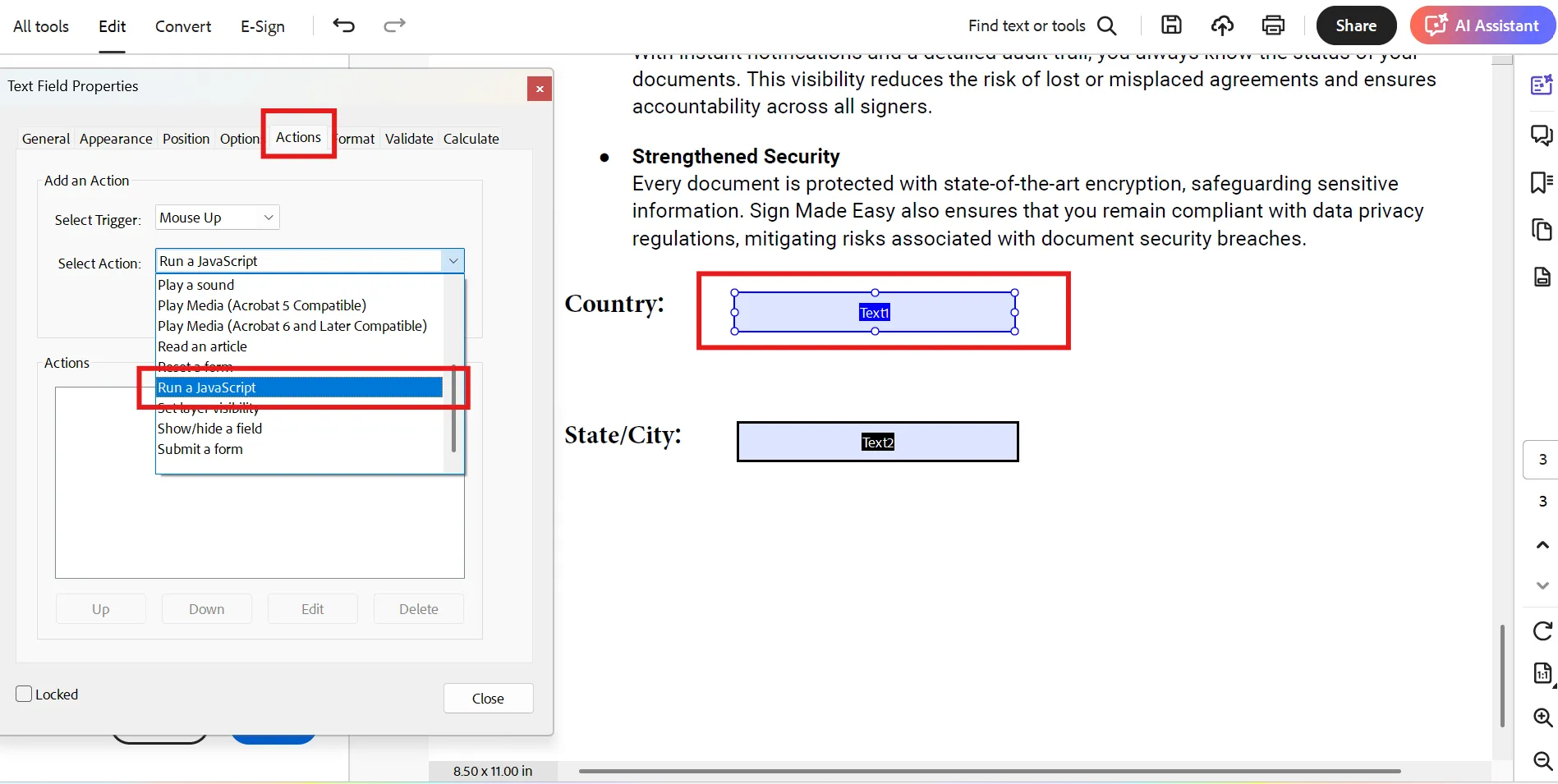
- Open the Actions tab in the trigger field’s properties.
- Select the trigger event, such as Mouse Up.
- In the Select Action dropdown, choose Run a JavaScript.
- Click Add and paste the predefined smeRule syntax.
- Save the script configuration.
Step 6: Use the Configured PDF in the eSignature App
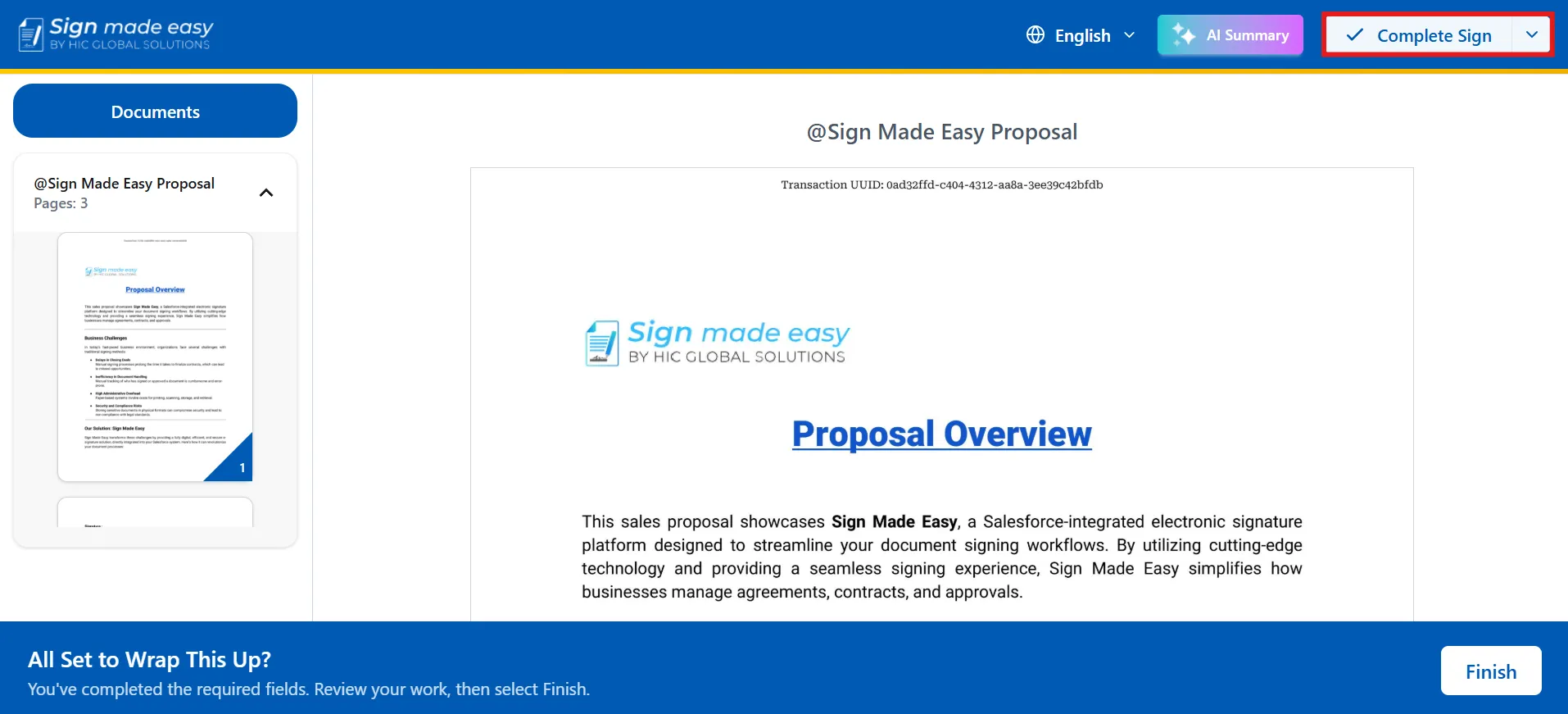
Use the configured document directly in Sign Made Easy and verify that the conditional field rules function as defined.
Conclusion
Configuring conditional fields in PDF form fields helps businesses create signing documents that respond to the signer’s input. By setting the right triggers, conditions, targets, and actions, you can control field visibility and make forms easier to complete.
With Sign Made Easy, you can apply these rules to text fields and radio buttons to create more relevant and organized signing workflows. This helps keep PDF forms clear and ensures signers see the fields they need based on their selections.