



Creating branded email templates in Salesforce is easy with Business Units. By customizing logos, messaging, and invitation emails, organizations can ensure every signing request reflects their brand identity and delivers a professional, consistent experience to recipients.
This guide shows how to set up a Business Unit and customize email templates to improve email branding. You’ll also see how these features help you get more value from your eSignature solution.
Step-by-Step Guide to Customizing Email Templates
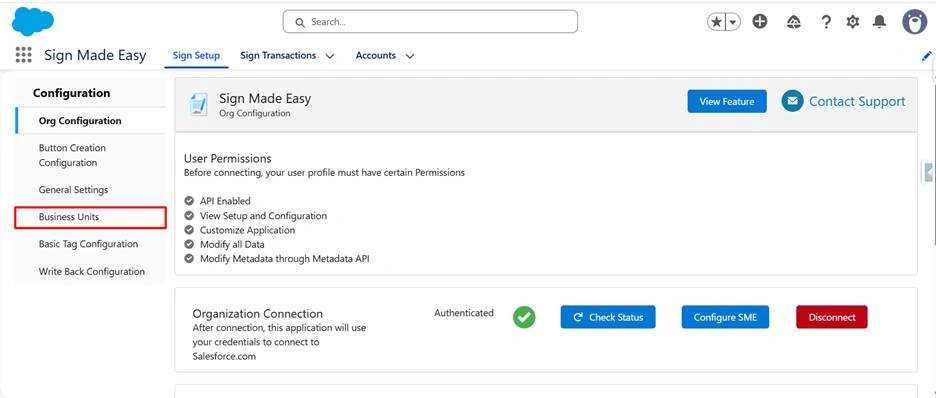
Step 1: Open Sign Made Easy. Click on the Sign Setup tab in the top navigation bar, then select Business Units from the left-hand configuration menu.
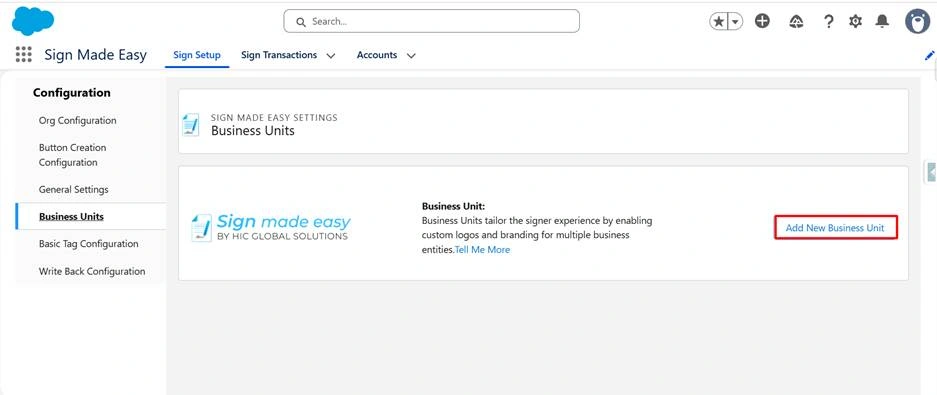
Step 2: Click the Add New Business Unit button to begin creating a new unit for your organization.
Step 3: Enter a suitable name for your Business Unit in the Business Unit Name field. Once entered, click the Save button to create the Business Unit.
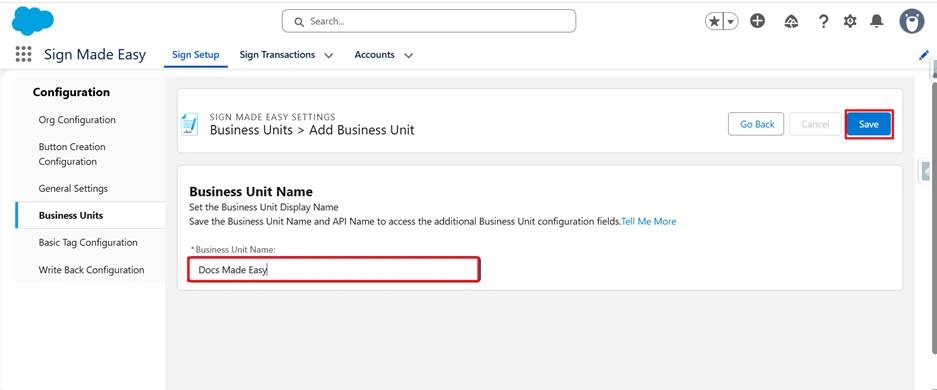
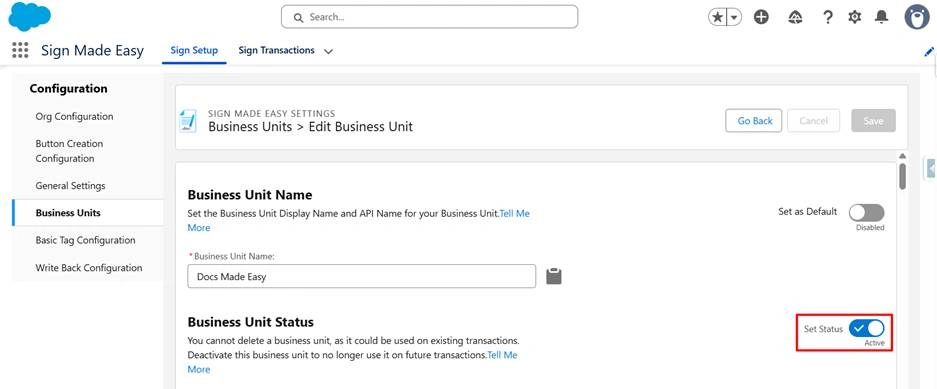
Step 4: Set the status to Active to enable it for use across your organization.
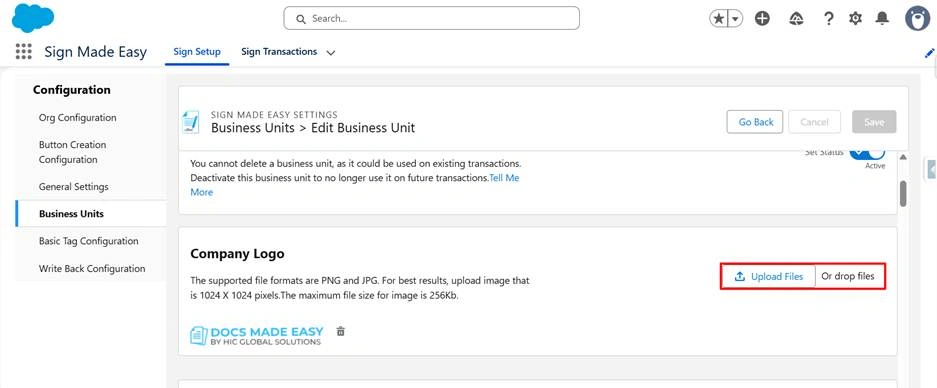
Step 5: Upload your company logo to appear in all outgoing email communications sent from this Business Unit.
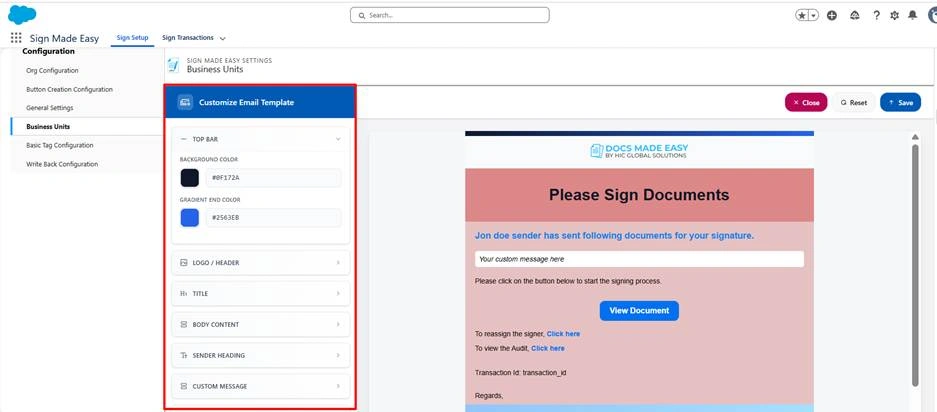
Step 6: Click on the Customize Template button within the Business Unit configuration. This will open the Email Template customization panel.
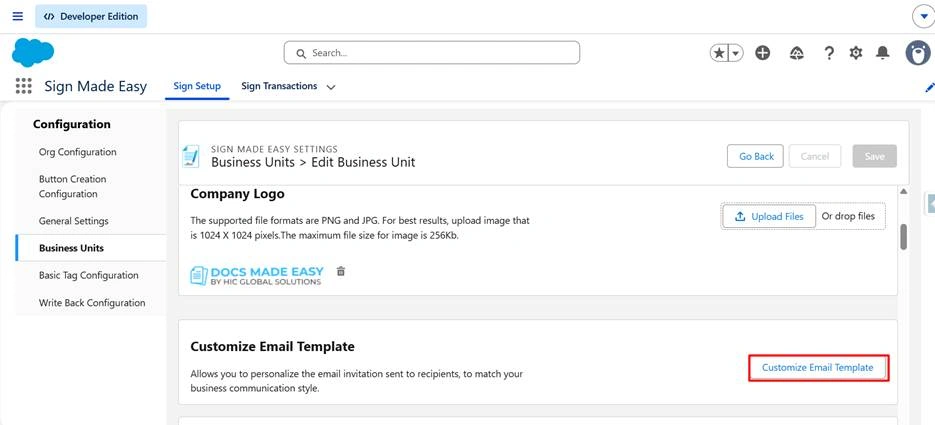
Step 7: The email template customization panel will open with sections including Top Bar, Logo / Header, Title, Body Content, Sender Heading, Custom Message, Button, Reassign & Audit, and Company Address, etc. Adjust each section according to your branding and messaging preferences, then click Save to apply the changes.
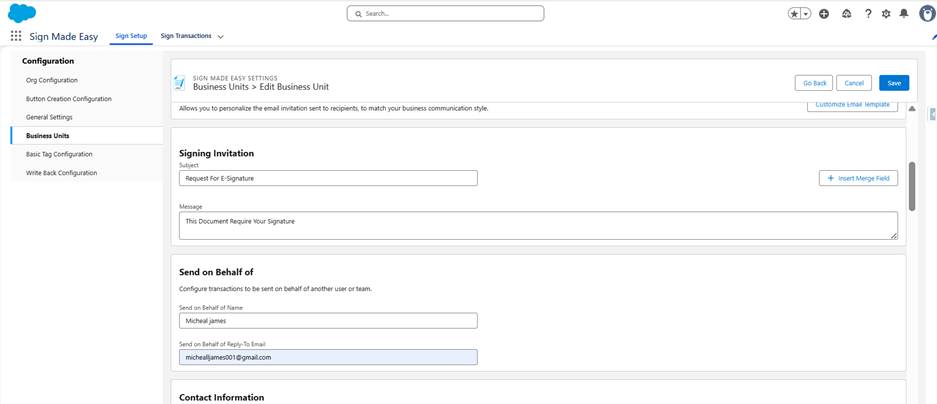
Step 8: Fill in the remaining configuration details for the Business Unit, including Signing Invitation settings, Send On Behalf options, and Contact Information. Click Save to finalize the Business Unit setup.
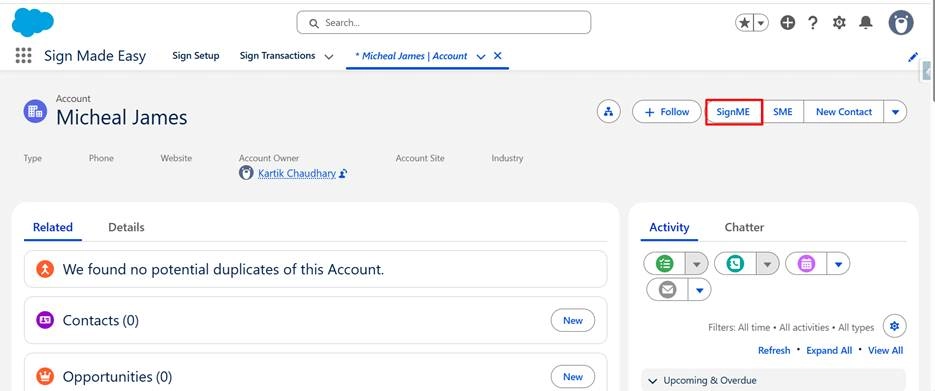
Step 9: Navigate to the Salesforce record where you have created the Sign Made Easy button and click on that.
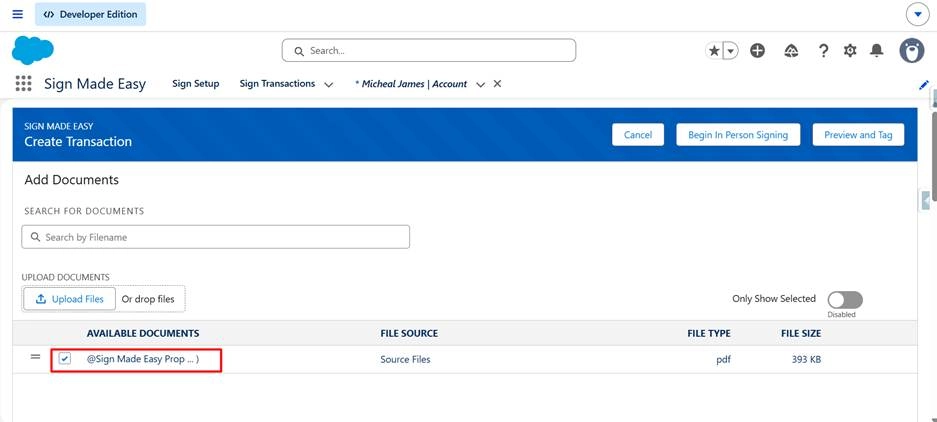
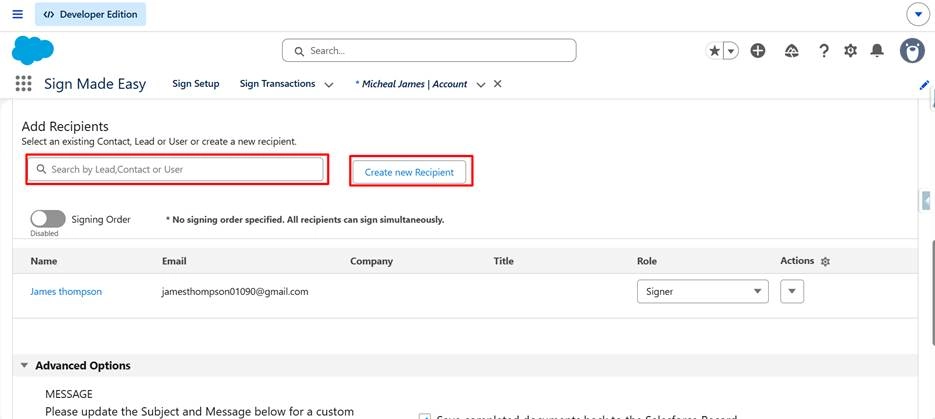
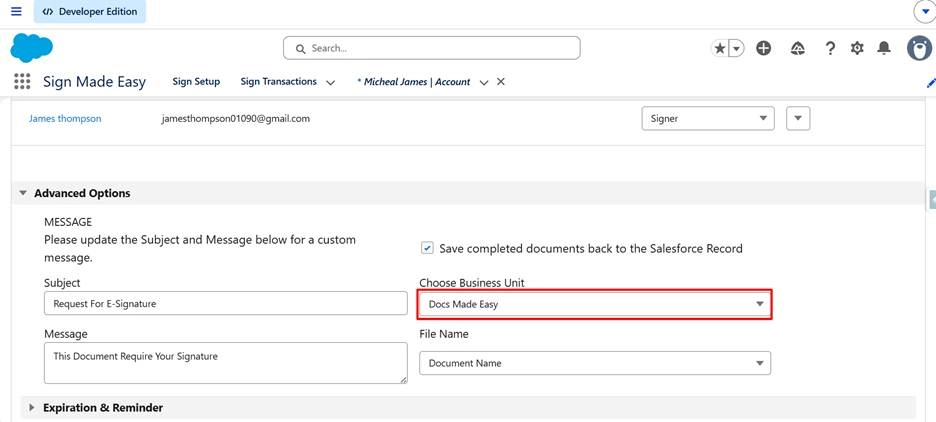
Step 10: On the Add & Upload page, upload the document, select the recipient, and choose the Business Unit you have created.
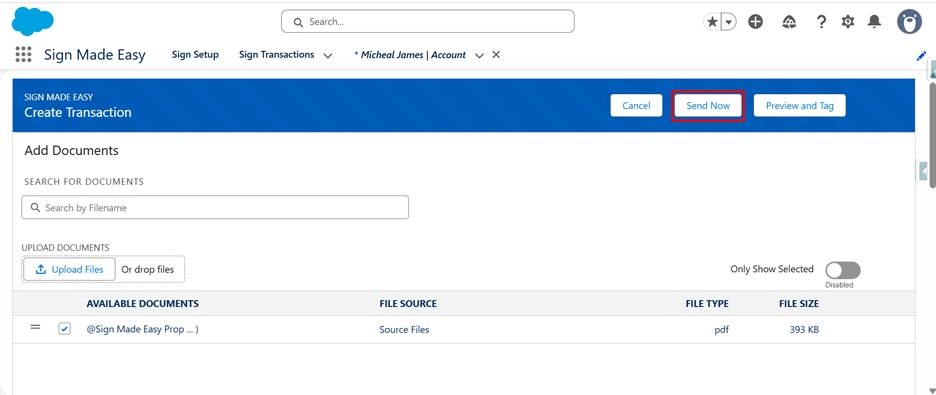
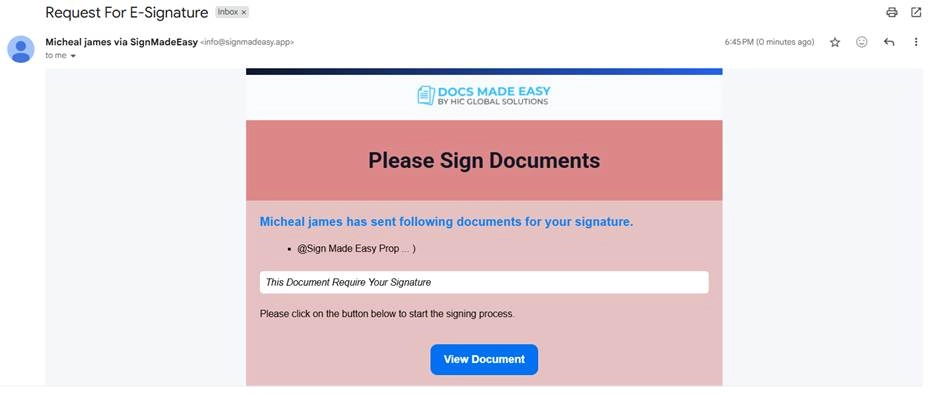
Step 11: Click the Send Now button, and the document will be sent to the selected recipient using your customized email template.
Conclusion
A customized email template helps ensure every signing request looks professional and stays consistent with your brand. By configuring Business Units, logos, messaging, and other branding elements, you can create a better experience for recipients while strengthening email branding across all communications.
With the right setup, email templates become more than just notifications, they become an extension of your brand. Combined with a reliable eSignature solution, they help deliver a seamless and professional document signing experience every time.