







Resending an email to a signer in Salesforce is a straightforward process with Sign Made Easy. Whether a signer missed the first email or needs a reminder, you can quickly resend documents while keeping your eSignature for the Salesforce process smooth.
This functionality improves the overall Salesforce digital signature experience by ensuring recipients receive timely reminders and access to pending documents. It also strengthens Salesforce eSignature workflows by helping businesses reduce delays, improve response rates, and maintain seamless document tracking directly within Salesforce.
In this guide, we’ll walk through the complete process a sender needs to follow to resend an email to the signer in Salesforce using Sign Made Easy.
Note:- After configuring the basic settings of Sign Made Easy and adding the button to the page layout and sending the document to the signer, you can initiate the process of resending the email to the signer.
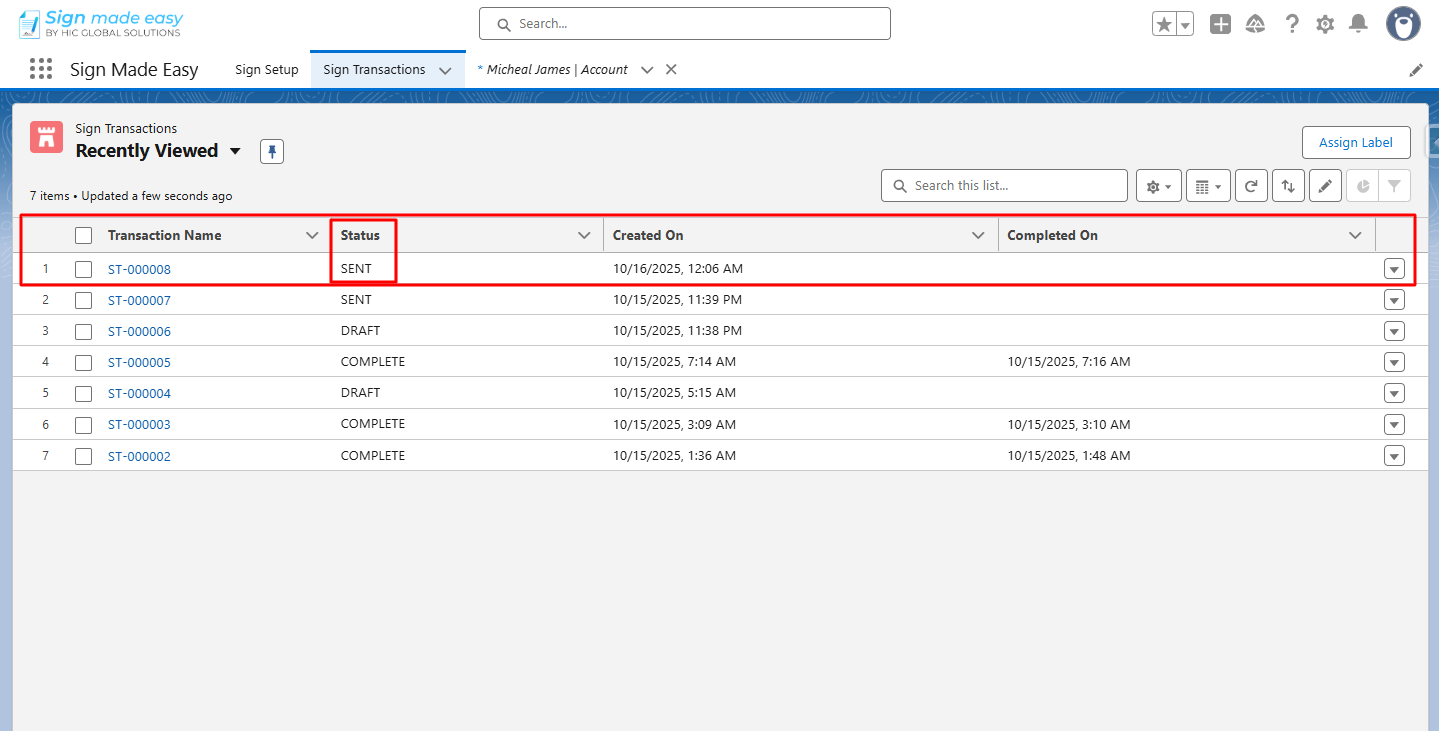
Step 1: Navigate to the Sign Transactions object and open the sign transaction record.
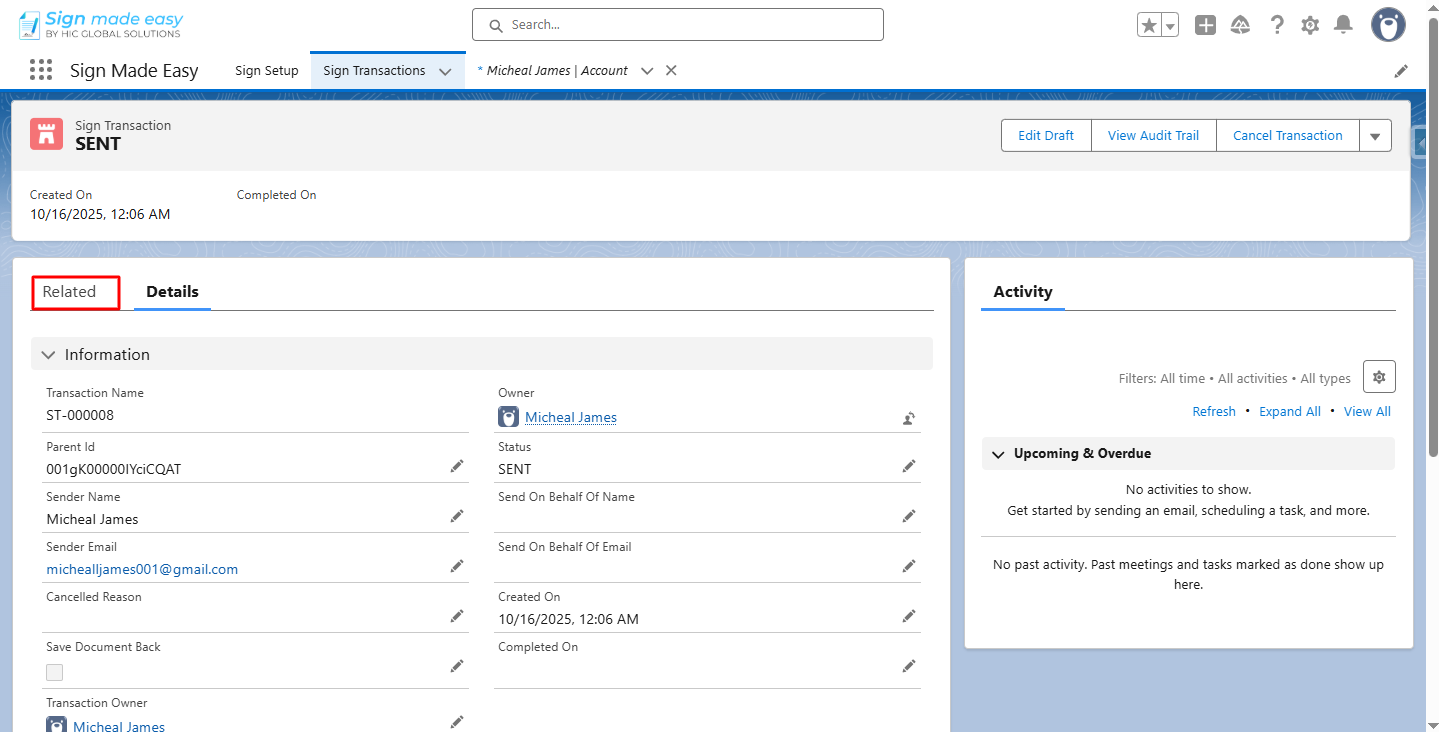
Step 2: Navigate to the Related section.
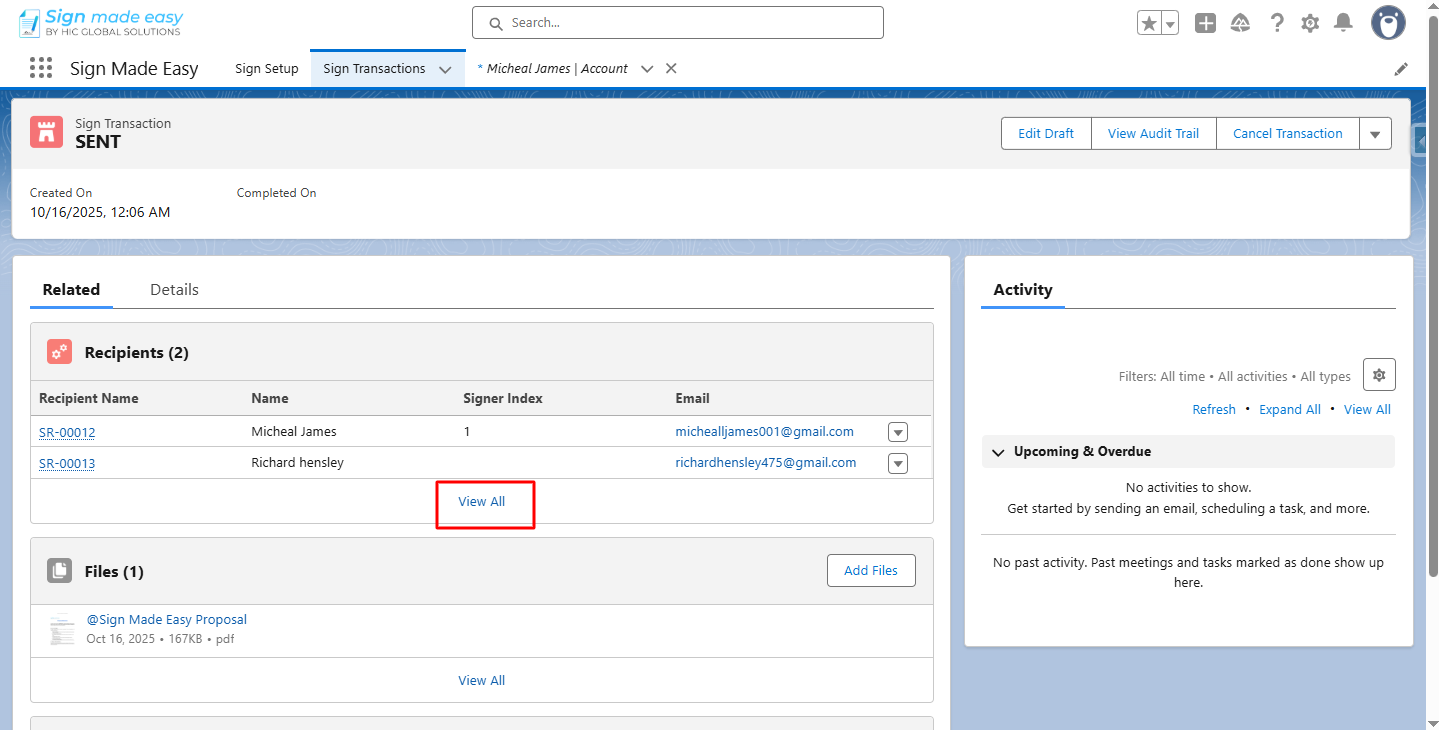
Step 3: Click View All.
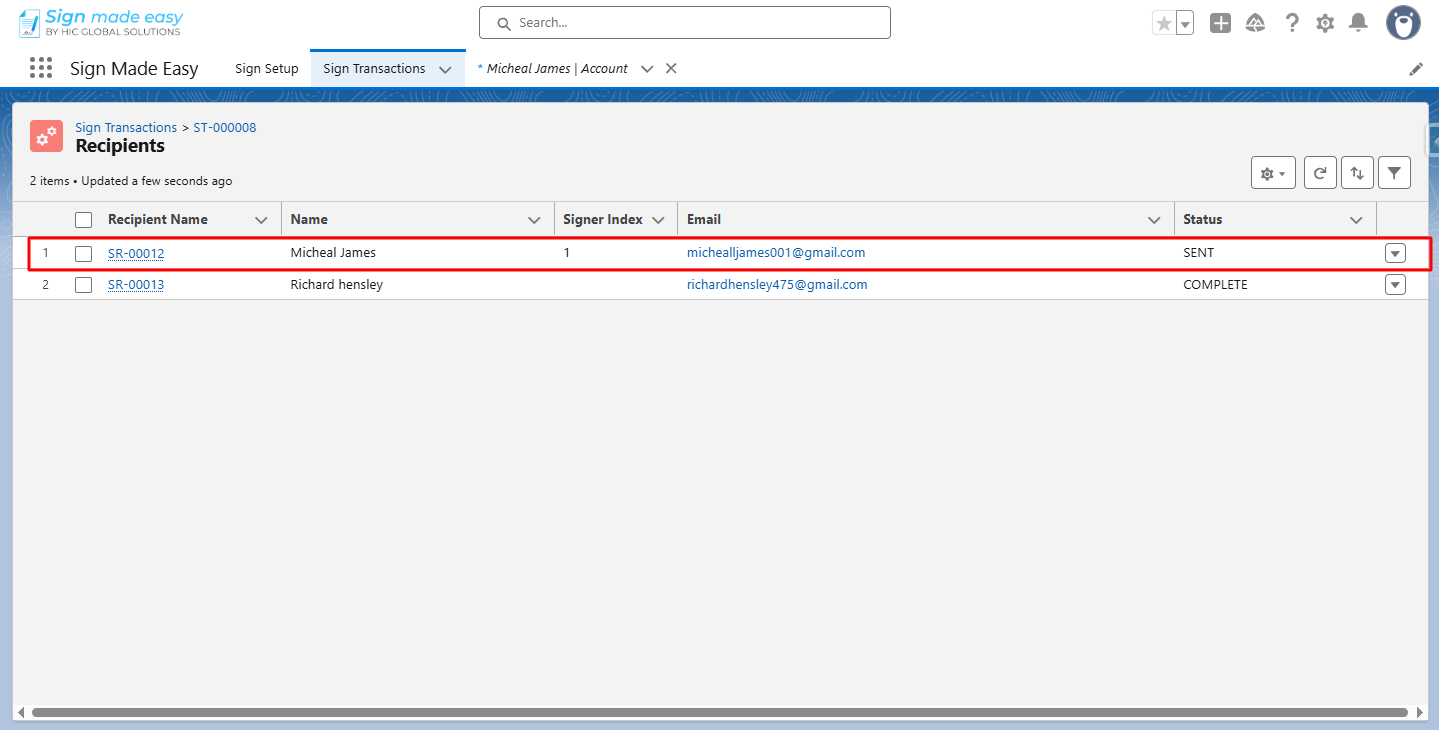
Step 4: Open the recipient record of whom you want to resend the email.
Note: Ensure the recipient status must be sent/viewed for resending the email to the signer recipient and sent/complete for CC.
You cannot resend the email to the In-Person Signer recipients.
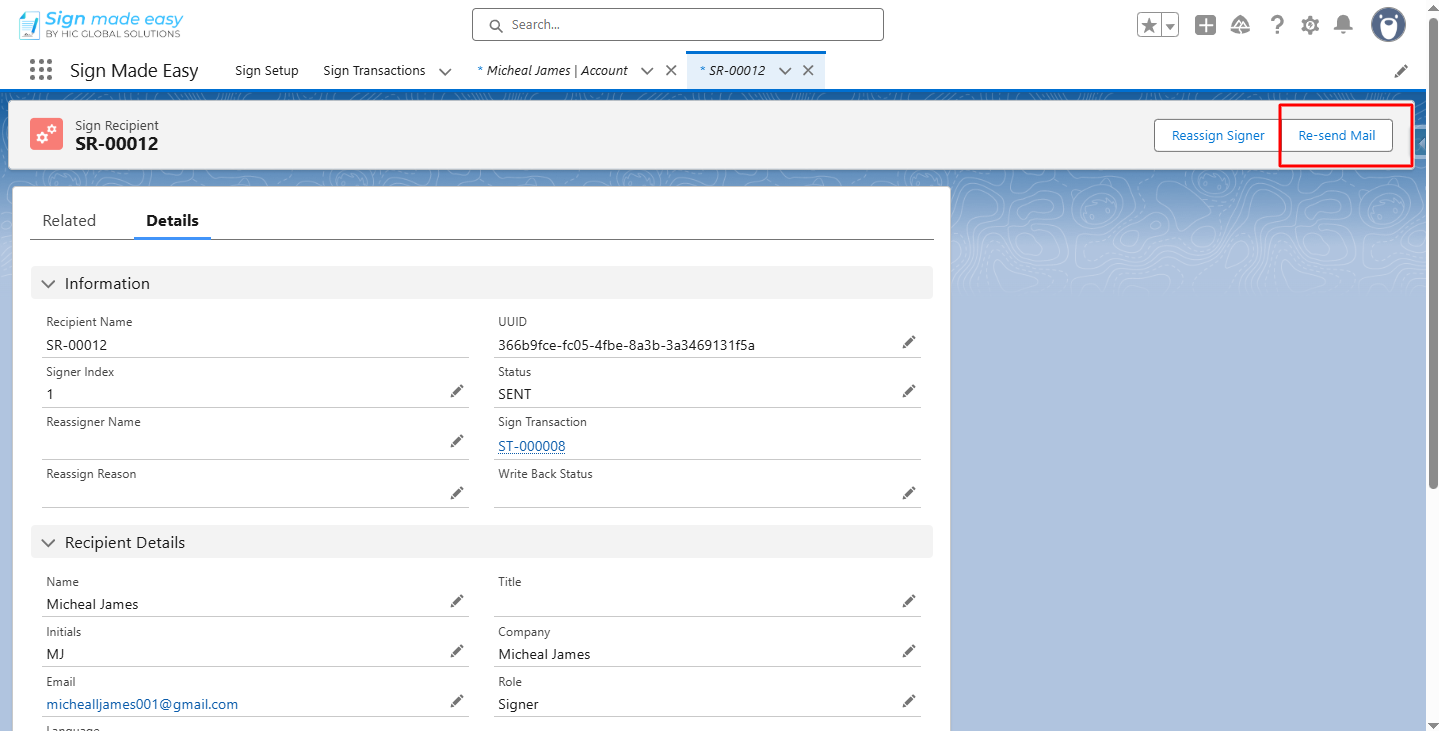
Step 5: Click the Re-send Mail button.
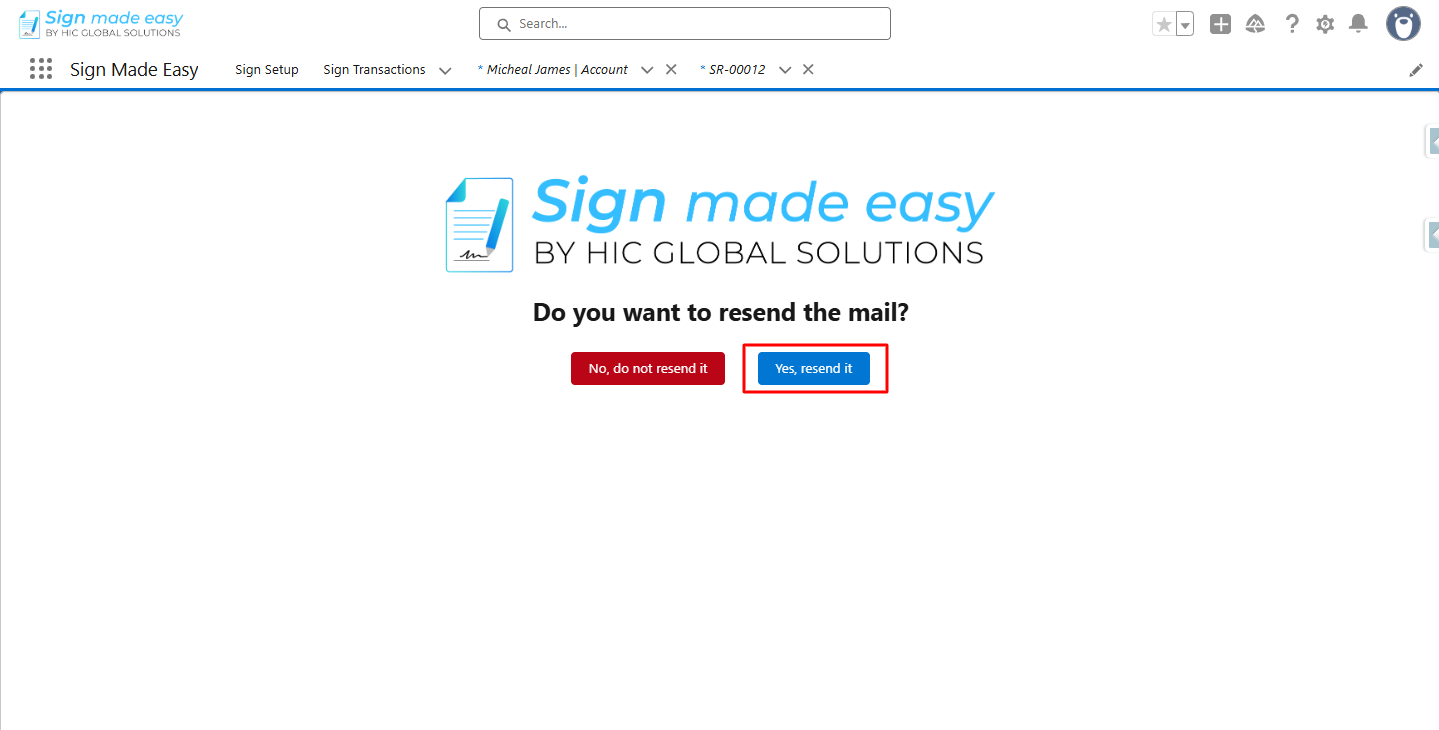
Step 6: Click on the Yes, resend it button.
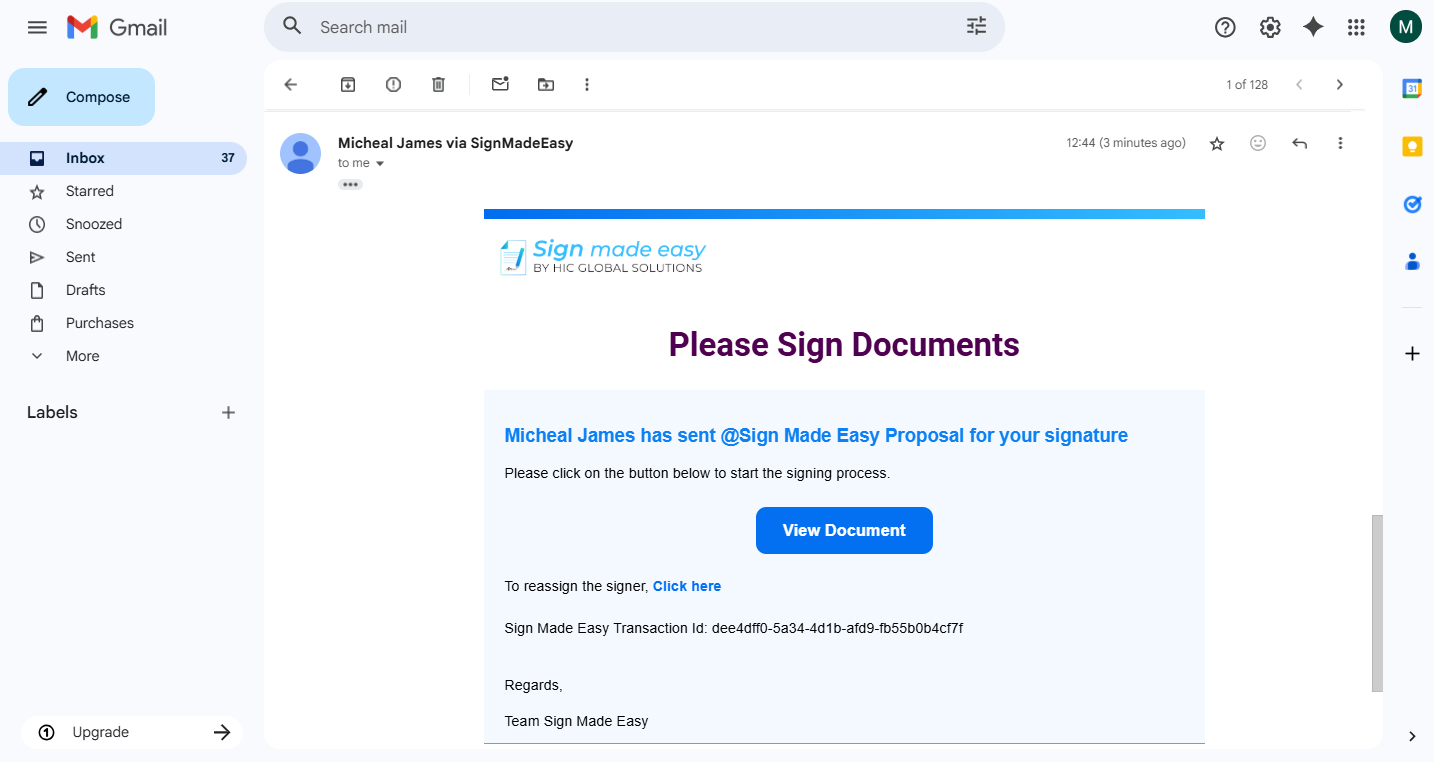
Step 7: Email successfully resent to the recipient.
Conclusion
By following these steps, senders can effortlessly resend emails to signers, keeping the signing process on track. This capability improves accountability, supports your eSignature integration, and ensures all recipients receive the documents they need for Salesforce digital signature completion.
With the Salesforce eSignature tool – Sign Made Easy, document approvals become faster, more reliable, and entirely hassle-free.