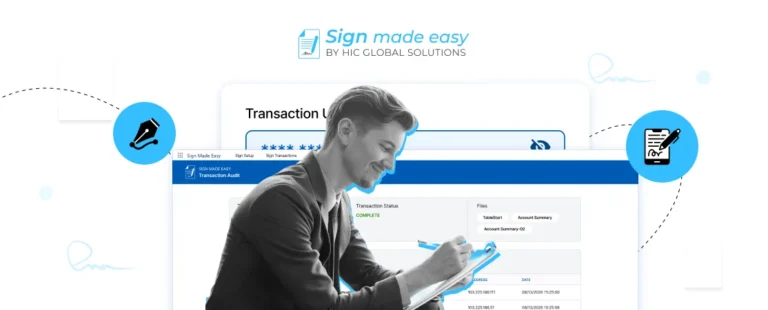






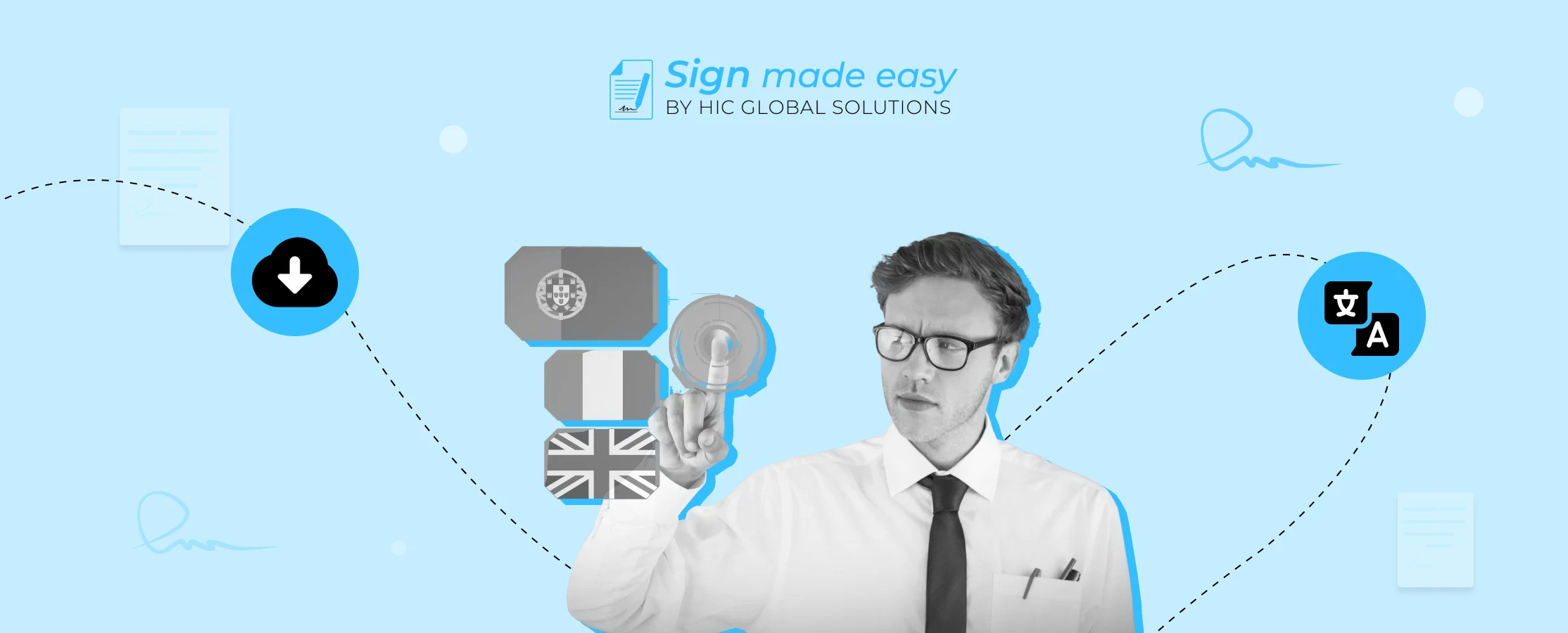
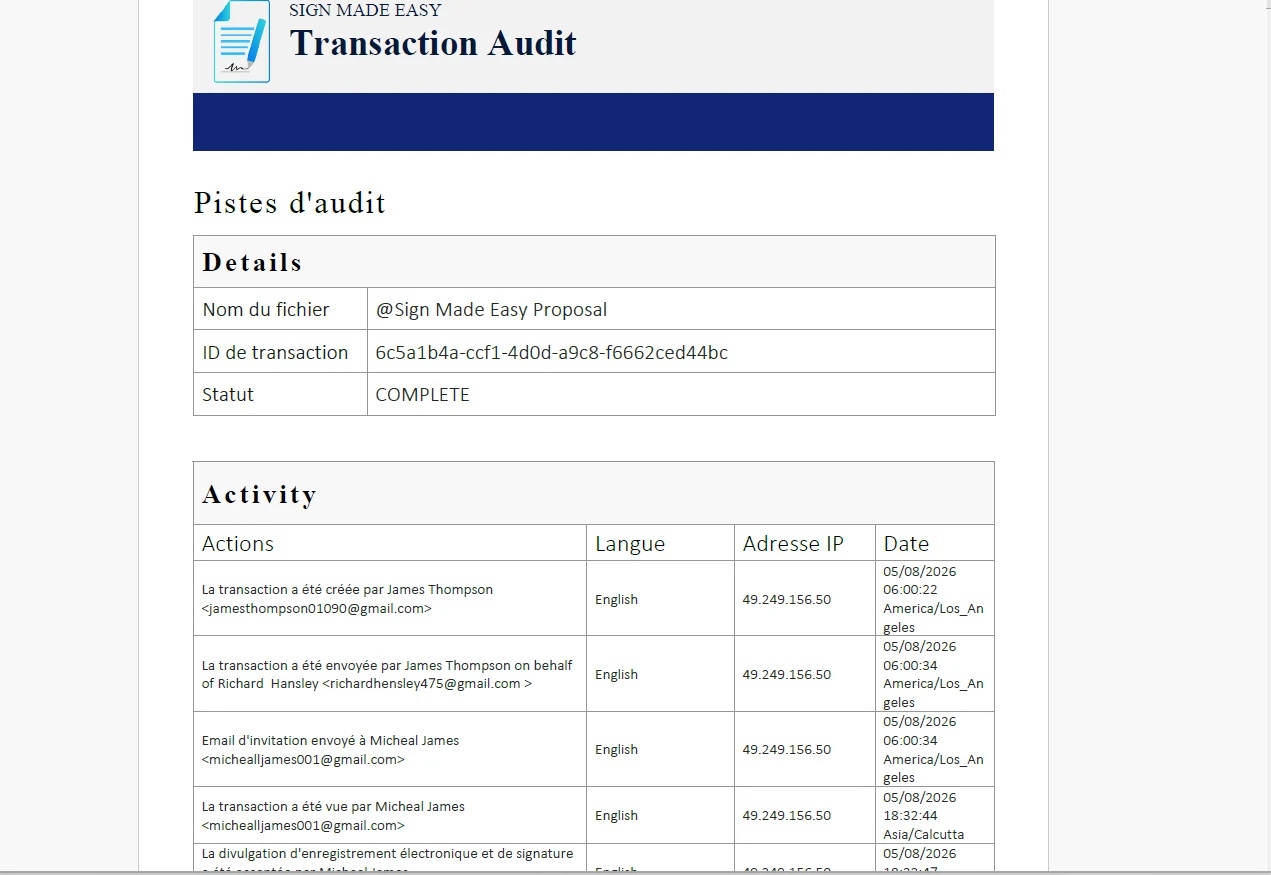
When signers or organizations review signed documents, reviewing the audit trail is essential for verifying who signed, when they signed, and what actions were taken during the process. However, if the audit trail is available only in a language the user is not comfortable with, reviewing and validating the document can become difficult.
To make signer audit trails more accessible, Sign Made Easy allows users to download the electronic signature audit trail in supported languages. So, here are the quick steps on how to complete the signing process and download the esignature audit trail in your preferred language.
To download the Audit Trail in French, the sender must have a Pro User license, and the Hide Audit Trail option must be disabled in the Sign Setup Configuration to access the Audit Trail.
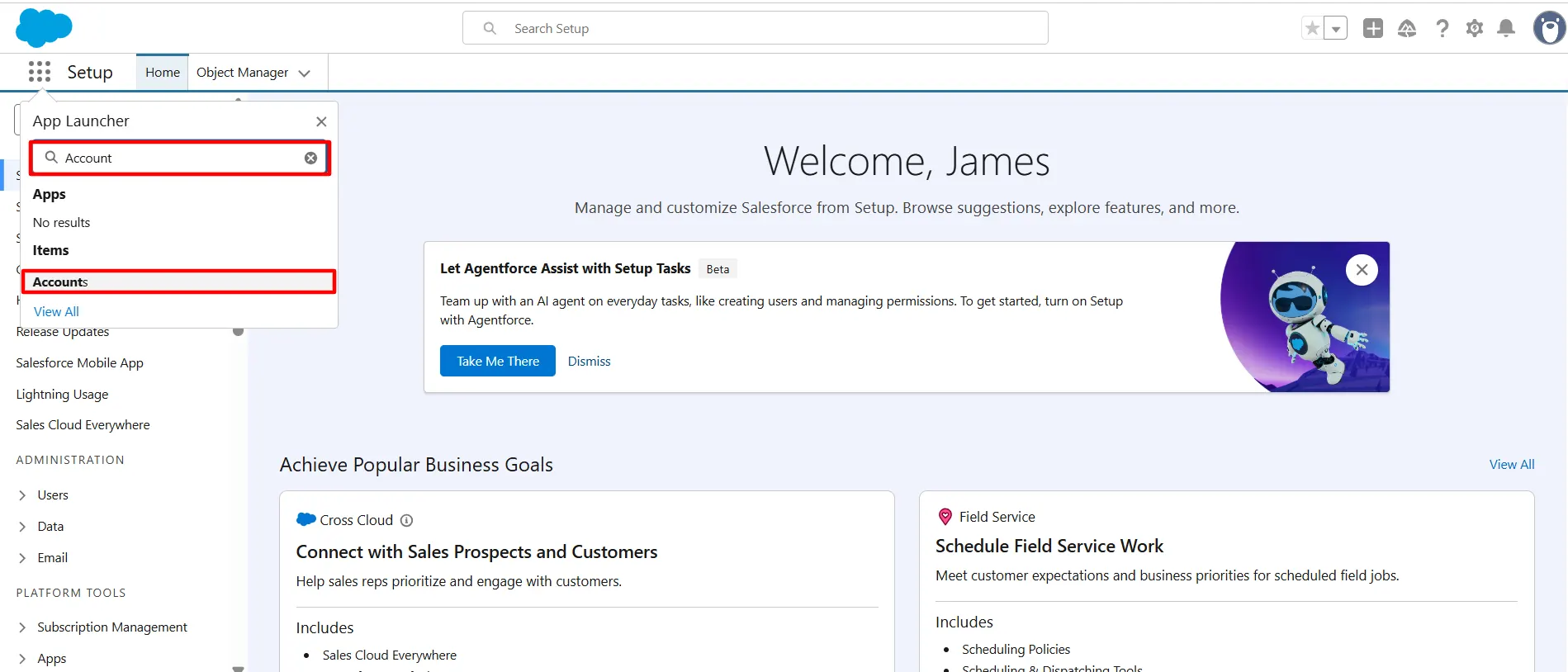
Step 1: Open the App Launcher, search for the object where the Sign Made Easy (SME) button has been created, and select it to proceed. If the SME button has not been created yet, Click Here for instructions on creating the SME button.
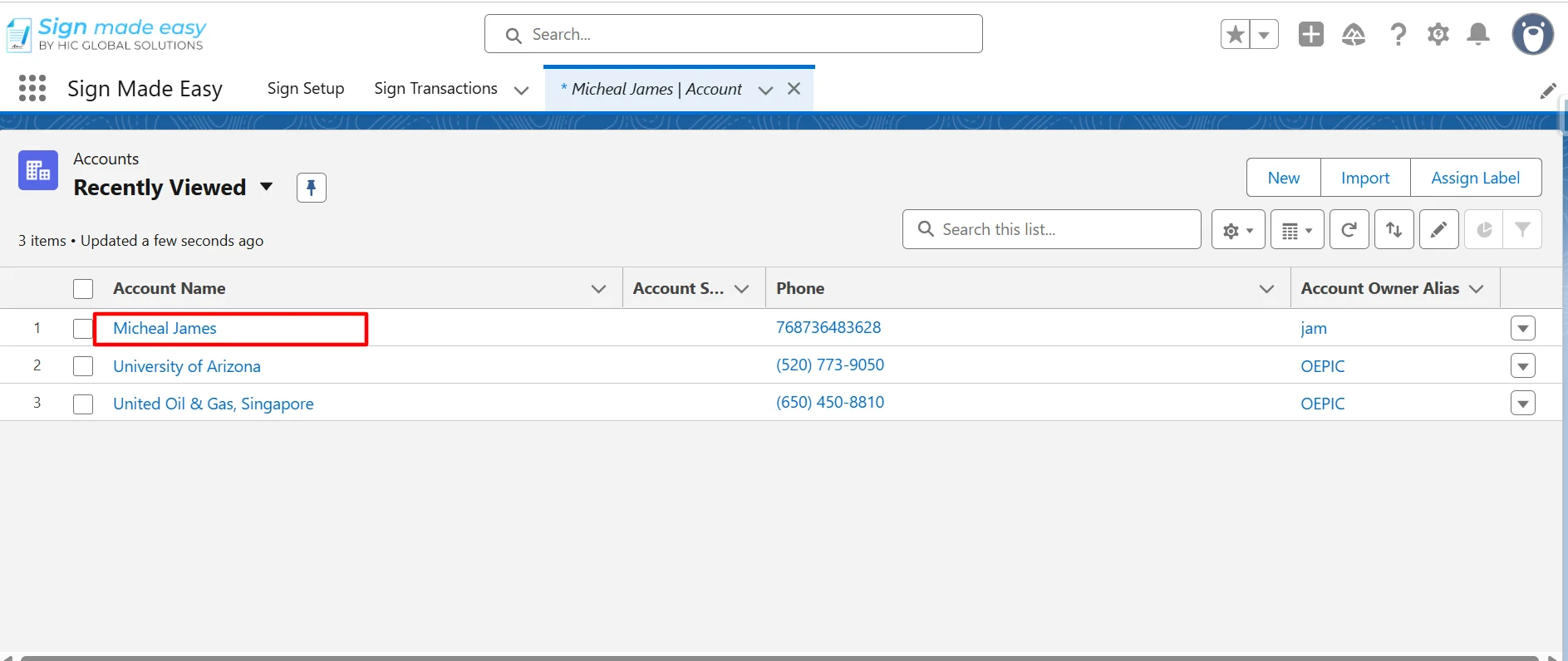
Step 2: Navigate to the record page of the selected object from which you intend to initiate the SME process. If no record exists, create a new one by clicking the New.
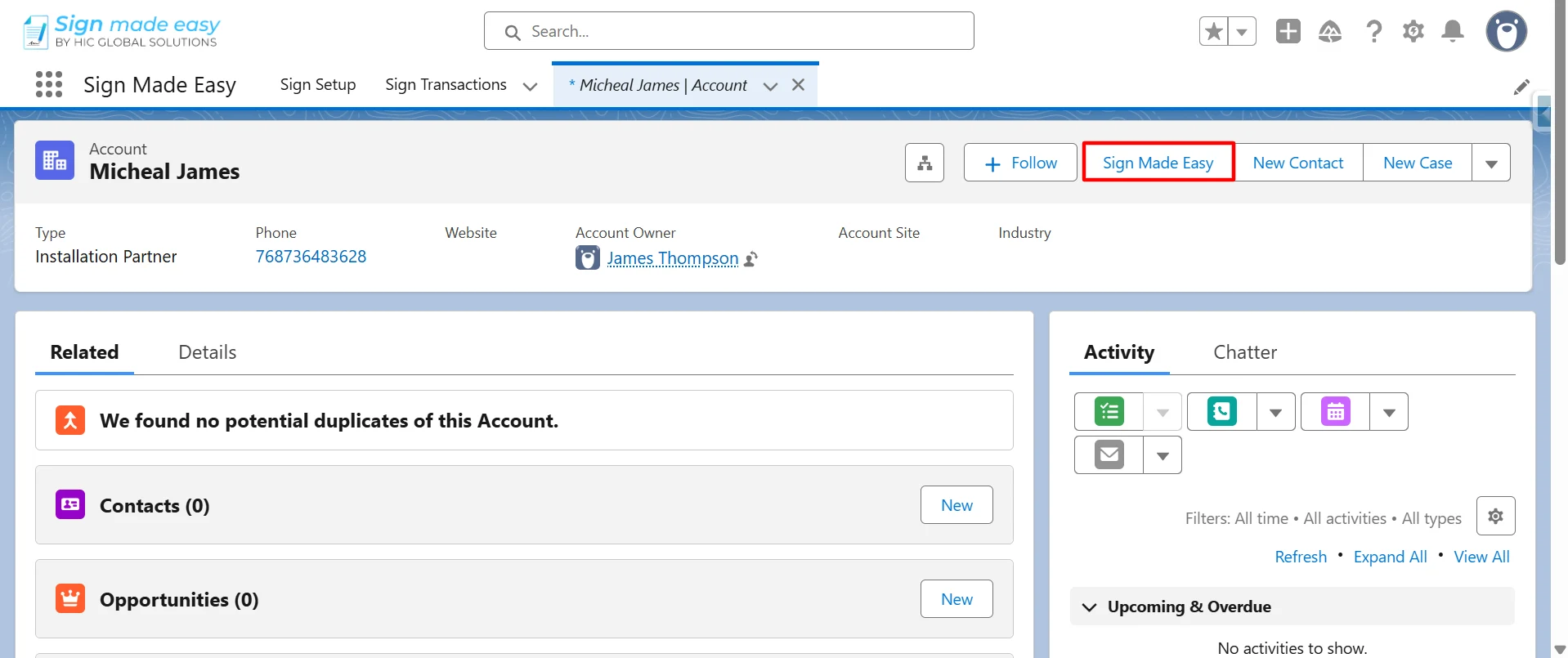
Step 3: Click on the Sign Made Easy Button that you created earlier to create a sign transaction.
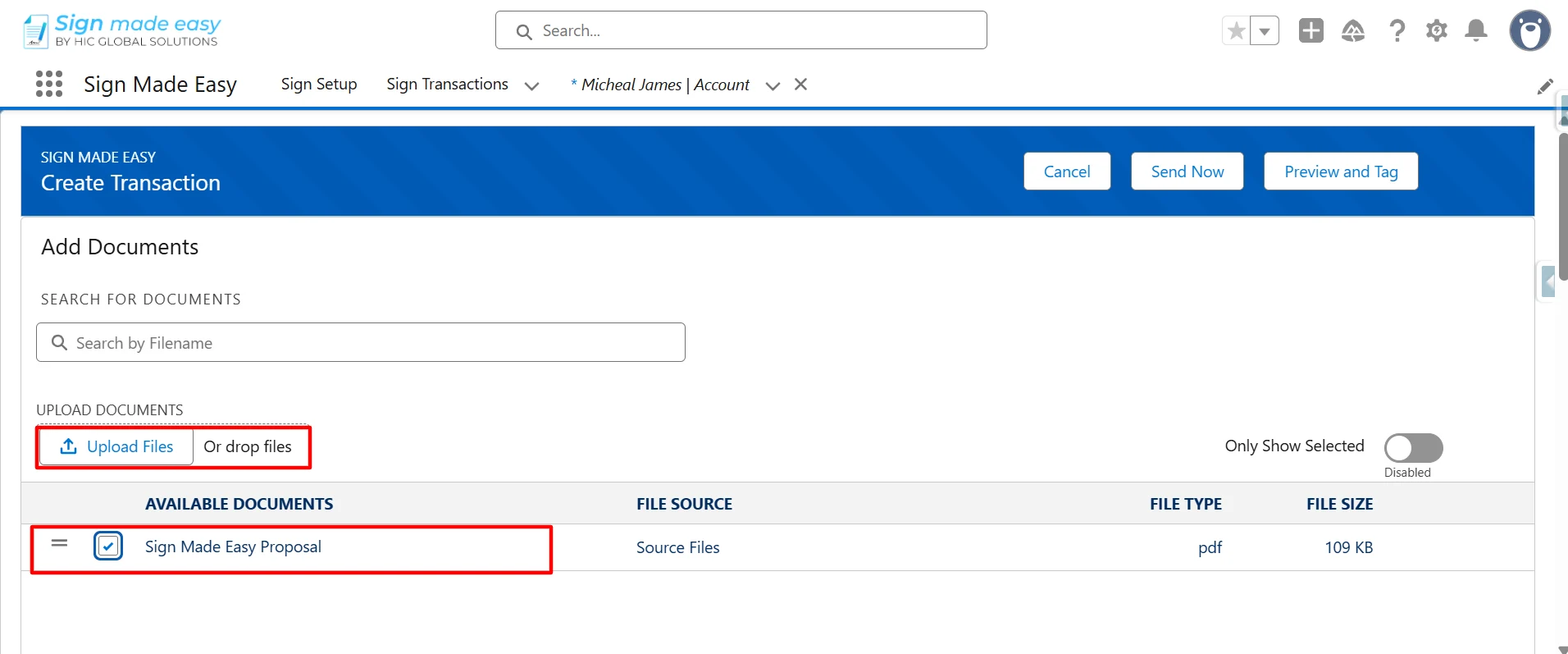
Step 4: Now, select an existing document or upload a new one by clicking the Upload Files option.
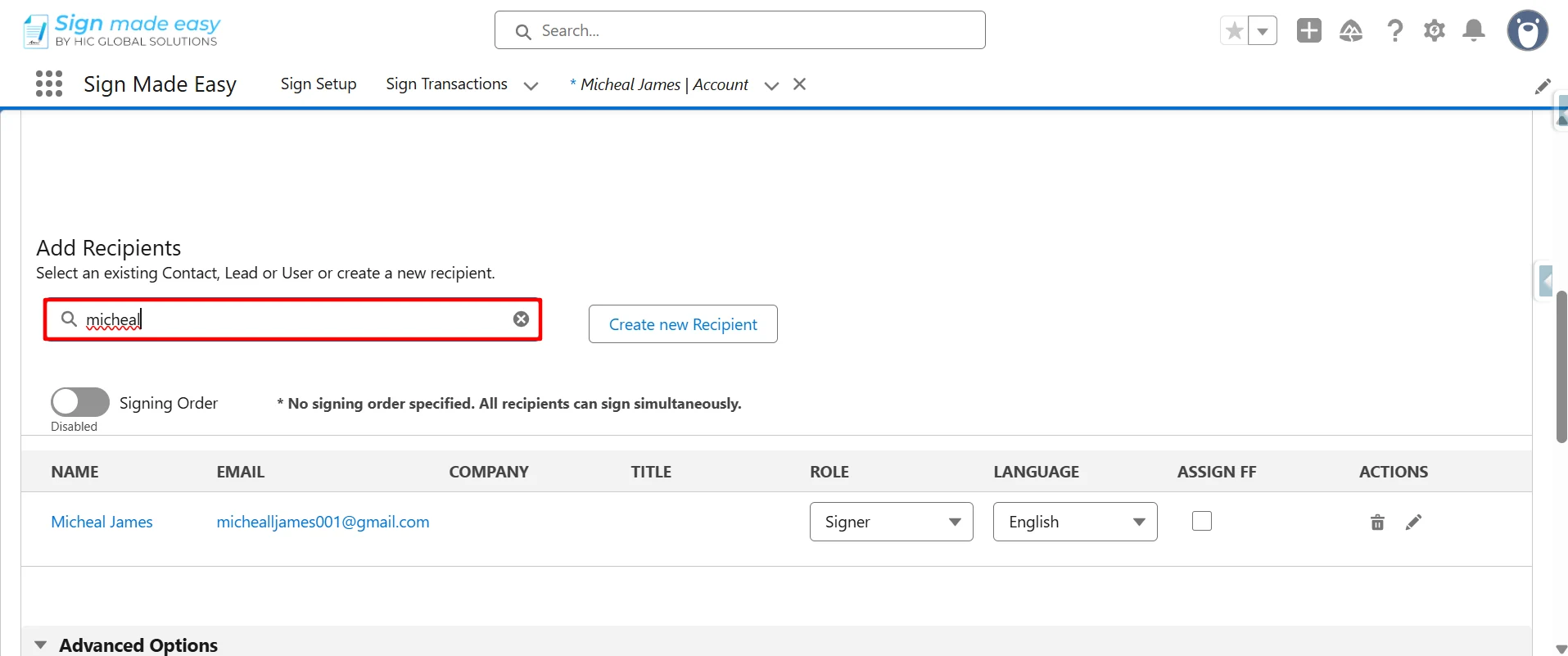
Step 5: Select the Recipient from the Salesforce object (Lead, Contact, and User ), or you can create a custom recipient by clicking on the Create New Recipient button.
You can select a maximum of five recipients and three documents per sign transaction.
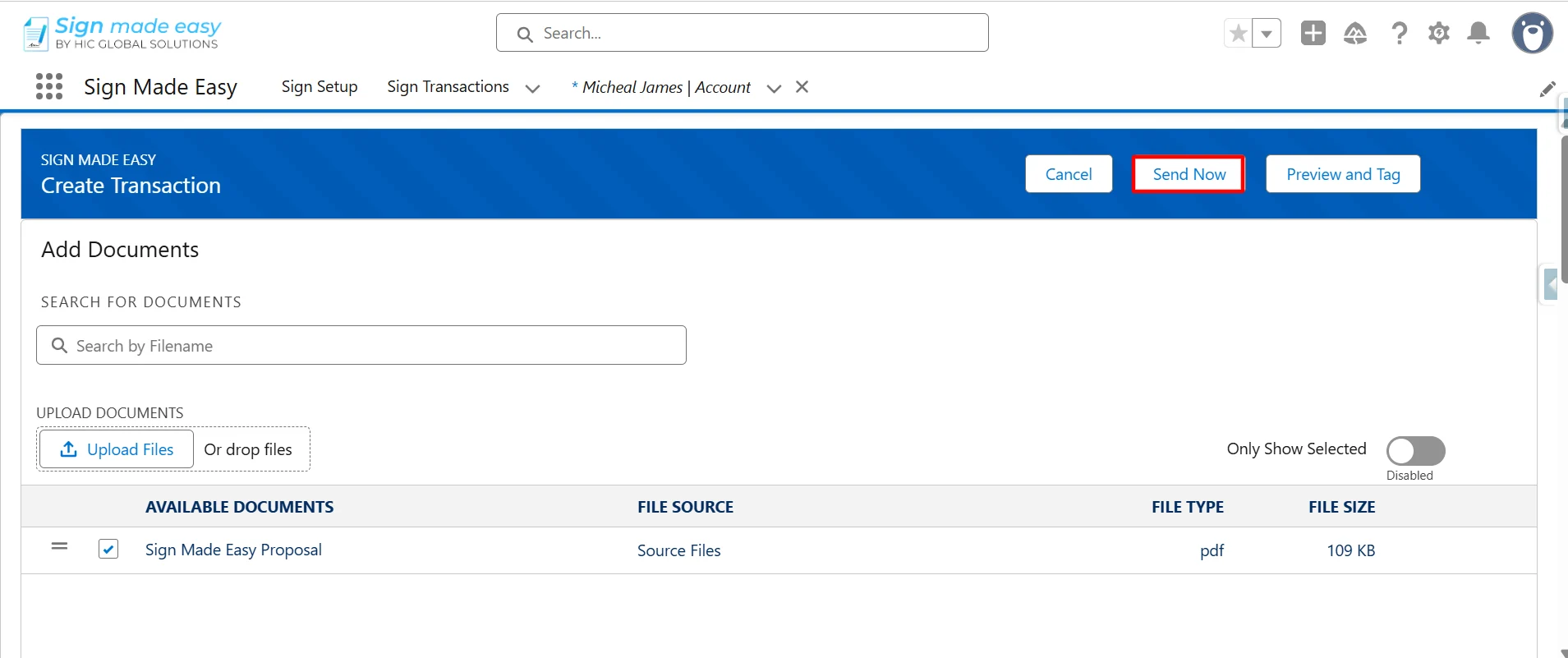
Step 6: Click on the Send Now button to directly send the email to the recipients.
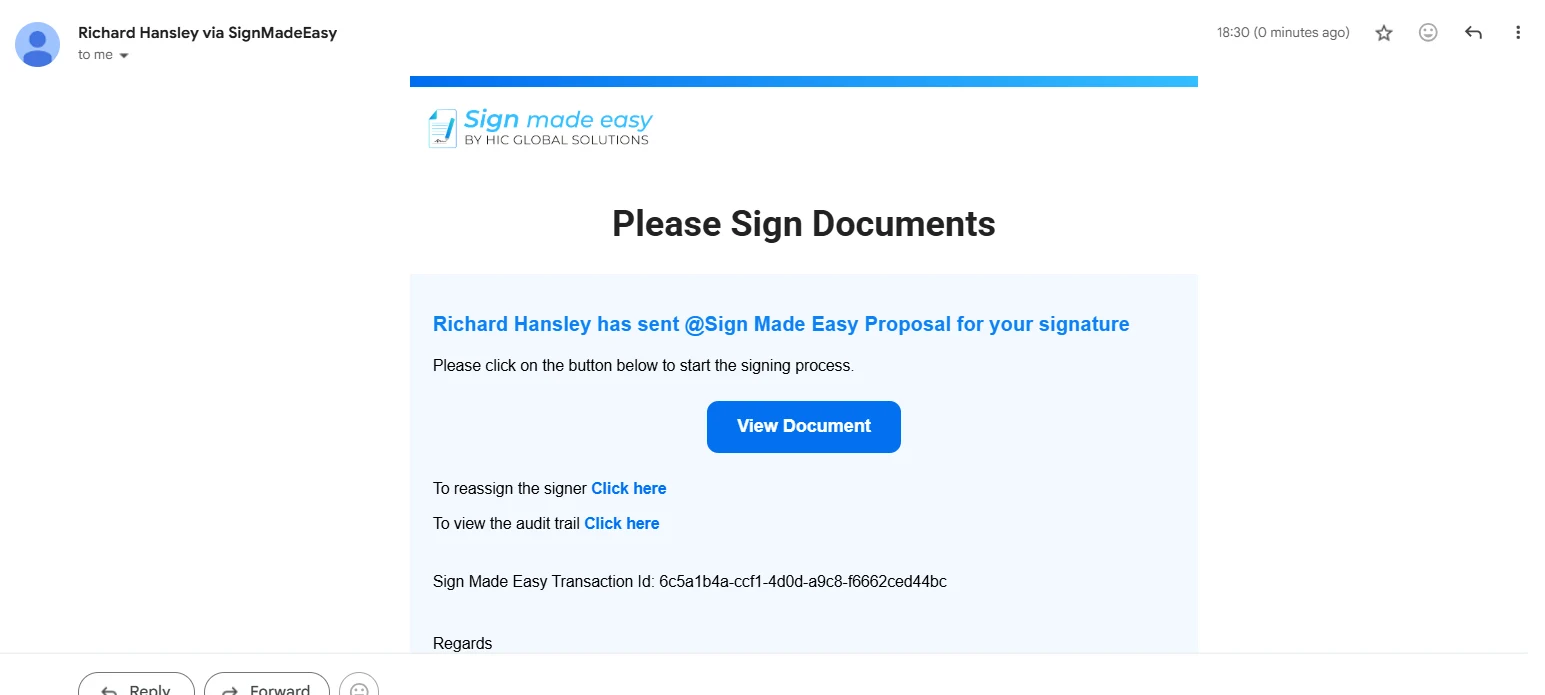
Step 7: Once the documents are sent, recipients will receive an email notification. So, then open the document.
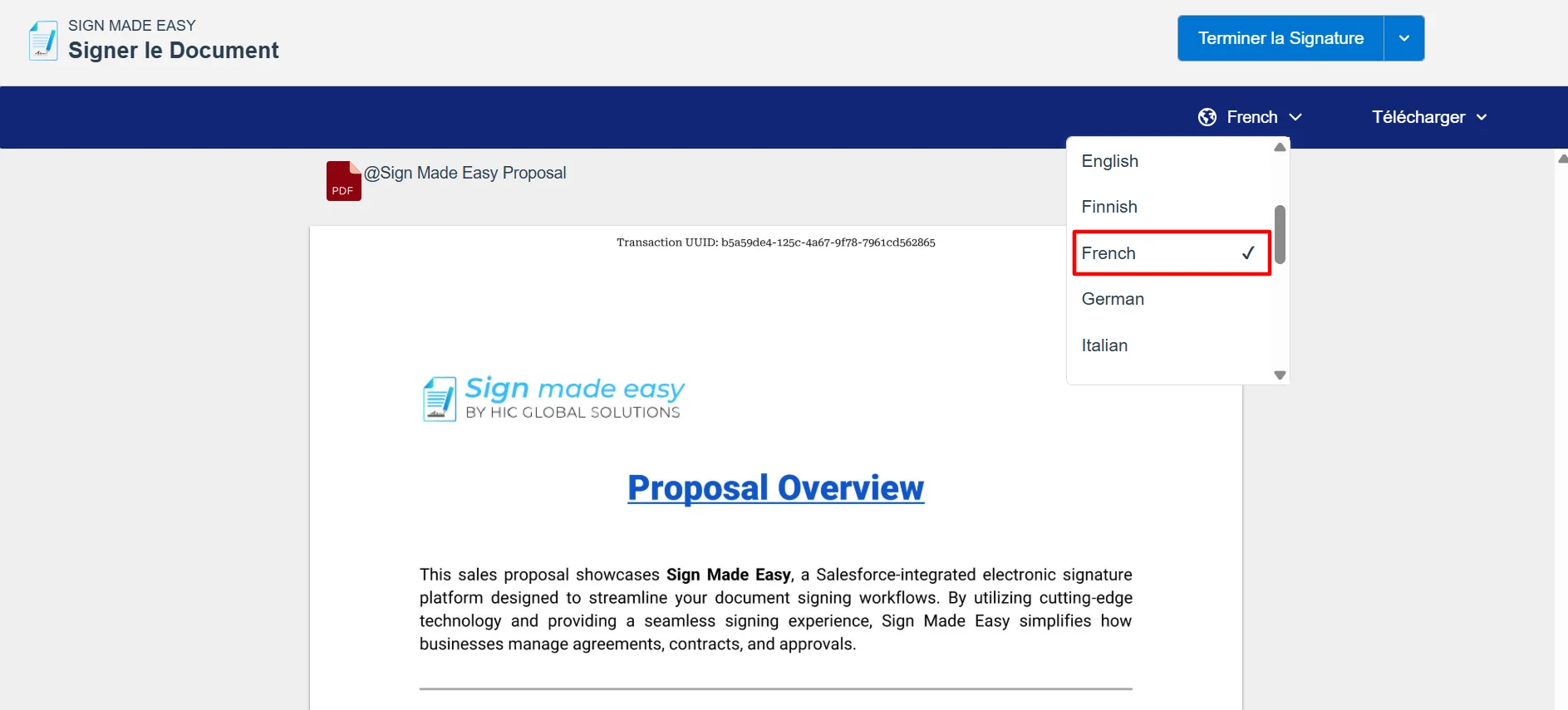
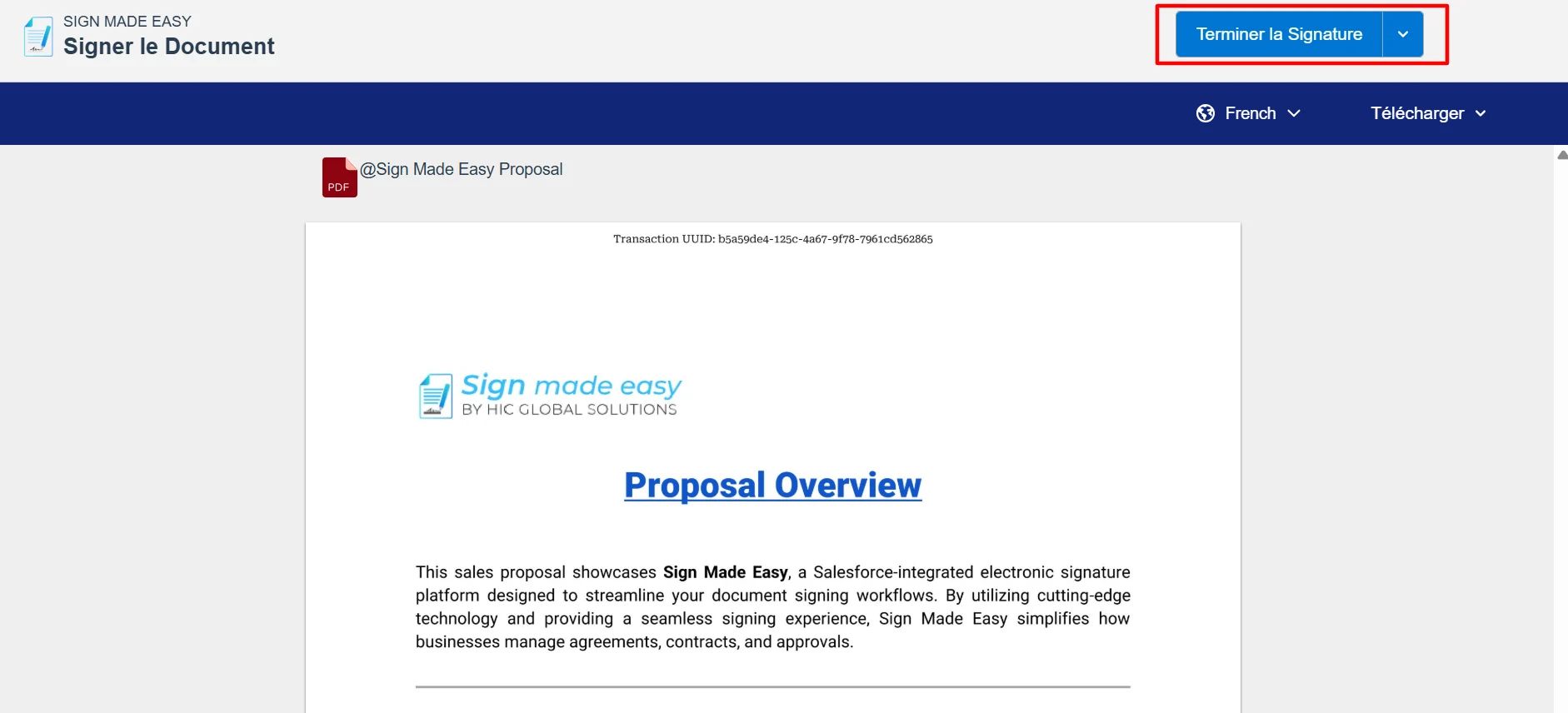
Step 8: Select French or any preferred supported language from the Language dropdown to download the Audit Trail in your desired language.
Step 9: Click on the Complete Signature button to successfully complete the e-signature process.
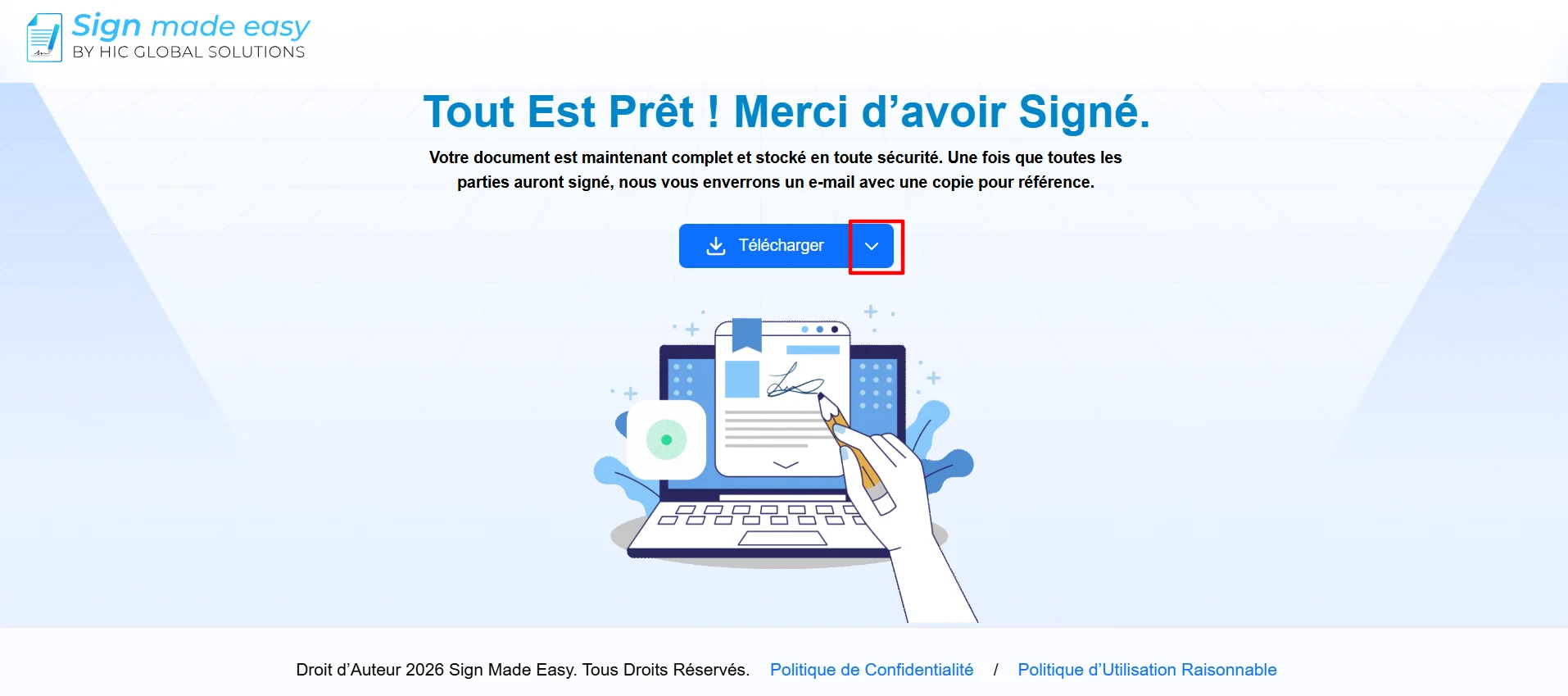
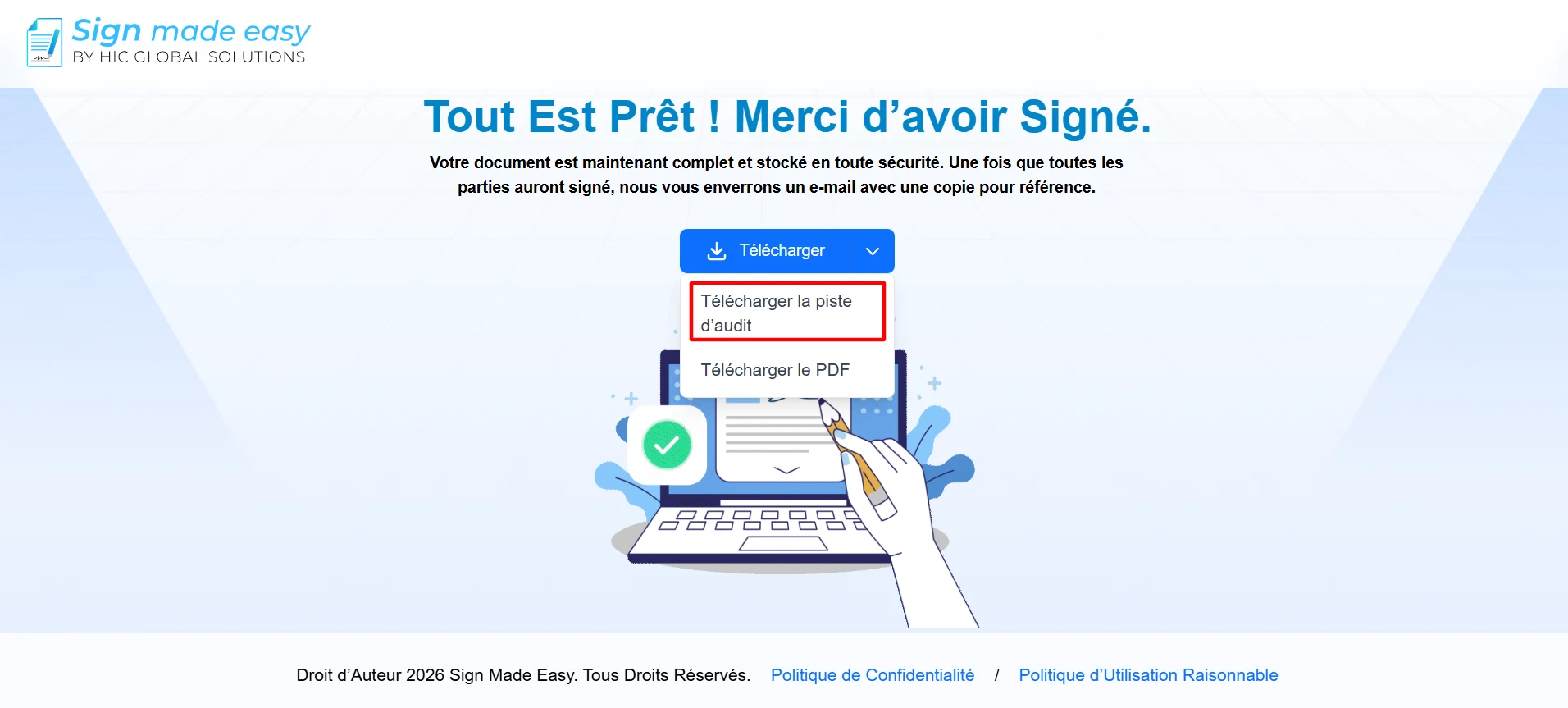
Step 10: Click on the download dropdown icon, select the Download Audit Trail option, and the Audit Trail file will be downloaded successfully.
Conclusion
That’s it! Downloading a signer audit trail in your preferred language is a simple process in Sign Made Easy. Once the document is signed, users can select their desired language and download the audit trail directly from the signing page.
This feature makes electronic signature audit trail records easier to understand, improves accessibility for global users, and helps organizations maintain clear and compliant signing documentation across different languages.